
To manually create an item for one of your vendors – follow these steps:
1. Go to Home > Item
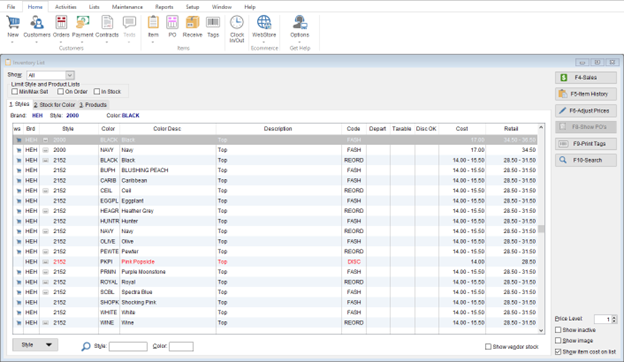
2. Select the brand (e.g., MCV – Manually Created Vendor)
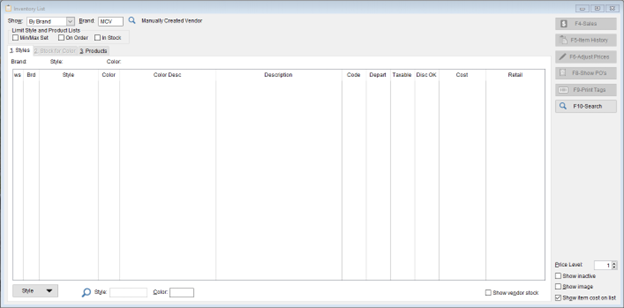
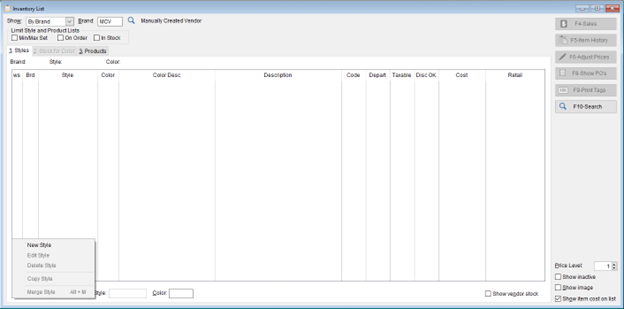
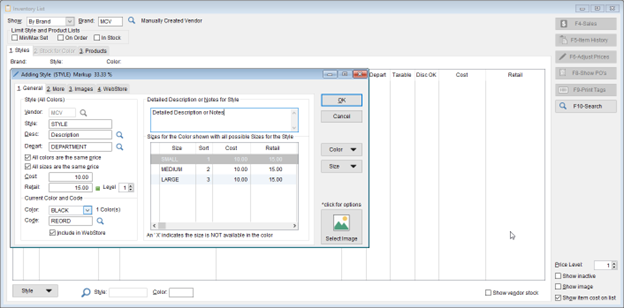
3. Click Style > New Style
4. Fill in item details: Vendor, Style, Descriptions, Cost, Retail, Colors, Sizes
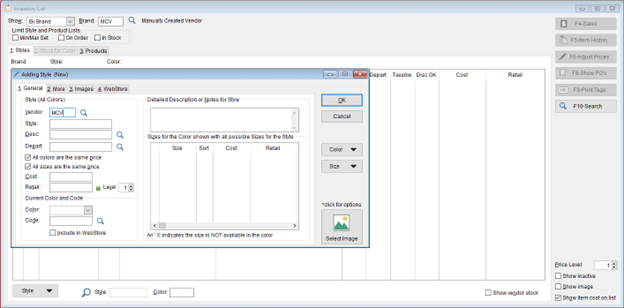
- Note: For fields such as Codes, Colors, Departments, Descriptions, and Sizes – it will ask you to include any unique entered field in the Inventory Standards list.
- This list is used to standardize item information in the inventory list to ensure consistency in these fields. This helps maintain accurate sales reporting and a more organized Inventory List.
- Example for Color:


5. Click OK to save
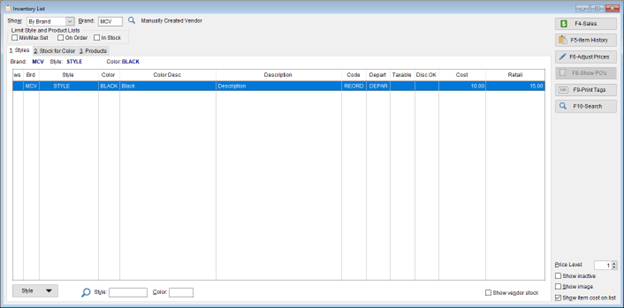
6. Verify the information for the item that was added.
📌 Need more help? Visit our Training & Onboarding site, explore the Knowledgebase, or submit a ticket.