📘 WebStore Configuration -Menus
The Menus section in the POS system is used to configure and manage the menus displayed on your WebStore. Menus play a critical role in organizing the navigation of your WebStore, helping users access different content or sub-menus with ease.
To manage your menu tabs, you will navigate to your WebStore configuration and select the menus tab. You can do this by selecting the setup tab < WebStore < Double click into the active configuration < select the menus tab. 
🗂️ Menus and Menu Items
The Menus section displays a tree diagram representing the full structure of your WebStore menus.
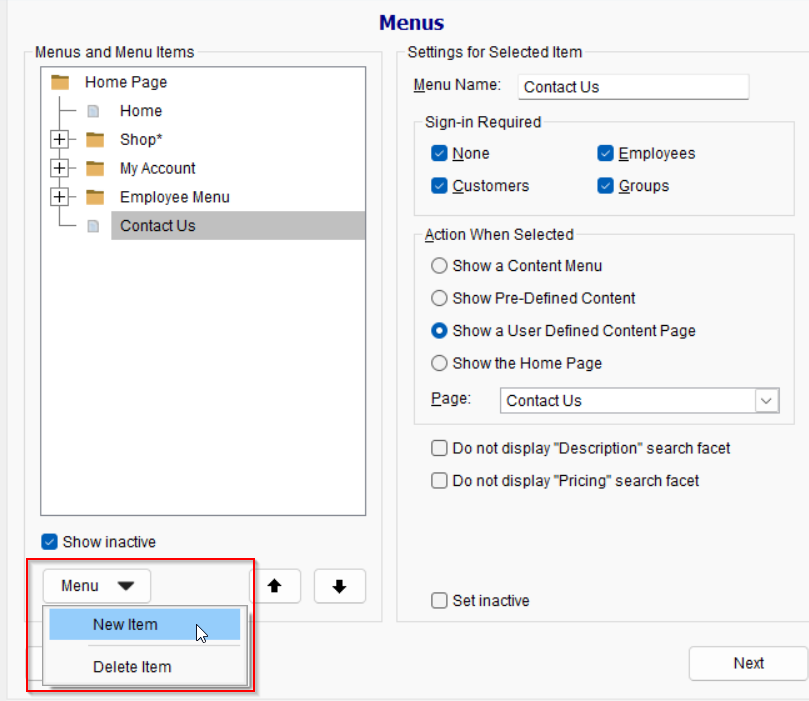
- You can create a new menu by selecting the menu button < new menu
- You can edit the name of the menu
- You can determine who sees the menu tab
- None – Anybody who comes to your site can see this menu tab
- Customers – You have to be logged into a WebStore account
- Employees – You have to be logged in with a TUS user account (this can be setup in the user settings)
- Groups – You have to be logged into a contract
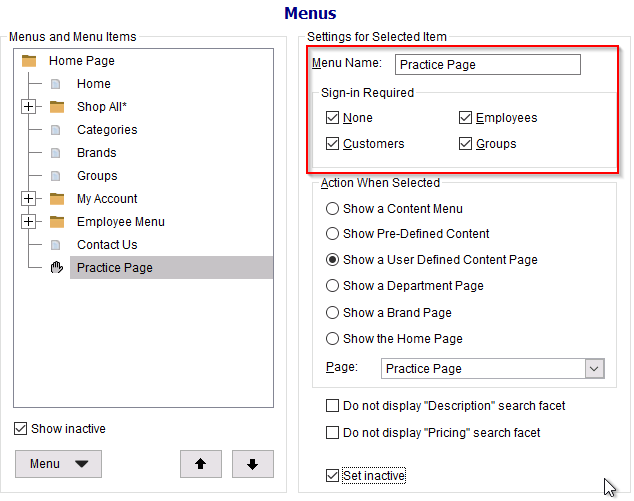
- You can edit the name of the menu
Configure the behavior when a menu item is clicked by assigning the menu with one of the options below:
-
Show a Content Menu
Displays a sub-menu (drop down menu) under the selected item. You can assign the below options to the sub menus. -
Show Pre-Defined Content
Displays a predefined content block selected from a drop-down list. -
Show a User Defined Content Page
Displays a list of your created content pages to assign. This will redirect the customer to the selected content page. - Show a Department Page
Displays a list of departments you made available for the WebStore. This will redirect the customer to the product page for all item assigned to the selected department. - Show a Brand Page
Displays a list of brands you made available for the WebStore. This will redirect the customer to the product page for all item assigned to the selected brand.
-
Show the Home Page
Navigates users to the WebStore’s Home Page when selected.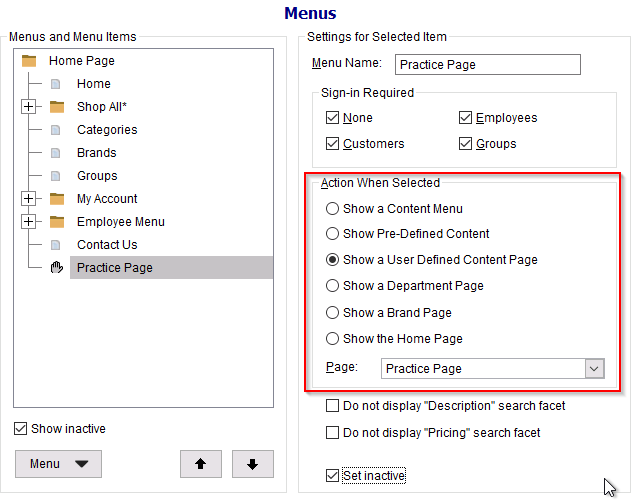
🚫 Set Inactive
-
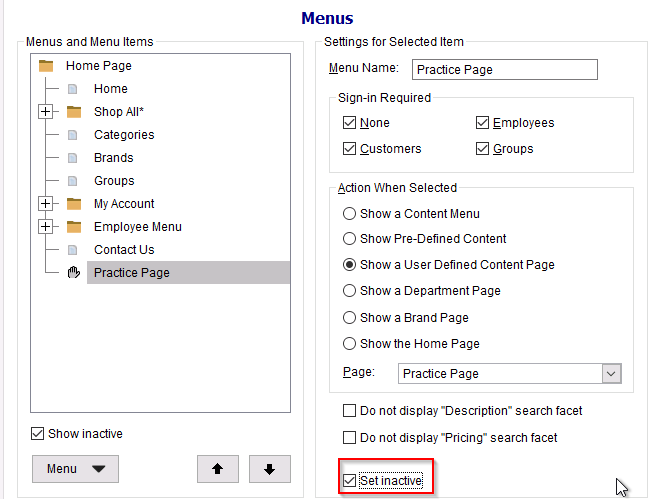
You can set a menu item to inactive by and hides the menu item from the WebStore without permanently deleting it.