
Diamond Data Systems is not affiliated with DriveHQ in any way. This is a step by step document on how to sign up for FTP services through DriveHQ, a common solution our customers use for their FTP batch needs.
-
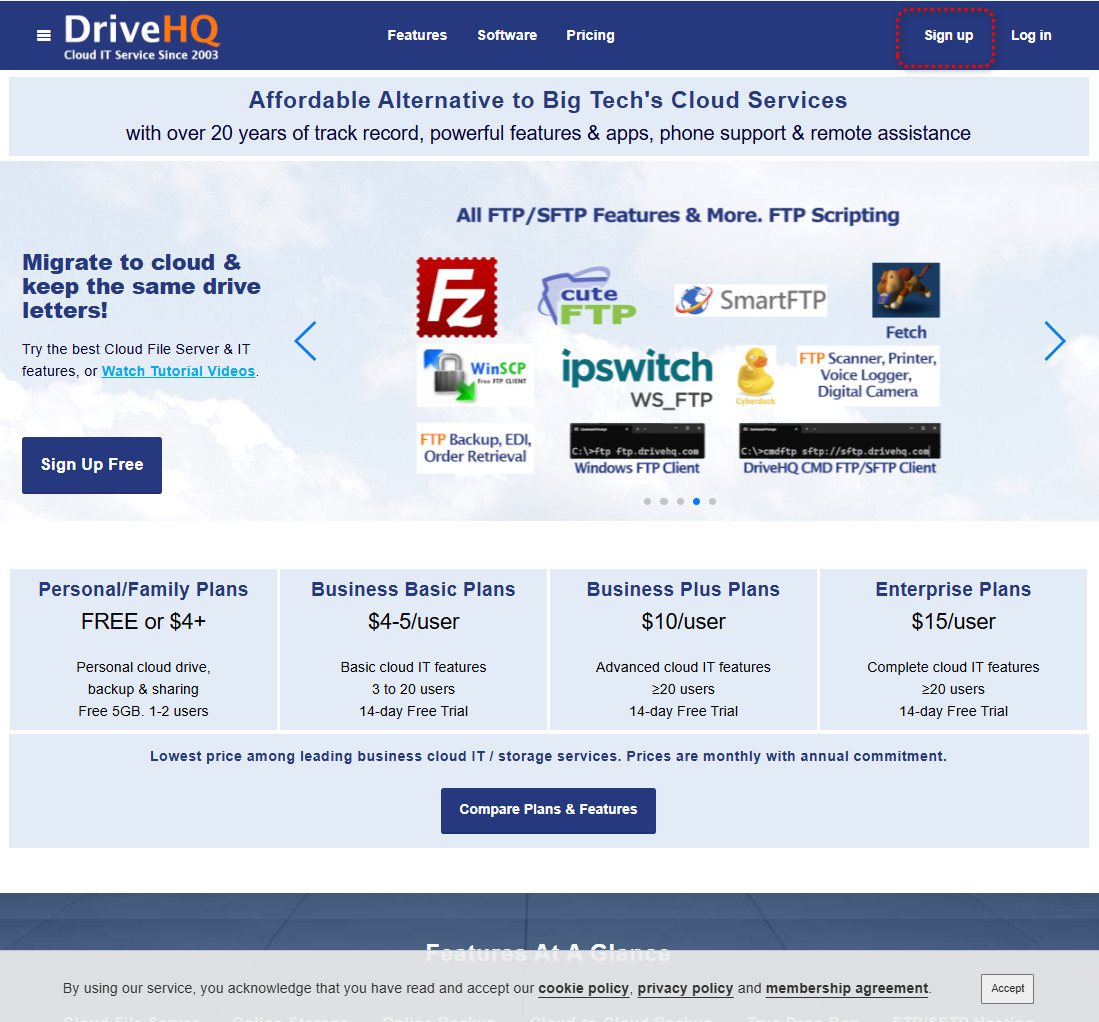
In your internet browser, navigate to https://www.drivehq.com
-
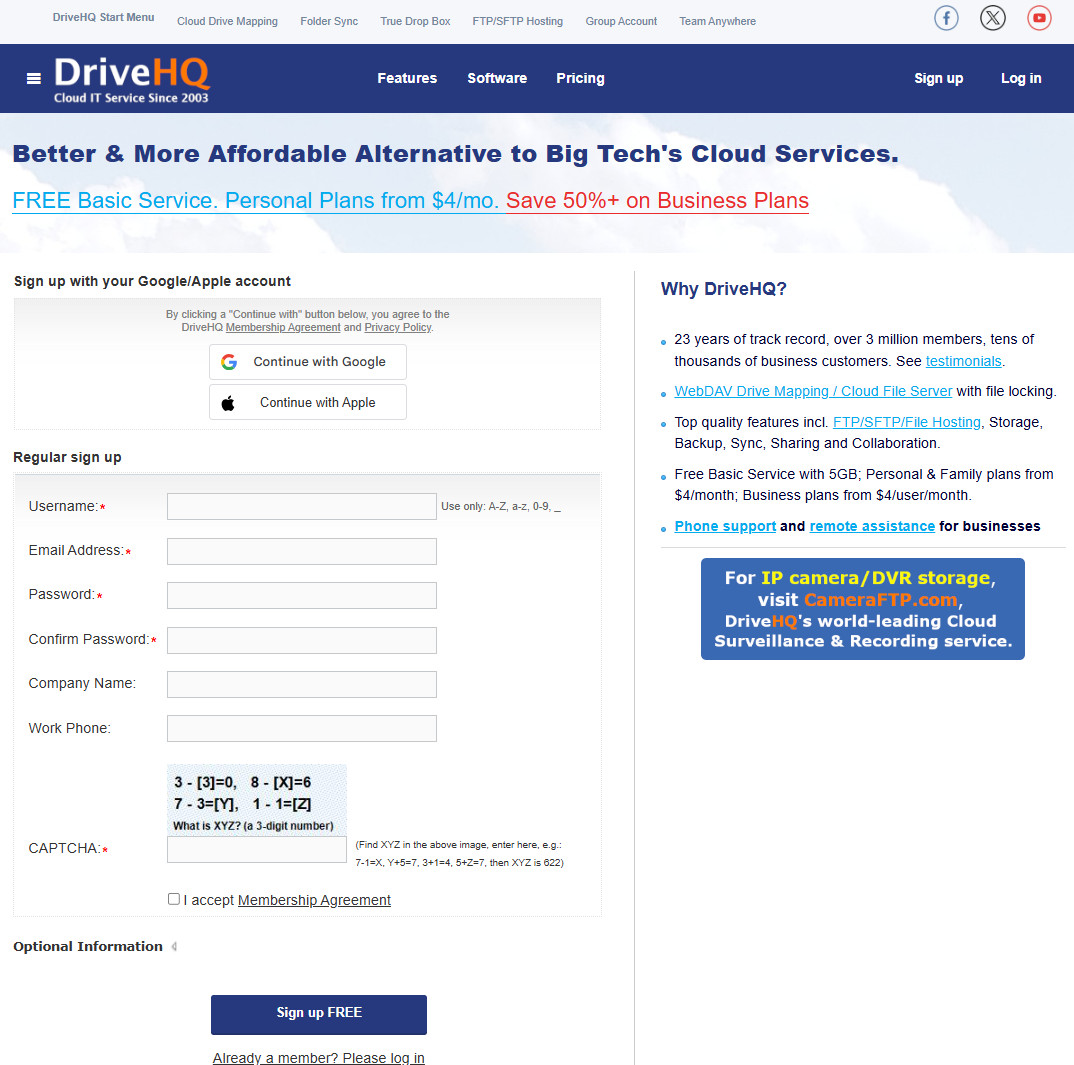
From the top right, select “SIGN UP”, and fill in the pertinent information.
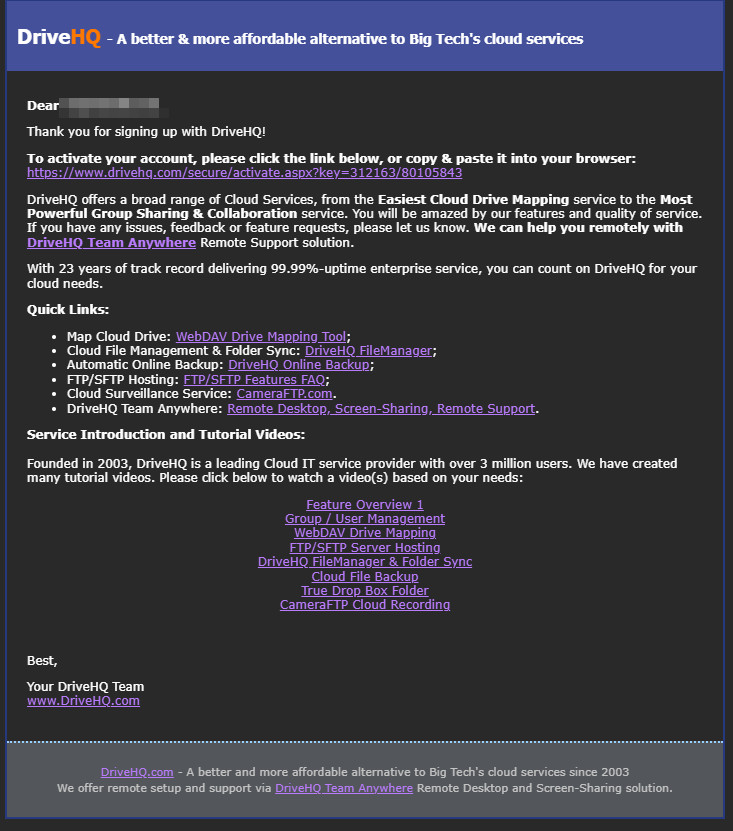
- DriveHQ will then send an email to the email address you used to sign up. Click on the activation link they send to finalize your account setup.
Sign up for FTP Service
- Log in to your DriveHQ account once it has been activated.
- Click your username in the top-right corner.
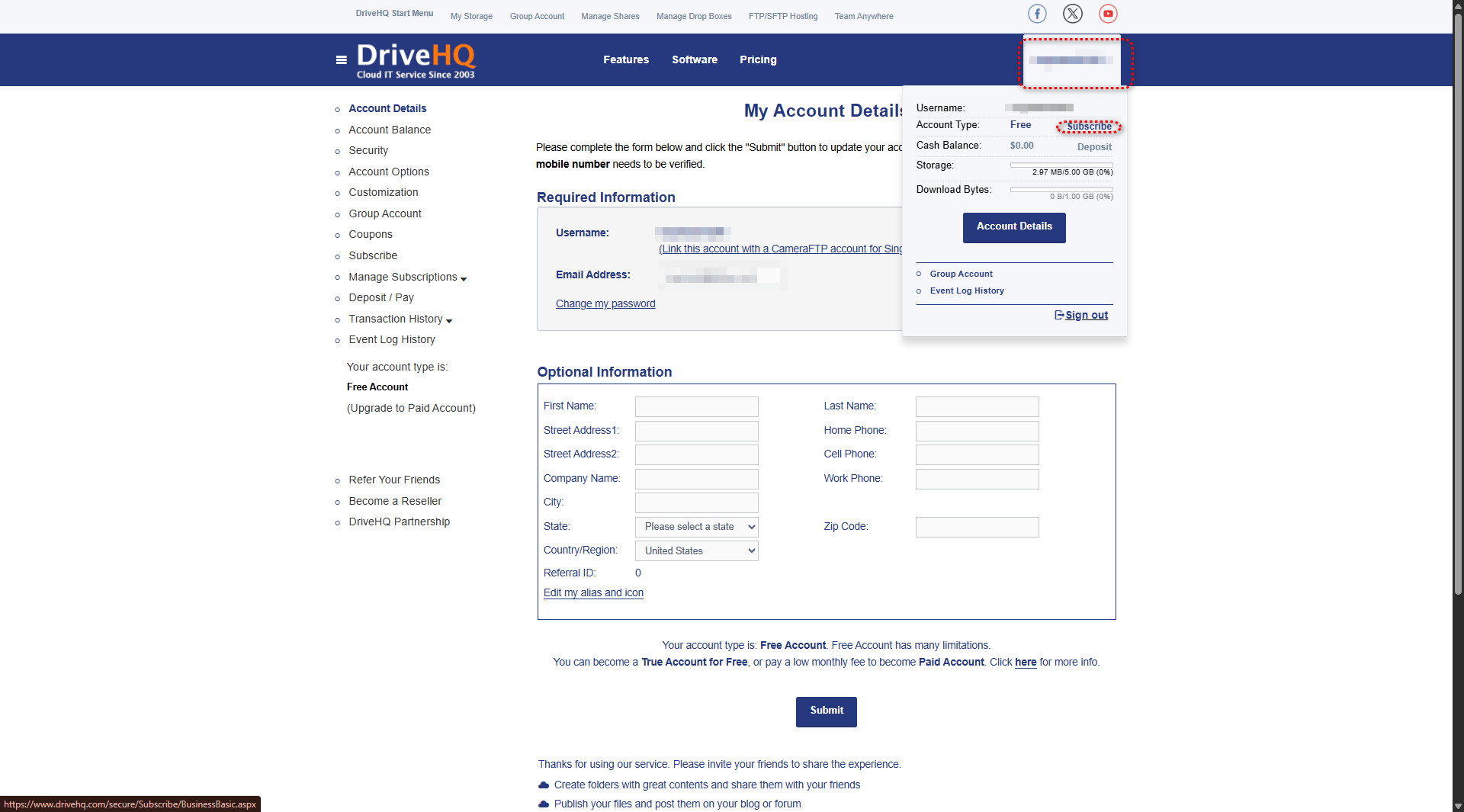
- You will be redirected to the Compare Cloud IT Plans | DTA Plans page.
- Select the Personal tab.
- This plan type is sufficient for use with The Uniform Solution.
- Choose a paid plan (recommended: Annual billing).
- ⚠️ Important: The free plan will NOT work with The Uniform Solution.
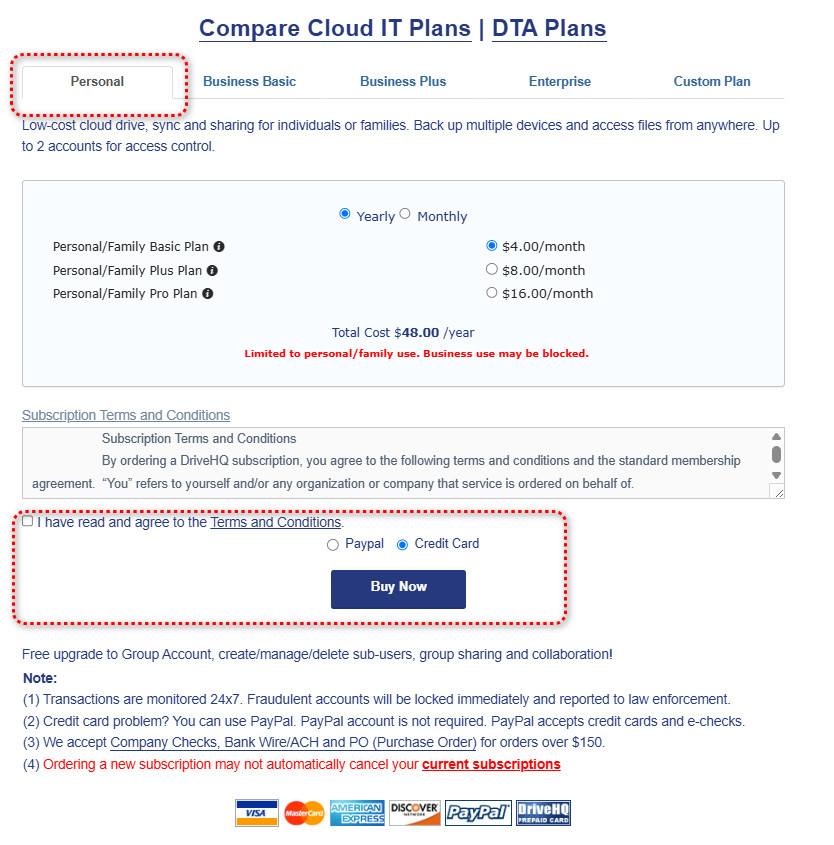
- ⚠️ Important: The free plan will NOT work with The Uniform Solution.
- Agree to the terms and conditions.
- Select your payment method and complete the purchase.
Setup FTP Credentials
-
In The Uniform Solution, under Setup select Multi-Location Polling.
-
From the window that pops up, navigate to the FTP Settings tab.
-
For FTP Address you will enter in the following: proftp.drivehq.com.
-
For Login Name, enter in your username or email address for your Drive HQ account.
-
Password will be whatever your DriveHQ password was set to.
