
*Before you go through this article you need to make sure you have cleaned up your purchase orders first. This will save you time going through your special orders*
Process Old Purchase Orders: Deleting and Completing POs
This article will go over how to clean up your special orders. This is referring to special orders that are years old and you are no longer expecting to receive the product for that order, or the customer has received it physically and the order was never completed in TUS.
Table of Contents
- Special Orders With Full Box
- Special Orders With A Partial Box
- Special Orders With No Box
- Writing Off Open Balances
- Click the Home tab – Orders
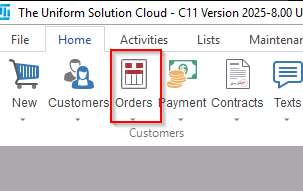
- This is showing you all of the open orders you have in TUS. There are three different types of special orders.
- Special orders with a full box. This means all items on this order is ready.
- Special orders with a half box. This means some items on this order is ready.
- Special orders with no box. This means no items on the order is ready.
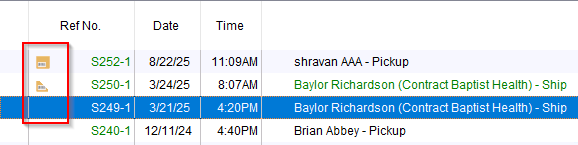
Special Orders With A Full Box
- You will highlight the special order and then hit F8-Delivery Adjust
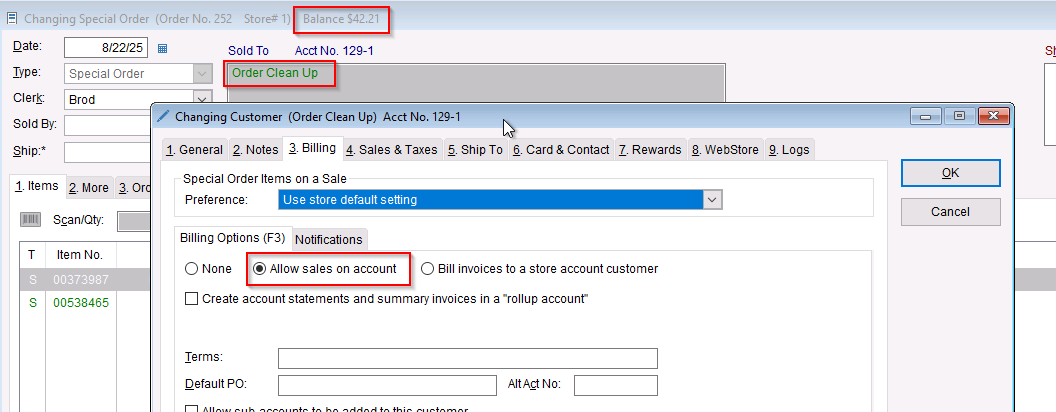
- If there is a balance on the order. Before F8-Delivery, double click into the order then create a “Clean Up” a on-account customer record and assign it to the order. Then click ok to save the special order.
- We will be doing a mass write off for all open balances.
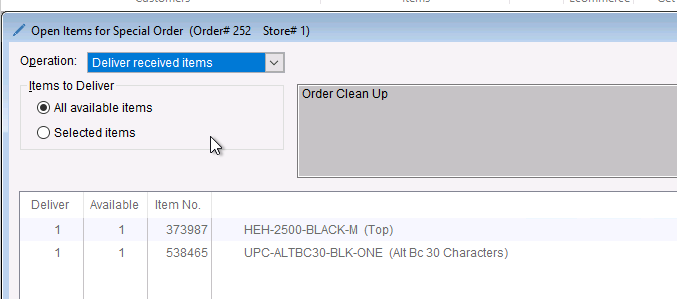
- This will bring up a screen with all ready items. You will now select ok.
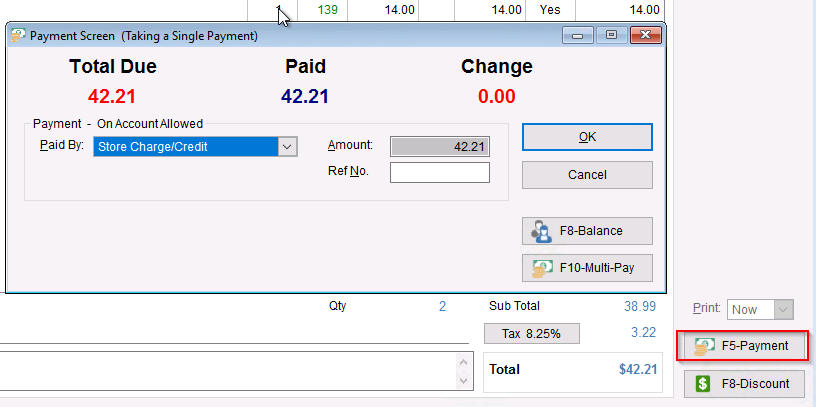
- This will bring up a new sale ticket. You will now hit F5-Payment.
- If there is a balance, you will select store charge/credit as the payment.
- If there is no balance, you will select ok and complete the sale.
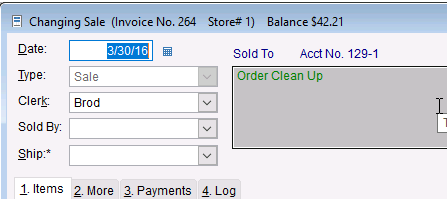
- Once the new sale ticket has been created, you will go into the new sale ticket and change the date of the invoice to either the date when the special order was created or a date before 2016. This is to ensure this does not affect any of your current reporting.
Special Orders With A Partial Box
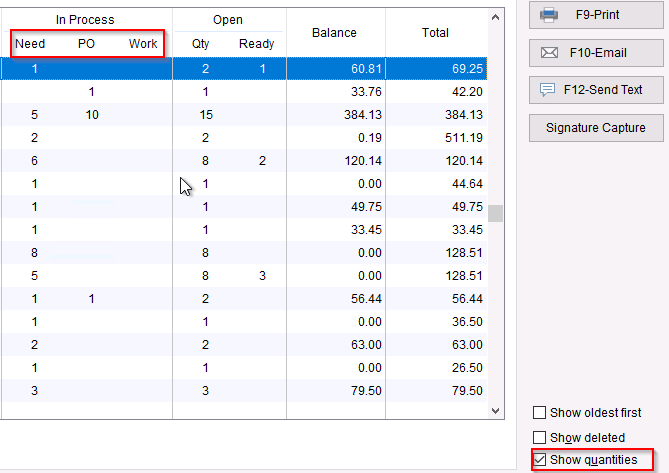
- First check the show quantities box. This will display where non ready items are.
- Need means items need to be put on a PO or pulled from stock.
- PO means the items on a purchase order.
- Work means these items have been set to have some type of work done to it like embroidery, embellishments, etc.
- If you have items in the PO process, you will need to hit the F8 delivery.
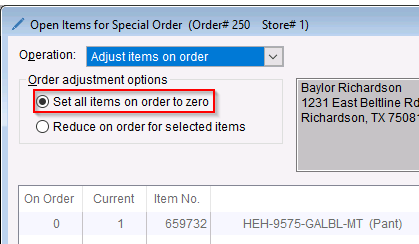
- Top left corner you will change the drop down to adjust items on order.
- You will select, set all items on order to zero and click ok.
- When you do this, you will notice the items in the PO process moved to the need process.
- When you do this, you will notice the items in the PO process moved to the need process.
- You will double click into the special order and delete all items that are not ready.
- If you have a balance, make sure to add our clean up order on account to the special order before clicking ok to save the order.
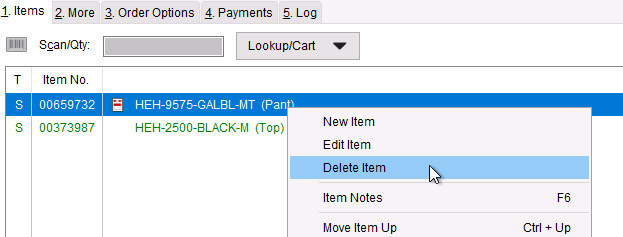
- If you have a balance, make sure to add our clean up order on account to the special order before clicking ok to save the order.
- Once the items are deleted the order will now have a full box. You will highlight the special order and then hit F8-Delivery Adjust
- If there is a balance on the order. Before F8-Delivery, double click into the order and add a on-account customer record. Then click ok to save the special order.
- This will bring up a screen with all ready items. You will now select ok.
- This will bring up a new sale ticket. You will now hit F5-Payment.
- If there is a balance, you will select store charge/credit as the payment.
- If there is no balance, you will select ok and complete the sale.
- Once the new sale ticket has been created, you will go into the new sale ticket and change the date of the invoice to either the date when the special order was created or a date before 2016. This is to ensure this does not affect any of your current reporting.
- First check the show quantities box. This will display where non ready items are.
- Need means items need to be put on a PO or pulled from stock.
- PO means the items on a purchase order.
- Work means these items have been set to have some type of work done to it like embroidery, embellishments, etc.
- If you have items in the PO process, you will need to hit the F8 delivery.
- Top left corner you will change the drop down to adjust items on order.
- You will select, set all items on order to zero and click ok.
- When you do this, you will notice the items in the PO process moved to the need process.
- Double click into the special order. Look for a payments tab.
- If there is no payment tab you can exit out the order and right click to delete the order
- If there is a payments tab, then you will need add in your “clean up order” on account and proceed to right click to delete the items.
- Once done select ok to save the order.
- The order will be automatically disappear from your open order list.
- You will go to the Payment Tab – New Payment
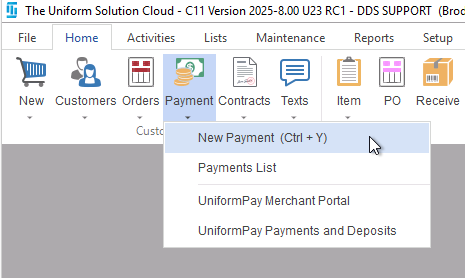
- Search up the “clean up” on account and hit tab.
- Select all items option.
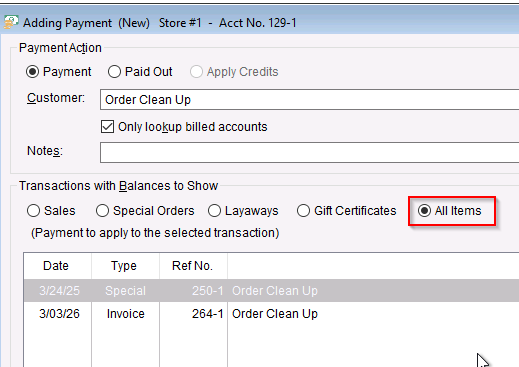
- Look towards the bottom right and you will see a total amount.
- You will enter that amount in the payment field and change the date to something before 2016.
- Select write off as your payment method
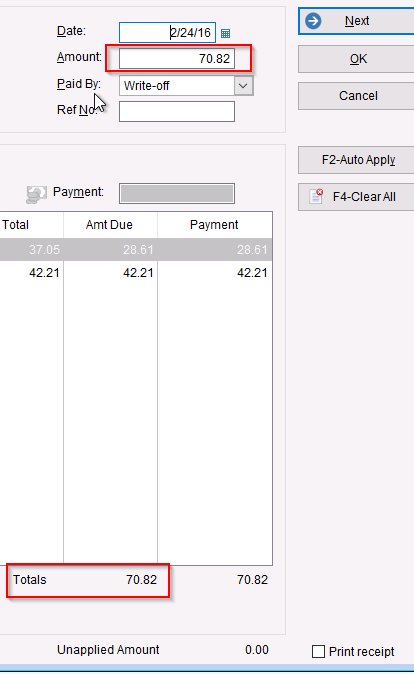
- Click ok to complete the payment.