
This article explains how to set up a Non‑Integrated Payment Method. This payment method is used only when merchants need to recreate sales and payments that were already processed externally (for example, when the system was down and payments were taken outside of the POS).
⚠️ Important: Non‑Integrated payment methods do not process or charge cards. They are used strictly for recordkeeping and reconciliation.
When to Use a Non‑Integrated Payment Method
Use this payment method when:
- The system was unavailable or crashed
- Payments were processed outside the POS
- Sales and payments must be recreated in the system for reporting accuracy
Step 1: Create a New Payment Method
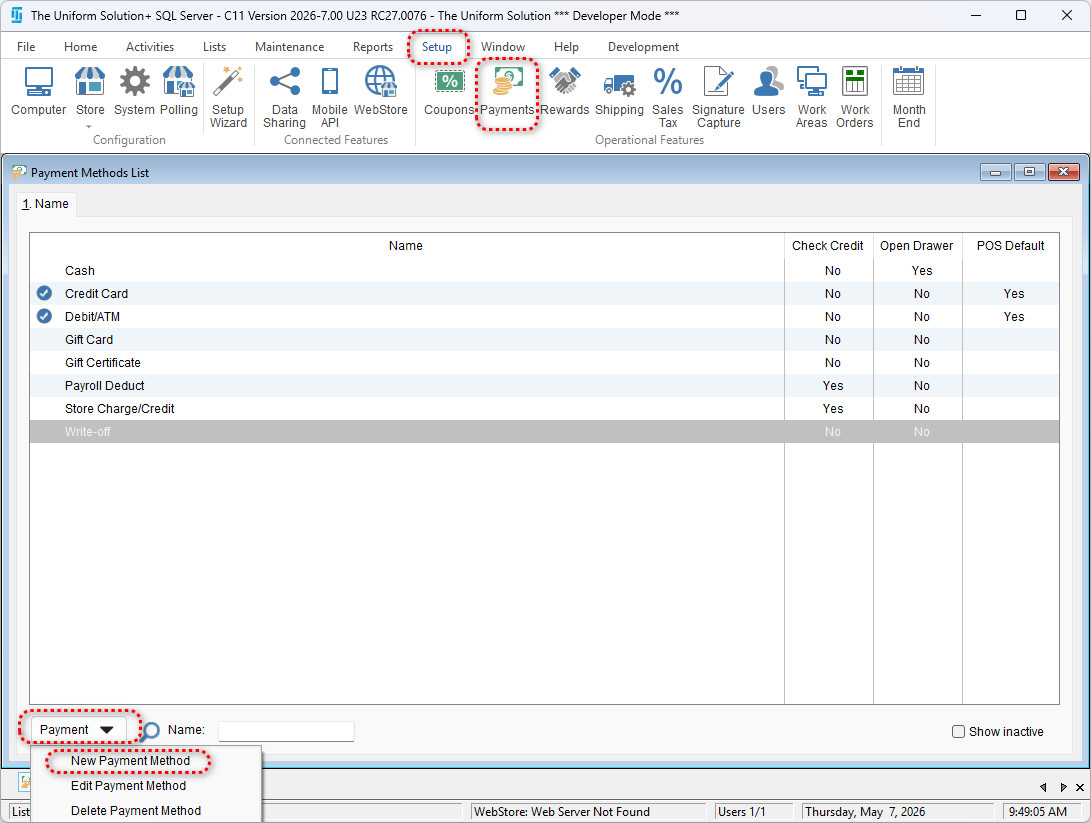
- Navigate to Setup > Payments
- On bottom left of screen – select “Payment”
- Select “New Payment Method”
You will now see the Adding Payment Method (Non‑Integrated) screen.
Step 2: General Tab Configuration
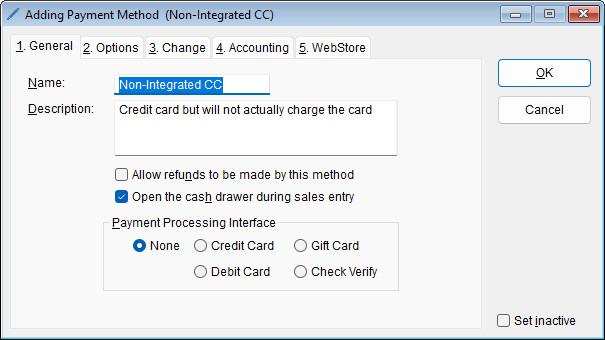
On the General tab, configure the following:
Required Fields
- Name
Example:
Non-Integrated CC - Description
Example:
Credit card but will not actually charge the card
Recommended Settings
- ✅ Do NOT select “Allow refunds to be made by this method”
- ✅ Ensure Payment Processing Interface is set to:
- None
This confirms the payment method does not attempt to communicate with any processor.
Click OK or continue to the next tabs.
Step 3: Options Tab Settings
On the Options tab:
Reference Number
- Select Not required
POS Usage
- Leave Do not allow this payment method at the point‑of‑sale unchecked
- This allows the payment method to be used during recreated sales.
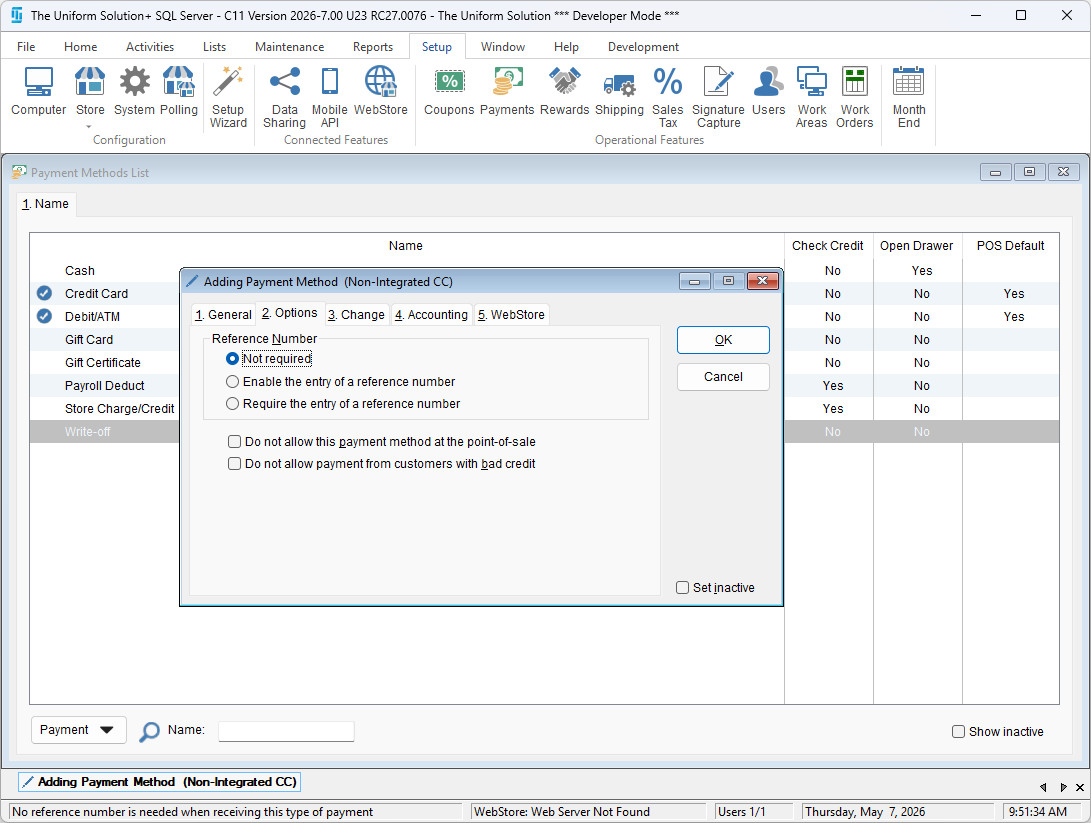
✅ These settings ensure speed and flexibility during recovery scenarios.
Step 4: Change Tab Settings
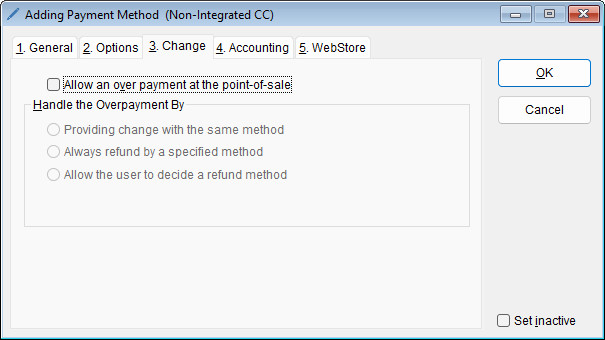
On the Change tab:
- ❌ Do NOT check “Allow an over payment at the point‑of‑sale”
All overpayment handling options should remain disabled.
This prevents incorrect cash or refund balances when reconstructing transactions.
Step 5: Accounting Tab Settings
On the Accounting tab, configure:
Special Payment Type
- Select None
Report Group
- Select Credit Card
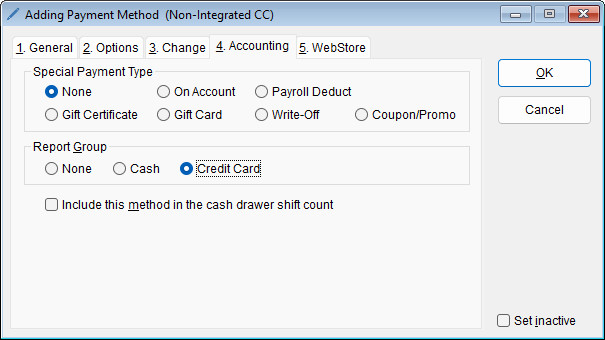
Assigning the Credit Card report group ensures recreated payments appear correctly in financial and reconciliation reports without affecting actual processing totals.
Step 6: Save the Payment Method
- Review all settings for accuracy
- Click OK to save the payment method
✅ The Non‑Integrated Payment Method is now ready for use.
How to Use This Payment Method During Recovery
When recreating a sale:
- Re‑enter the original sale details
- Select the Non‑Integrated Payment Method
- Enter the exact payment amount already collected externally
- Complete the sale
This ensures reports, sales totals, and payment records match what occurred during the outage—without double charging customers.
Best Practices & Warnings
- 🔒 Never use this payment method for live transactions
- 🧾 Use only when payment has already been collected
- 🗂 Clearly name the payment method to avoid cashier confusion
- ✅ Disable or restrict this method once recovery is complete, if necessary
Summary
A Non‑Integrated Payment Method allows merchants to accurately reconstruct sales and payments after a system outage without triggering real payment processing. Proper setup ensures clean reporting, correct totals, and no duplicate charges.