
Overview
The Pay Open Balances Online feature allows customers to securely pay outstanding balances directly through the WebStore. Customers can also save a payment method for future transactions, making it easier to manage and pay open invoices online.
Requirements
To use this feature:
- You must have an active WebStore account.
- The account must have an outstanding balance.
- You must be signed in to the WebStore.
Paying an Open Balance
Step 1: Locate Your Open Balances
- Sign in to the WebStore.
- Navigate to My Sales > Open Balances.
- Select Pay Now next to the order with an outstanding balance.
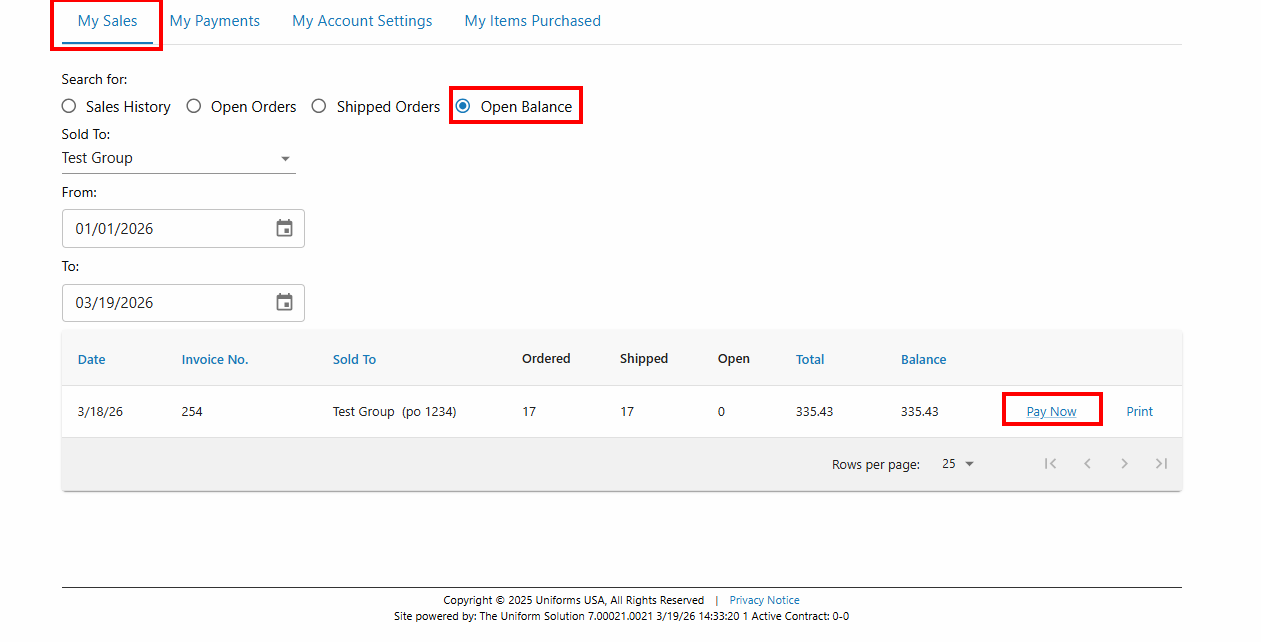
Note: The Open Balance view is simply a filter. The Pay Now option will appear for any order that still has a remaining balance, regardless of which sales filter you are viewing.
Step 2: Submit Your Payment
You can:
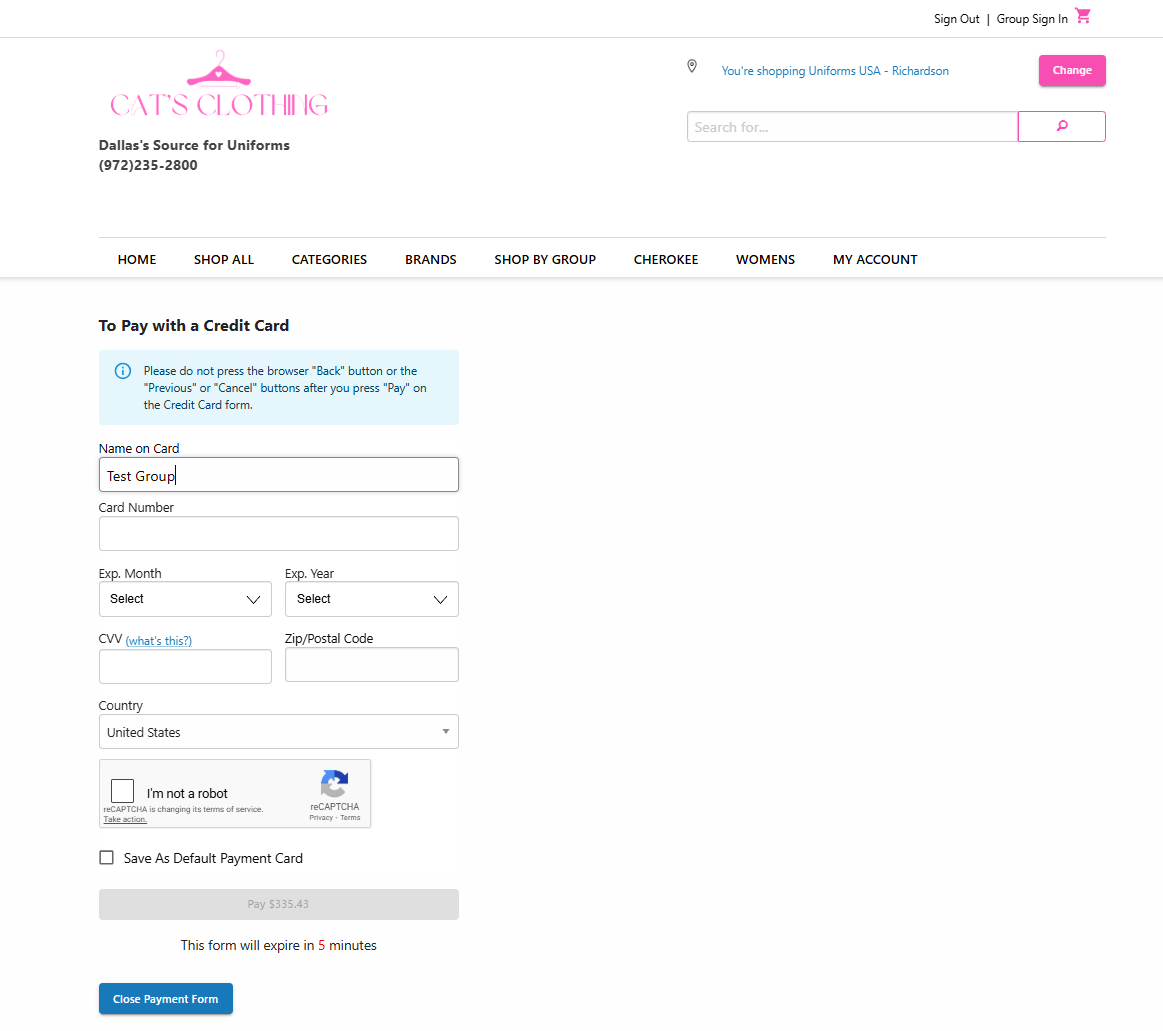
- Enter a new credit card.
- Use a saved credit card already stored on your account.
If entering a new card, you can select Save As Default Payment Card to save the card for future use. This will overwrite any existing saved card.
Step 3: Review Payment History
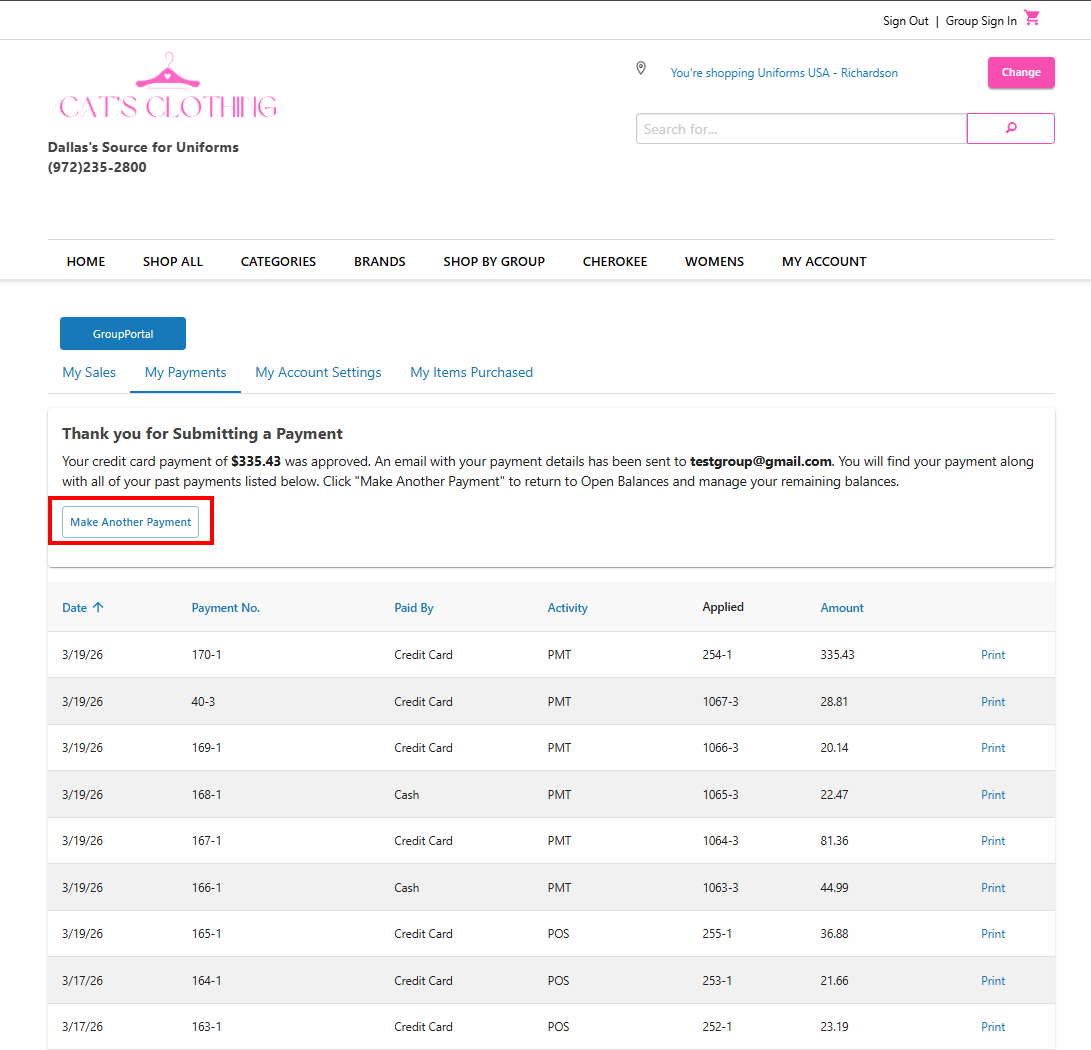
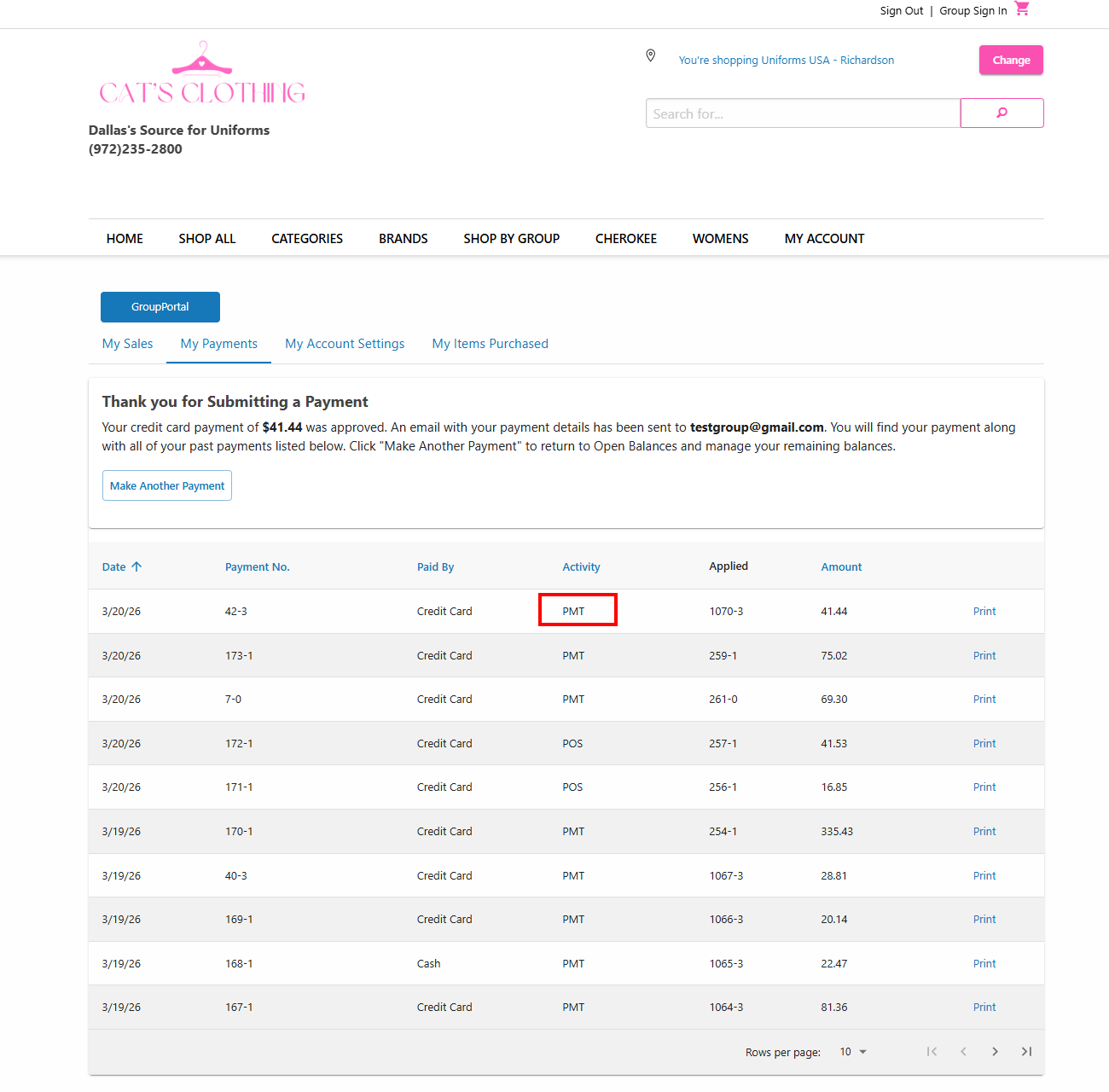
After submitting a payment, you can:
- View recent payments.
- Print payment records.
- Make additional payments if balances remain.
Using a Saved Card During Checkout
When checking out, you can choose between:
- Pay with a saved credit card already associated with your account.
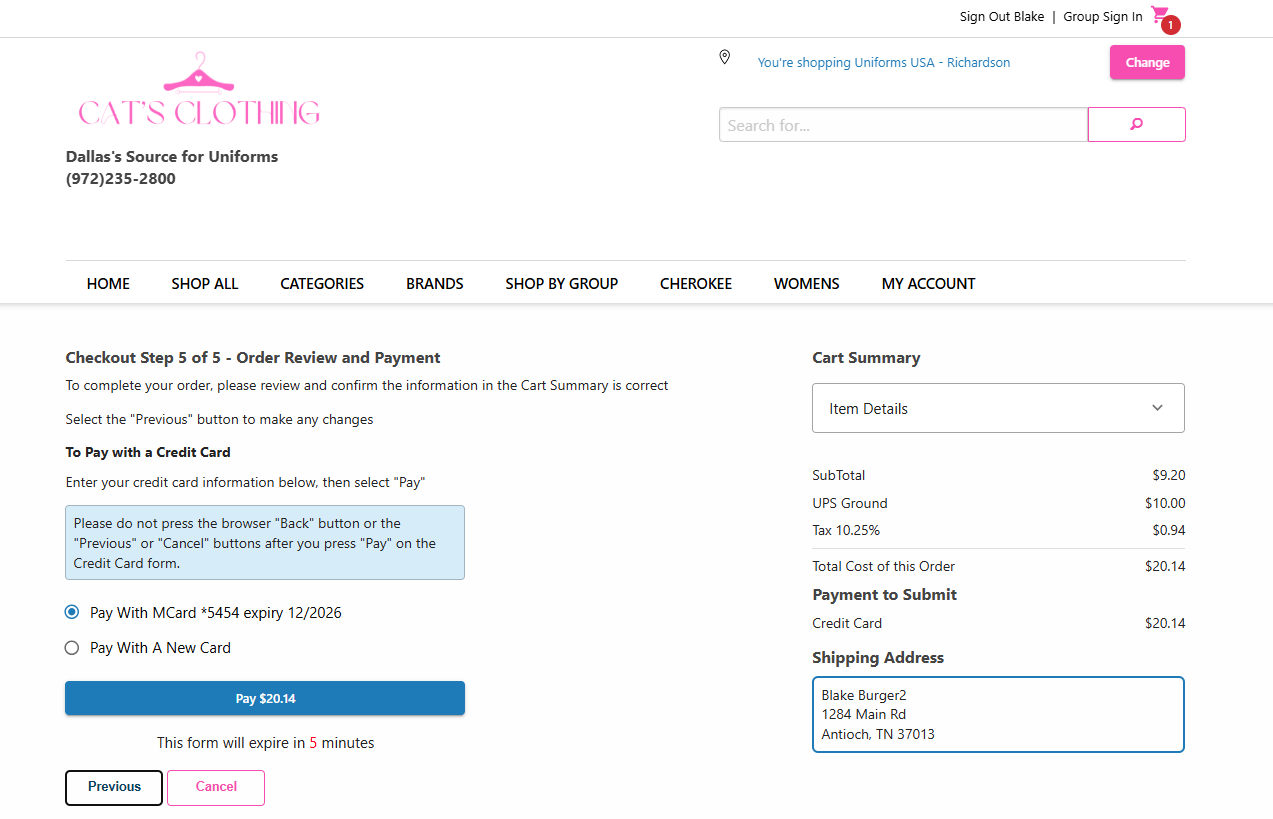
- Pay with a new credit card and optionally save it as your default payment method.
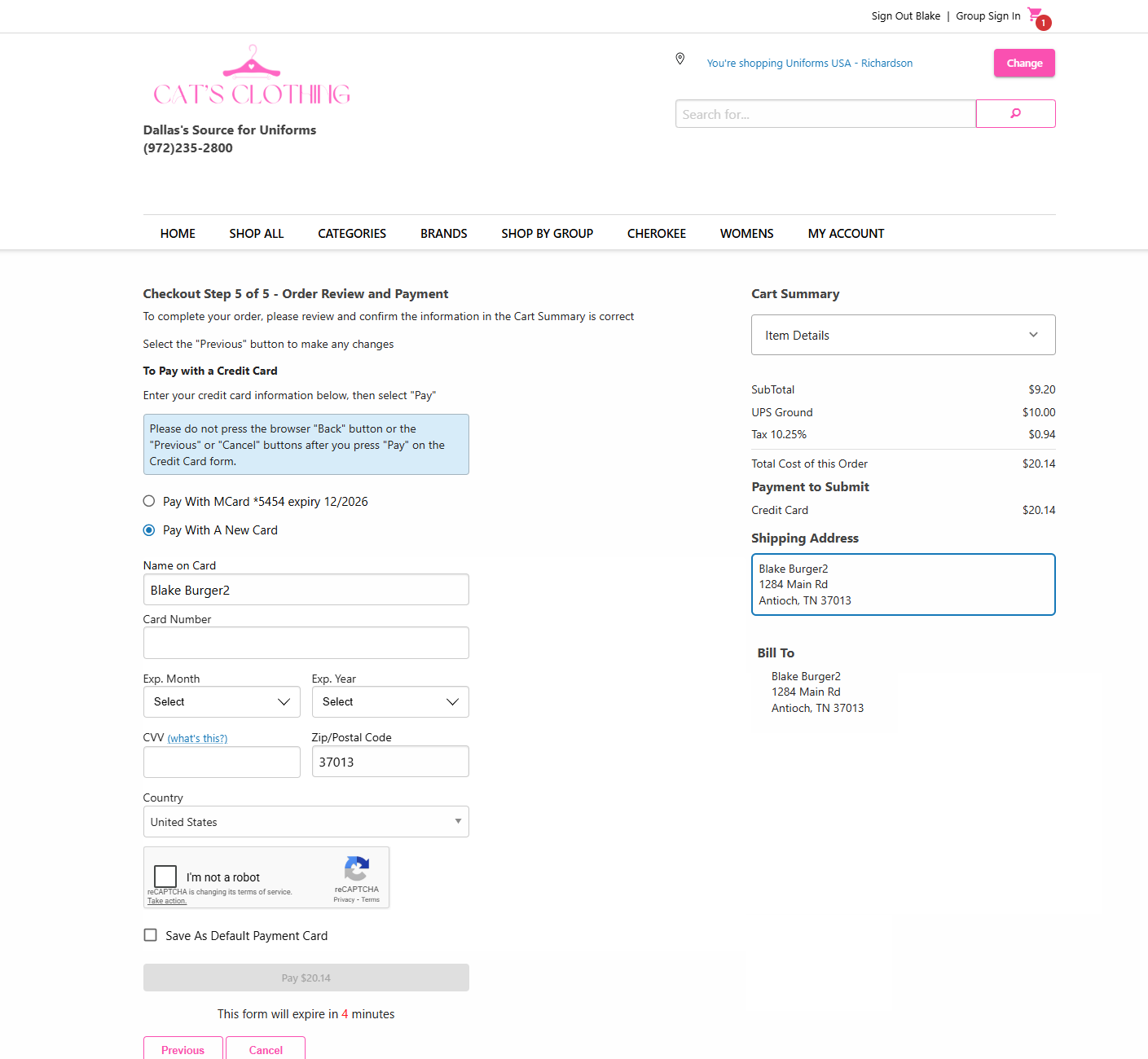
Once an online payment is submitted, it can be identified throughout the system using dedicated payment types and reporting updates.
WebStore Payment Activity
When a customer pays an open balance through the WebStore, the payment activity type will appear as PMT within WebStore transaction history.
POS Payment Activity
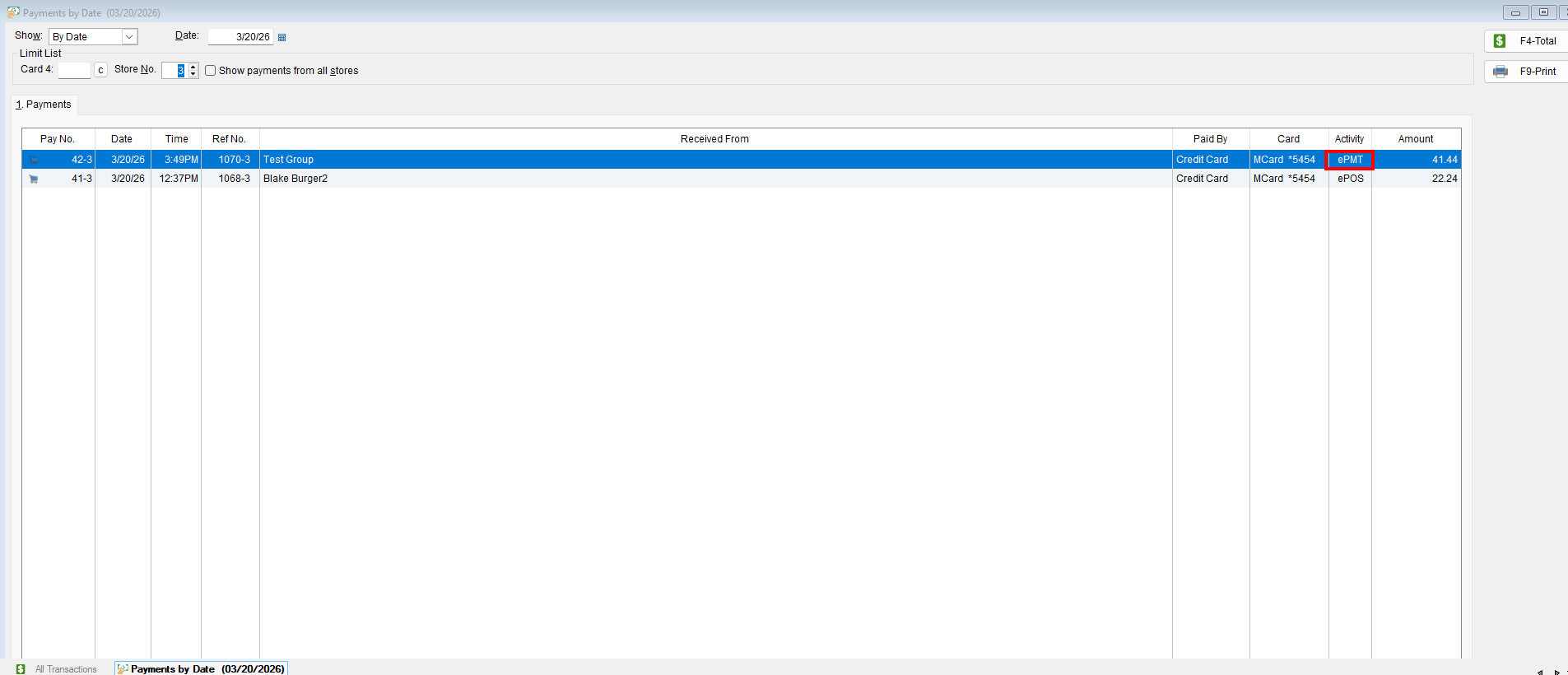
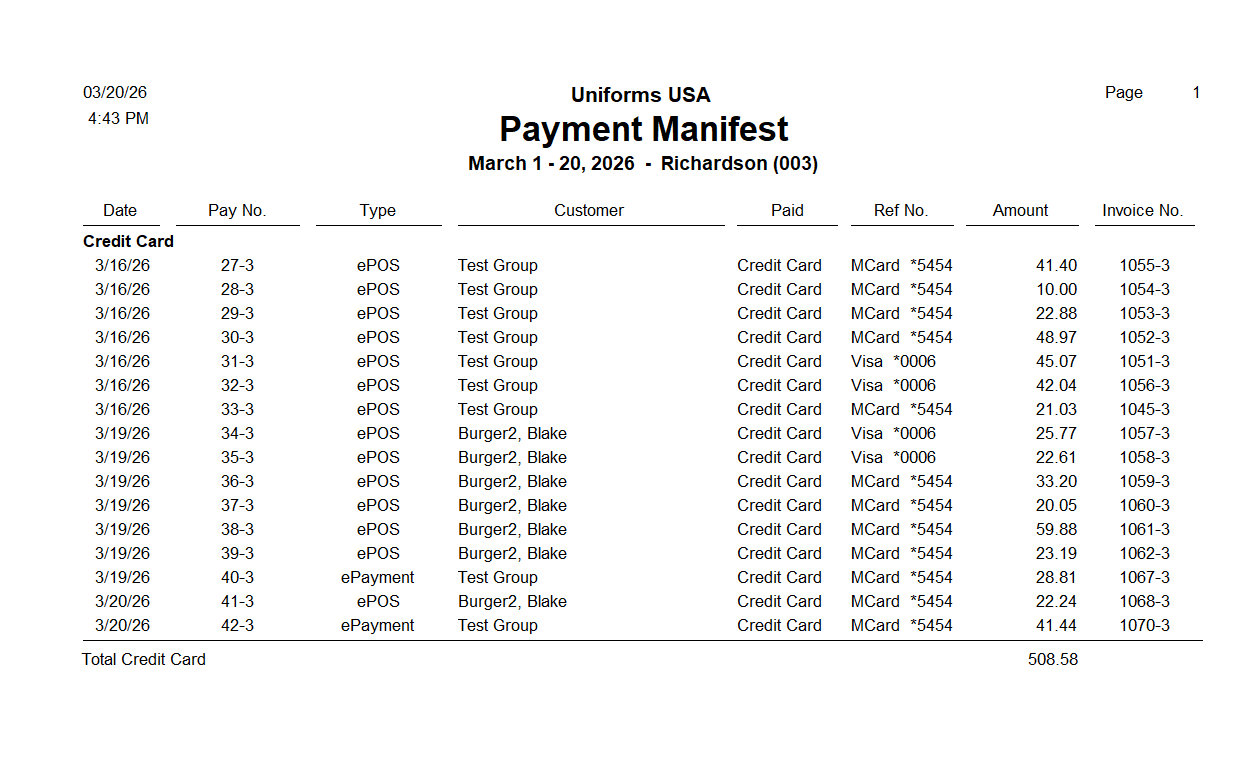
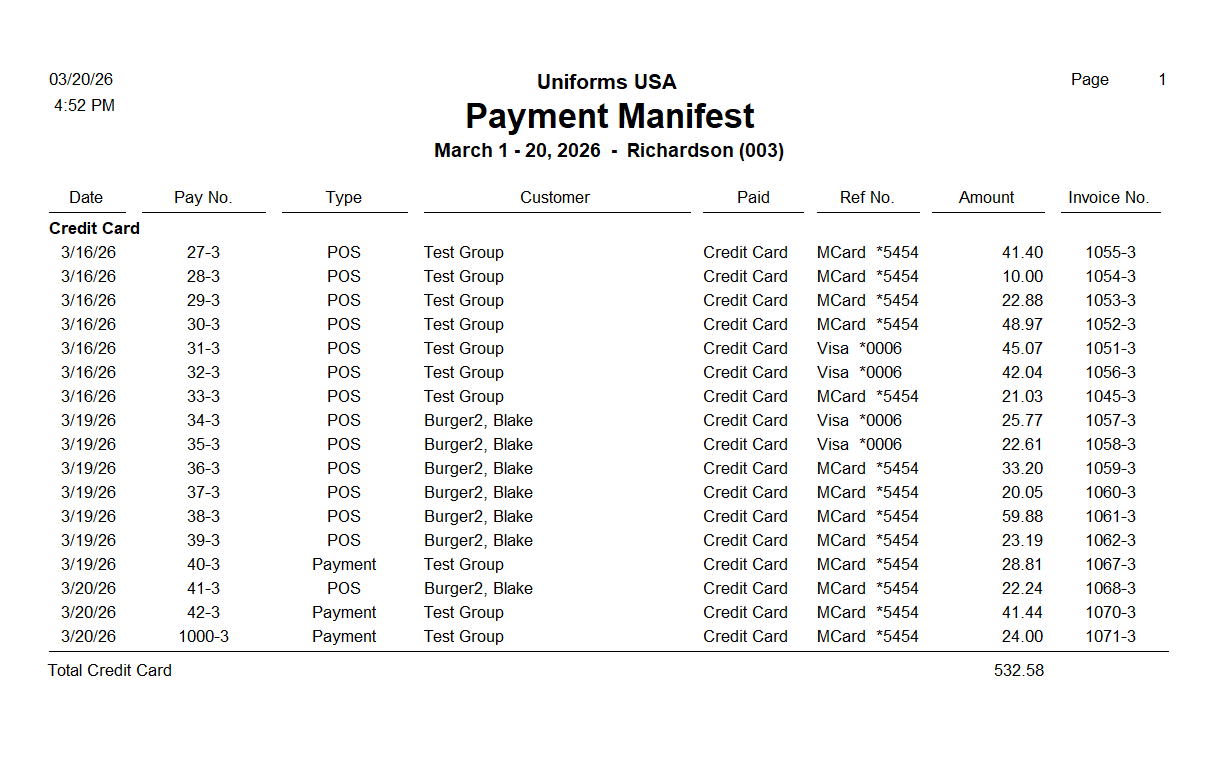
To help distinguish online payments from payments processed directly through the POS, the Payments by Date screen displays WebStore payments as ePMT. This provides greater visibility into how payments were received.
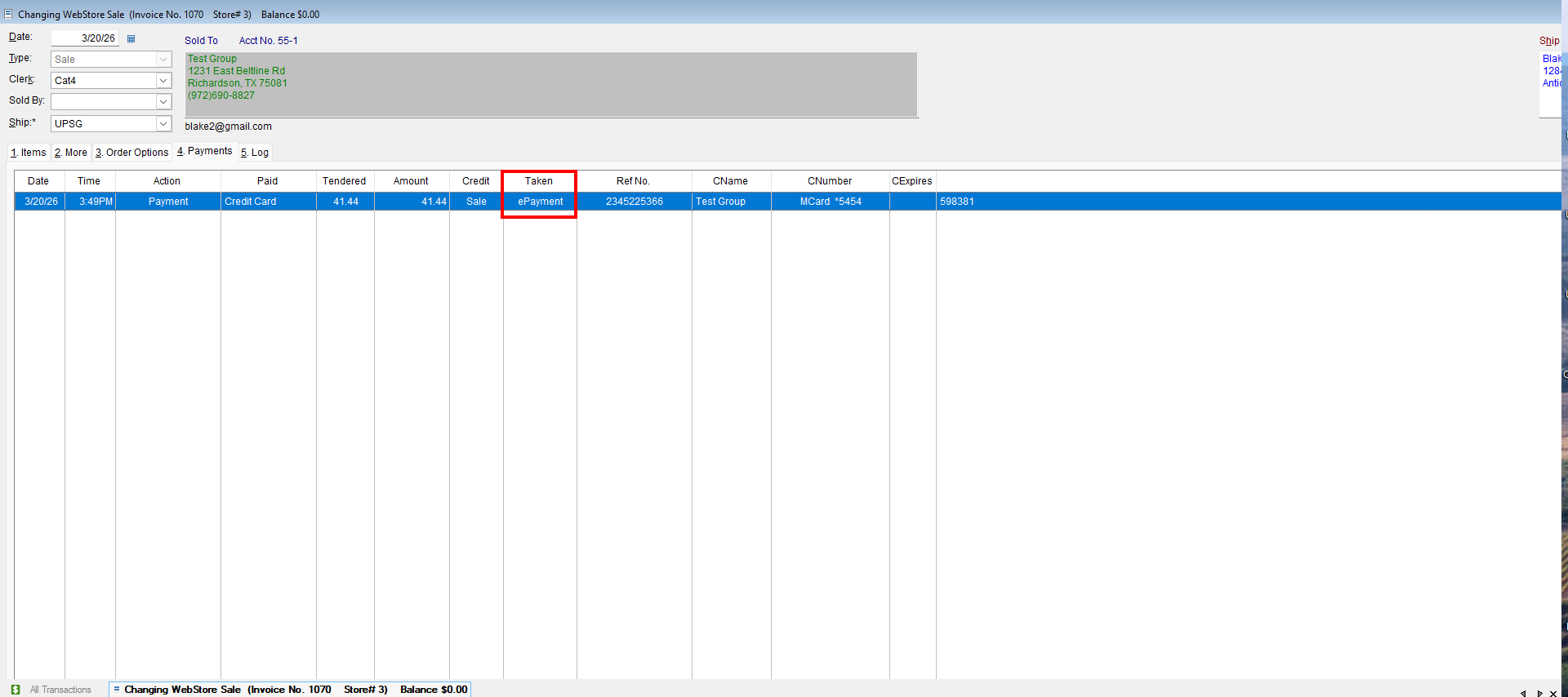
Additionally, within WebStore Sale → Payments, online payments are displayed as ePayment.
Updated Reporting
The Payment Manifest report has been updated to include these new online payment types, allowing businesses to more easily track and reconcile payments received through the WebStore.
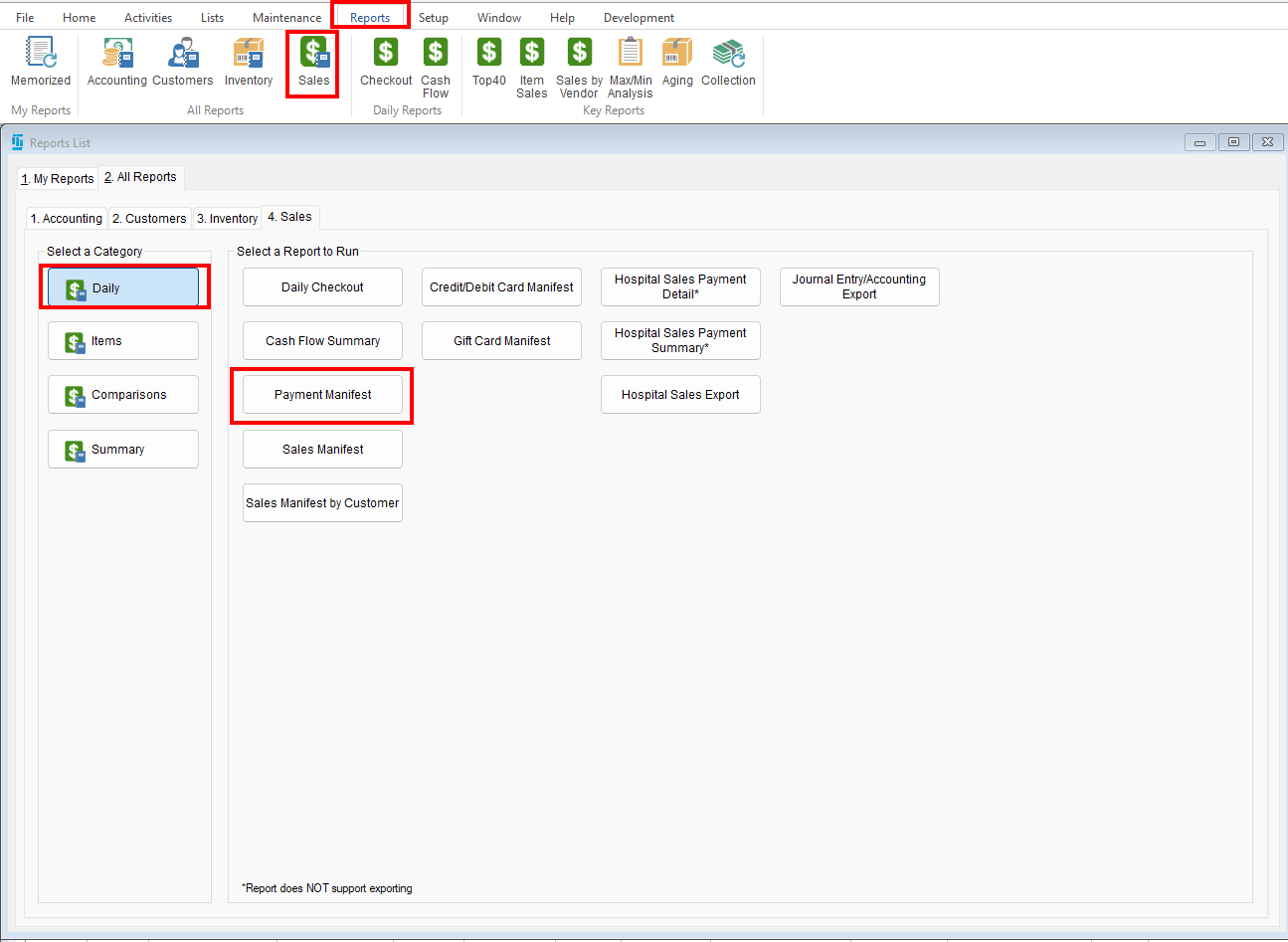
Navigation:
Reports → Sales → Daily → Payment Manifest
 Payment Type Reference
| Location | Payment Type Displayed |
|---|---|
| WebStore Activity | PMT |
| POS Payments by Date | ePMT |
| WebStore Sale → Payments | ePayment |
| Payment Manifest Report | Includes ePMT and ePayment payment types |
Managing Your Payment Method
Customers can save, update, or remove a credit card from their WebStore account.
Add a Payment Method
- Sign in to the WebStore.
- Navigate to My Account Settings.
- Select Add Payment Method.
- Enter your credit card information and save it.
Note: Only one credit card can be saved to the account at a time.
Update a Saved Payment Method
- Sign in to the WebStore.
- Go to My Account Settings.
- Update your payment information.
For security reasons, previously saved credit card details are never displayed. Saving updated card information replaces the existing card on file.
Remove a Saved Payment Method
- Sign in to the WebStore.
- Go to My Account Settings.
- Select Remove Payment Method.
Once removed, the card will no longer be available for future transactions.
Frequently Asked Questions
Why don’t I see the Pay Now option?
The Pay Now button only appears on orders that have an outstanding balance. If all orders are fully paid, the option will not be displayed.
Can I save more than one credit card?
No. Only one credit card can be saved to a WebStore account at a time. Saving a new card replaces the existing card on file.
Can I see my saved card information?
No. For security purposes, saved credit card details are never displayed within the WebStore.
Can I remove my saved card?
Yes. You can remove your saved payment method at any time from My Account Settings.