
🧾 WebStore Configuration – Work Orders
The Work Orders Tab within your WebStore settings allows you to manage which work orders are available for selection by customers during their online shopping experience.
This article explains how to enable or disable specific work orders for use in your WebStore.
📍 Accessing the Work Orders Tab
To manage work orders:
-
Navigate to your POS system’s WebStore Configuration. You can do this by selecting the setup tab < WebStore < Double click into the active configuration < select the payments tab.
-
Click on the Work Orders tab.
✅ Adding Work Orders to the WebStore
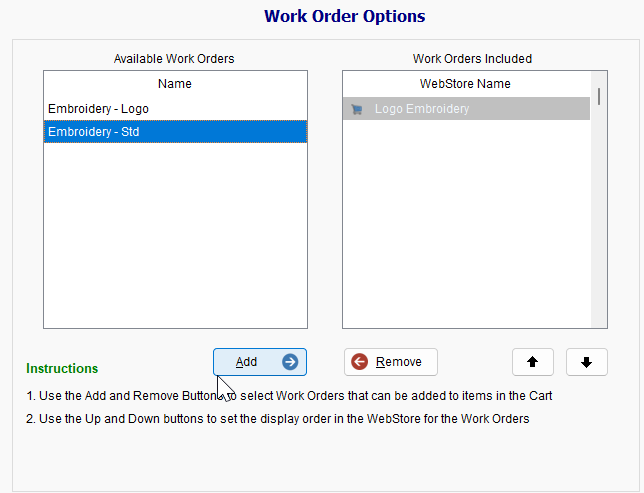
The Work Orders tab is divided into two panels:
-
Left Side: Displays all created work orders within your Uniform Solution.
-
Right Side: Displays the work orders currently available on the WebStore.
To allow a work order to be selected by customers online:
-
Highlight the desired work order(s) on the left panel.
-
Click the Add button.
-
The selected work order(s) will move to the right panel, making them visible and selectable on the WebStore.
❌ Removing Work Orders from the WebStore
To create Work Orders, please reference the article below.