In this document, you will be covering how to create a manual invoice that you can later attach a payment to if needed. This will generally be used to attach a payment you made in our mobile app or through another channel to an active invoice in TUS. This can also be used in the rare instance that your credit card payment goes through on the merchant portal, but the invoice doesn’t save properly in the program. In either case, the following method can be used to create and save a manually created invoice with a payment.
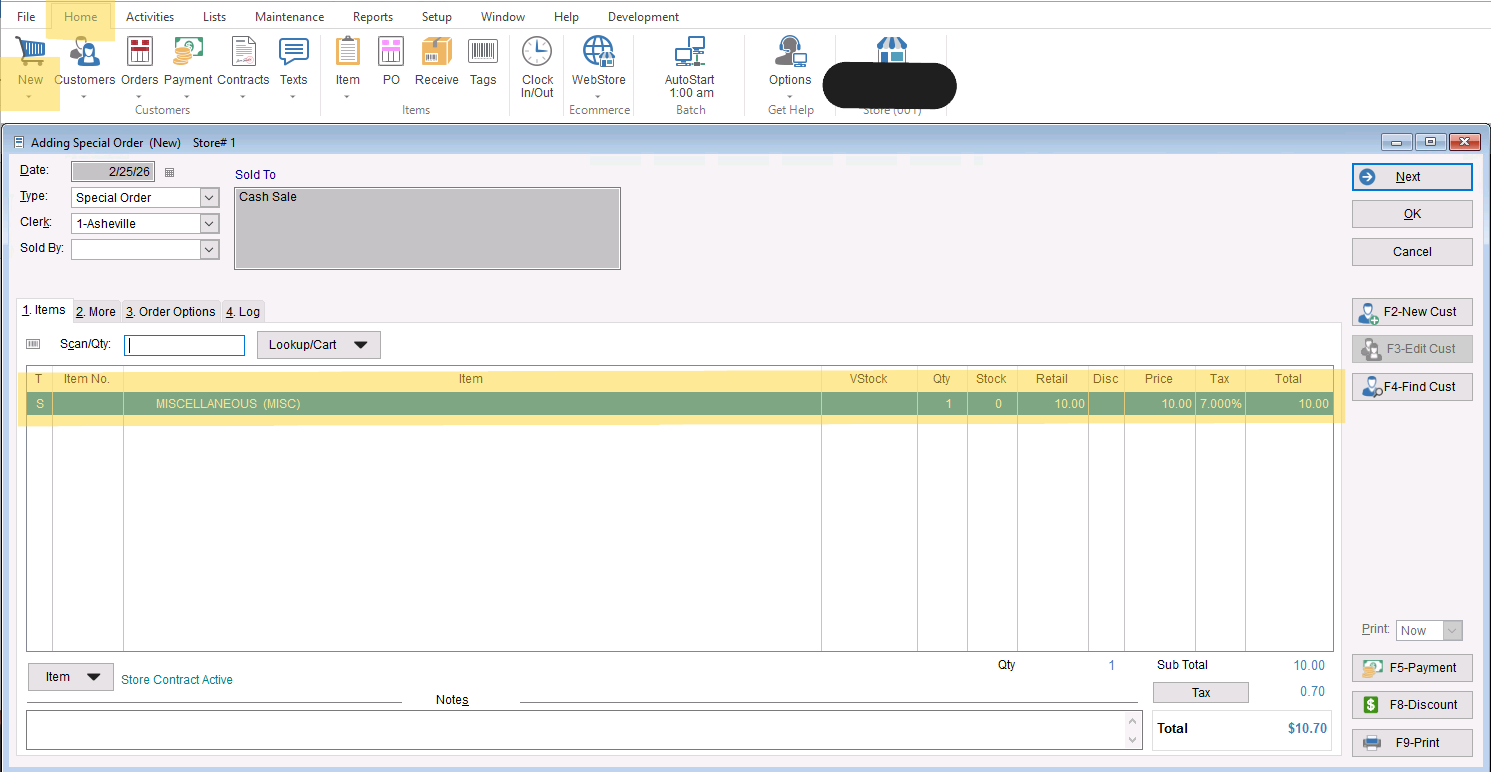
- To start the creation of a manual invoice, you are going to go to Home>New to start a new sale. Here, you will add any items you need to add to the sale, along with discounts or tax changes, and add the customer record associated with the sale.
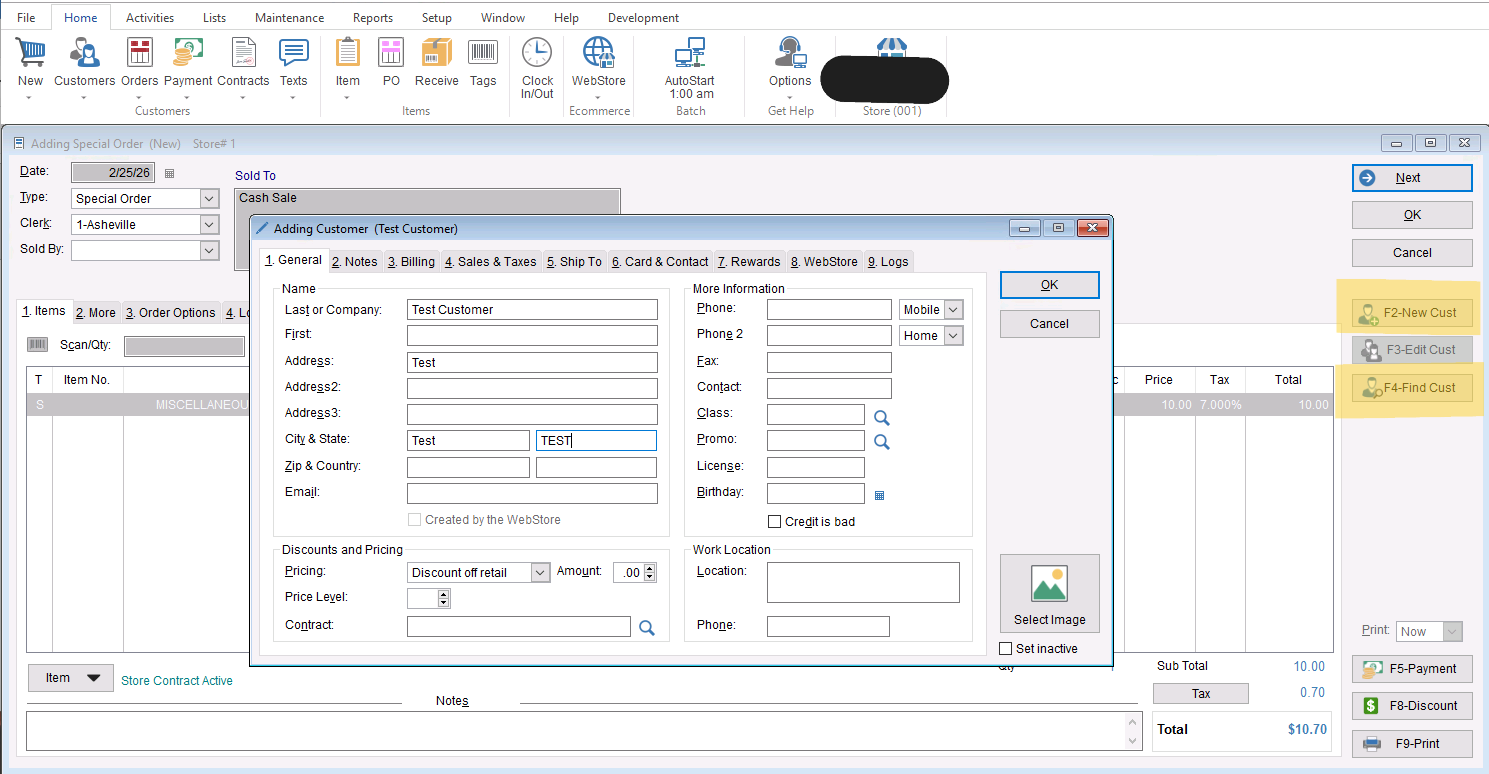
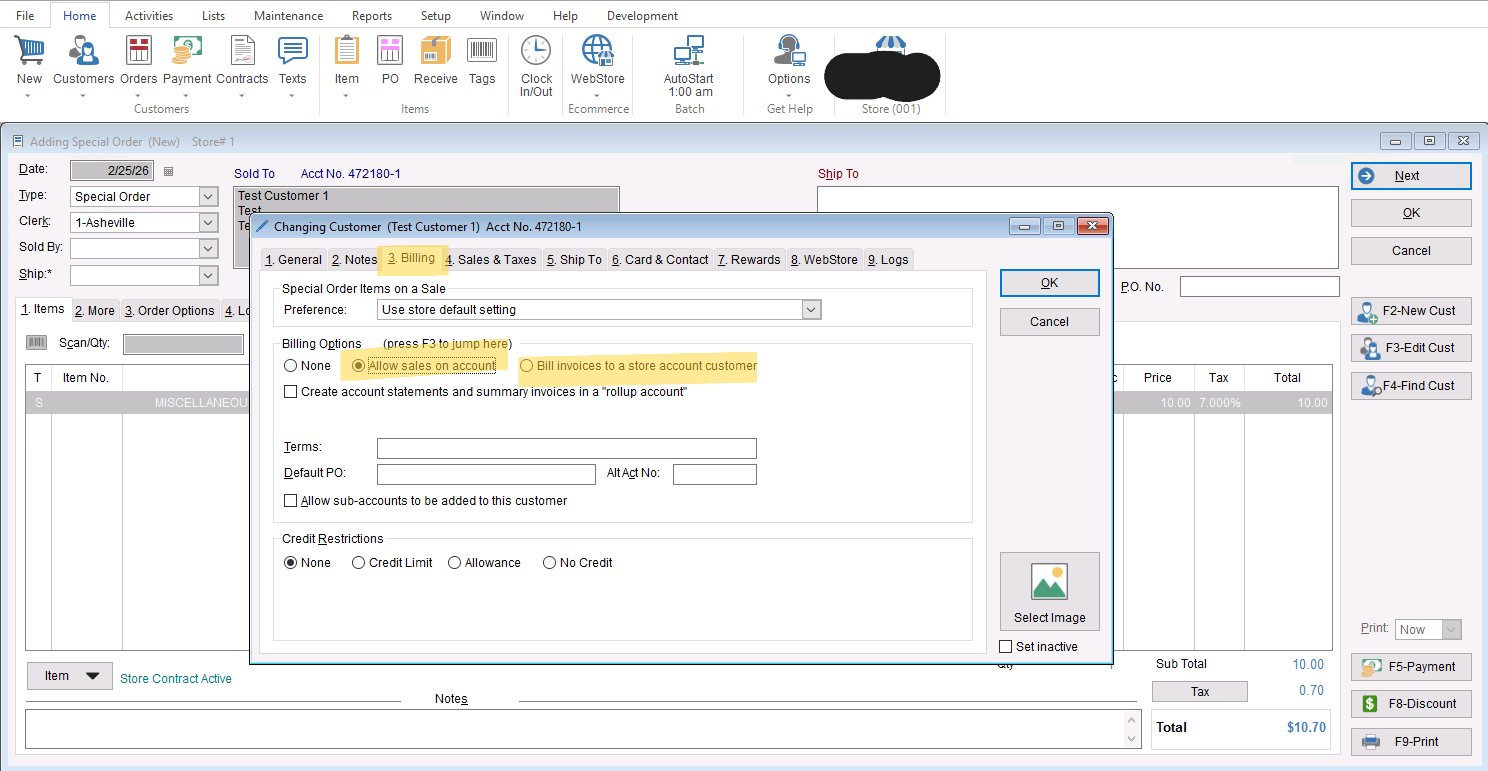
- Once you have your invoice created you will need to add our customer to the sale. you can either choose “F2-New Cust” or “F4- Find Cust” to add them in. Regardless of which one you choose its important you go into the “3.Billing tab” of the customer record to add “Allow Sales on Account” to be able to bill this invoice.
- Regardless of which one you choose it’s important you go to “F3- Edit Cust” and choose the “3.Billing” tab of the customer record to add “Allow Sales on Account” to be able to bill this invoice.
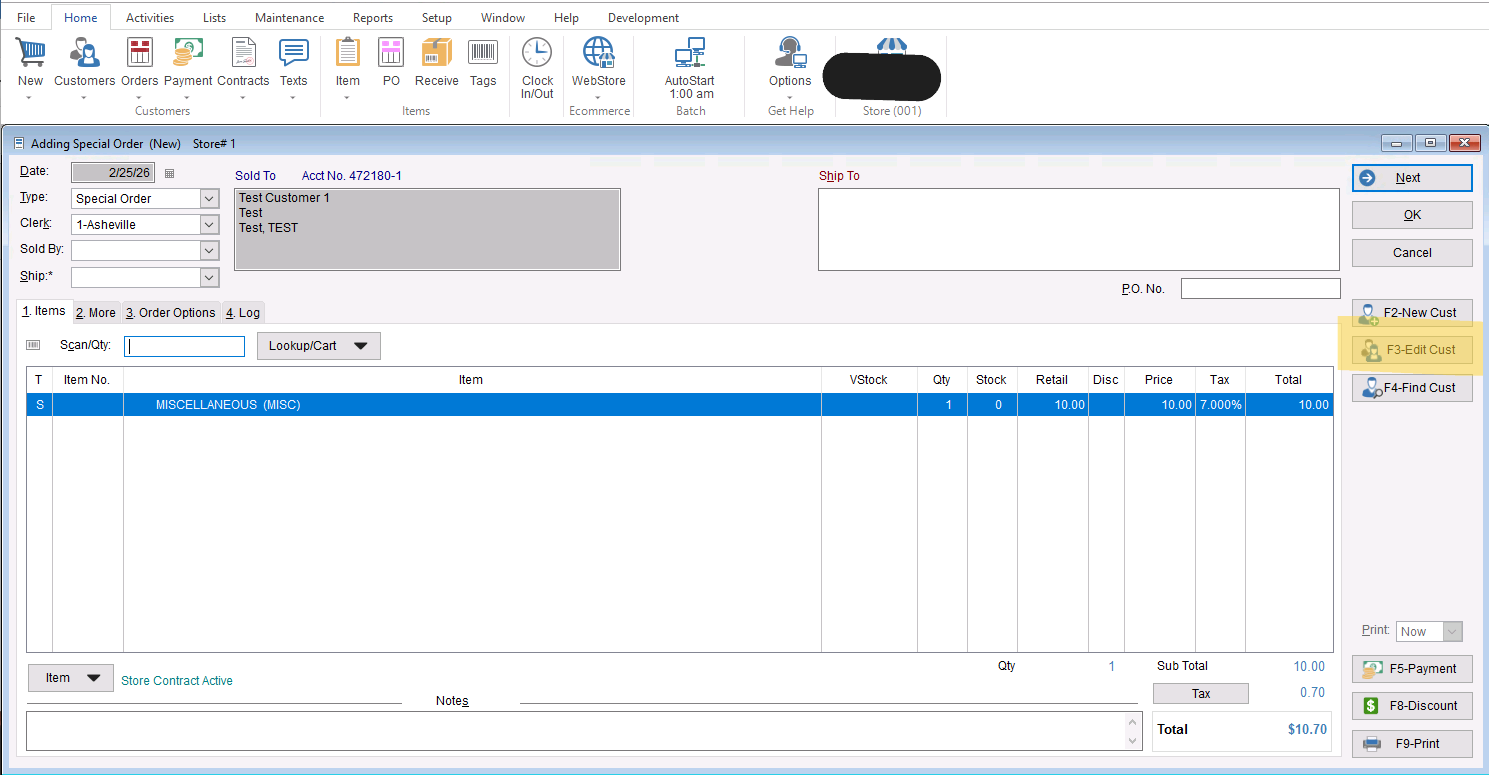
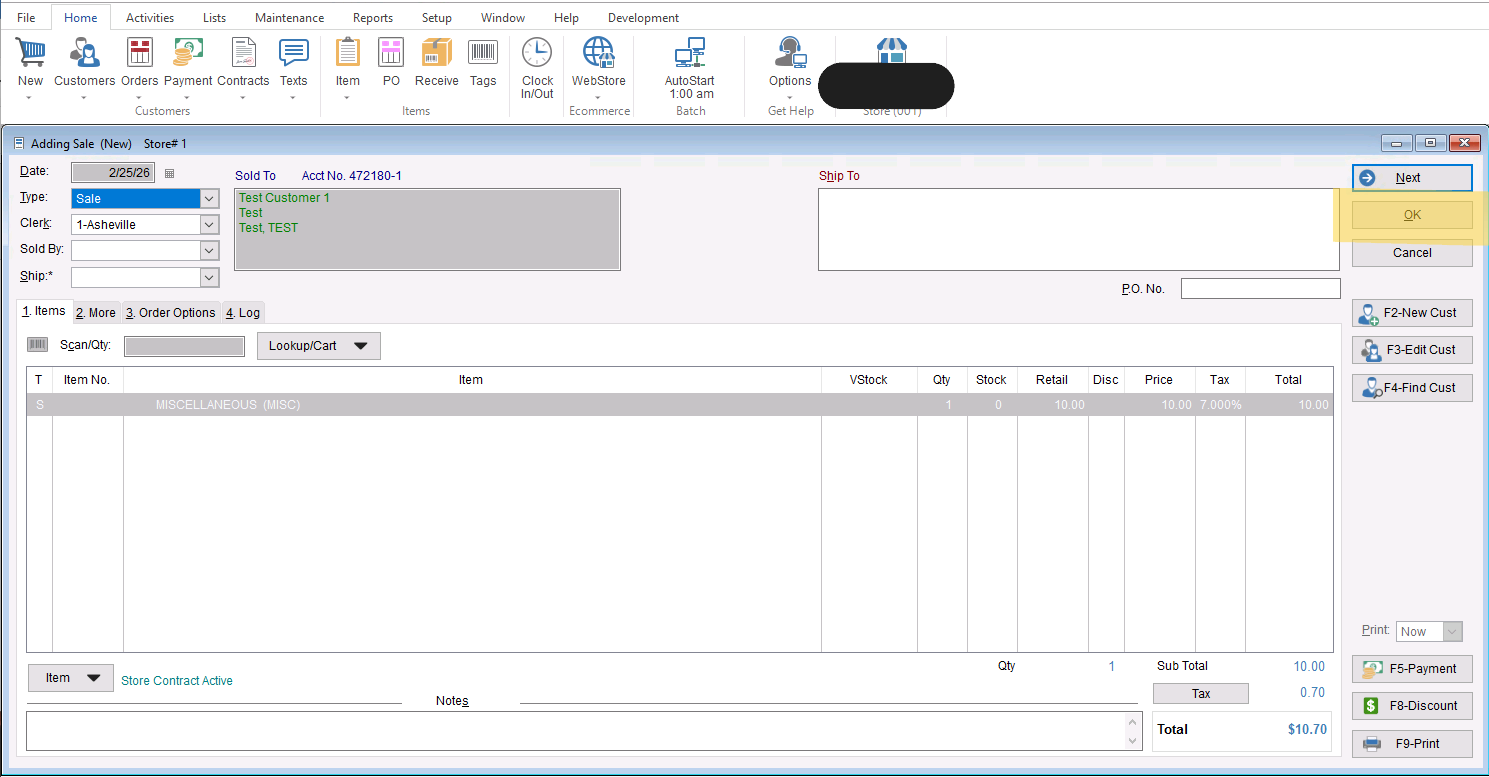
- Once you have your invoice created and your customer added to the sale you will be selecting “OK” to save the invoice into your sales list.
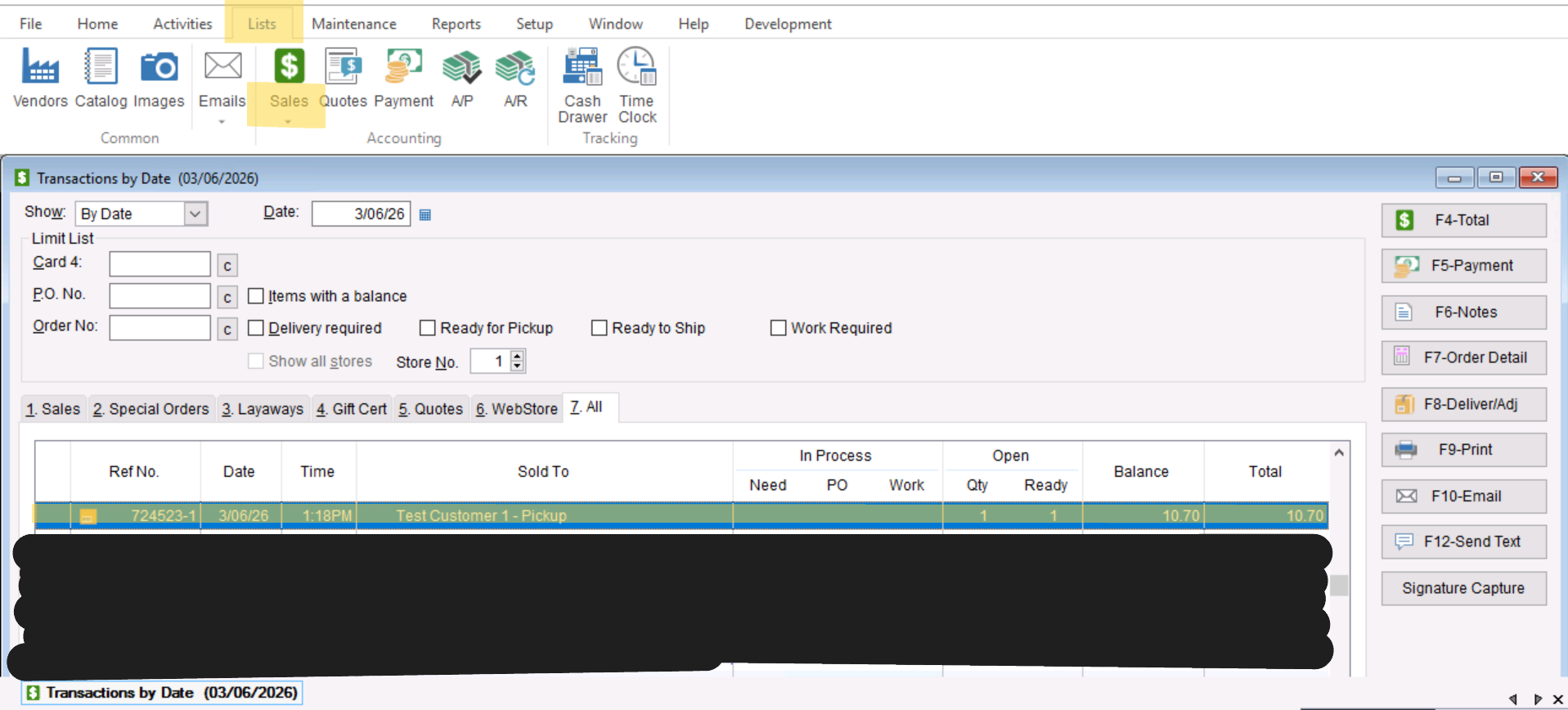
- Now that you have your invoice saved you will be able to see that invoice in your Sales List by going to “List>Sales” and go to the “Sales” or “All” tab.
- Now that you have your invoice created and saved you can start the process to apply a unattached payment to the invoice. To start the process you will first need to make sure our unattached CC payment method is active, normally this would be saved as “Credit Card- Manual” it is generally set to inactive so you will need to activate it before use. You can do this by going to “Setup>Payments” and selecting the “Show Inactive” checkbox to show the payment method.
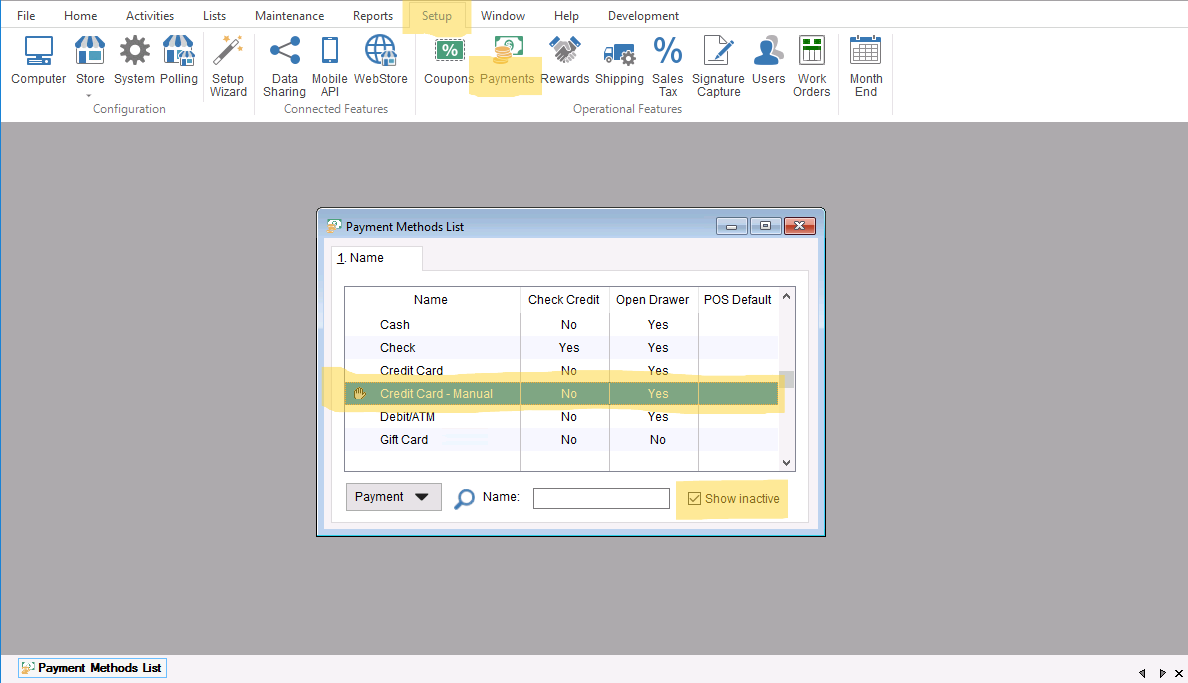
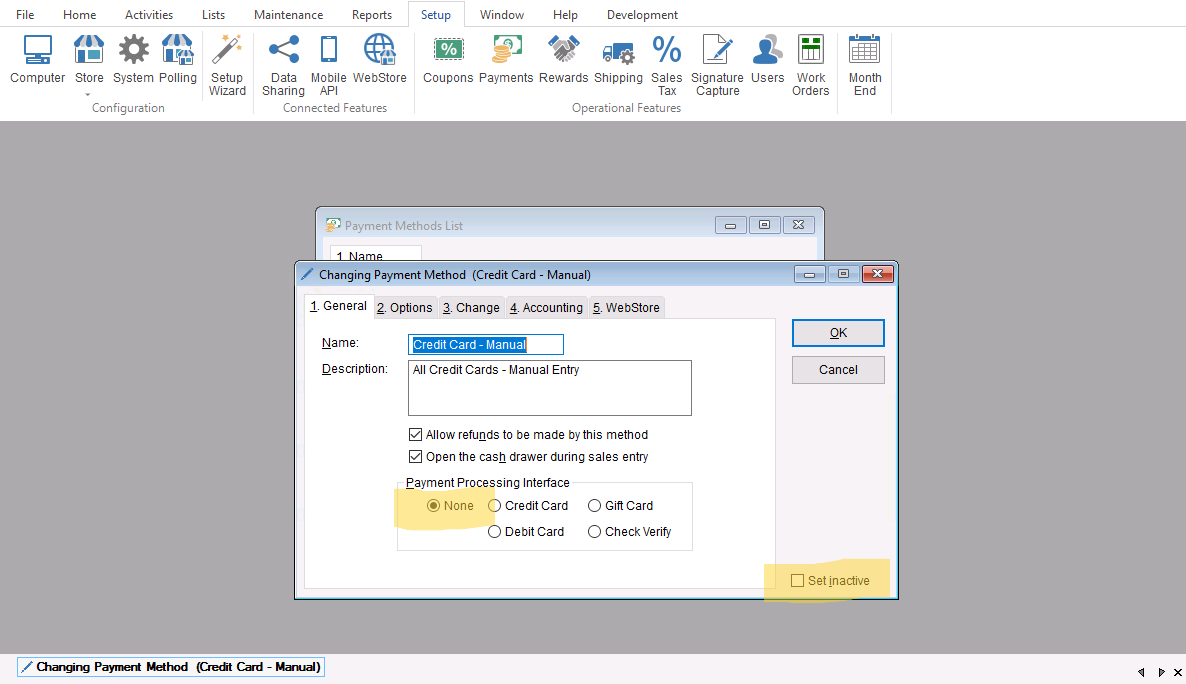
- Now that you have located your payment method you will need to set it to active so it can be used when you go to apply the payment to our invoice. You will want to double click and open the record and make sure that the “Payment Processing Interface” is set to “None” and the “Set Inactive” checkbox is unselected.
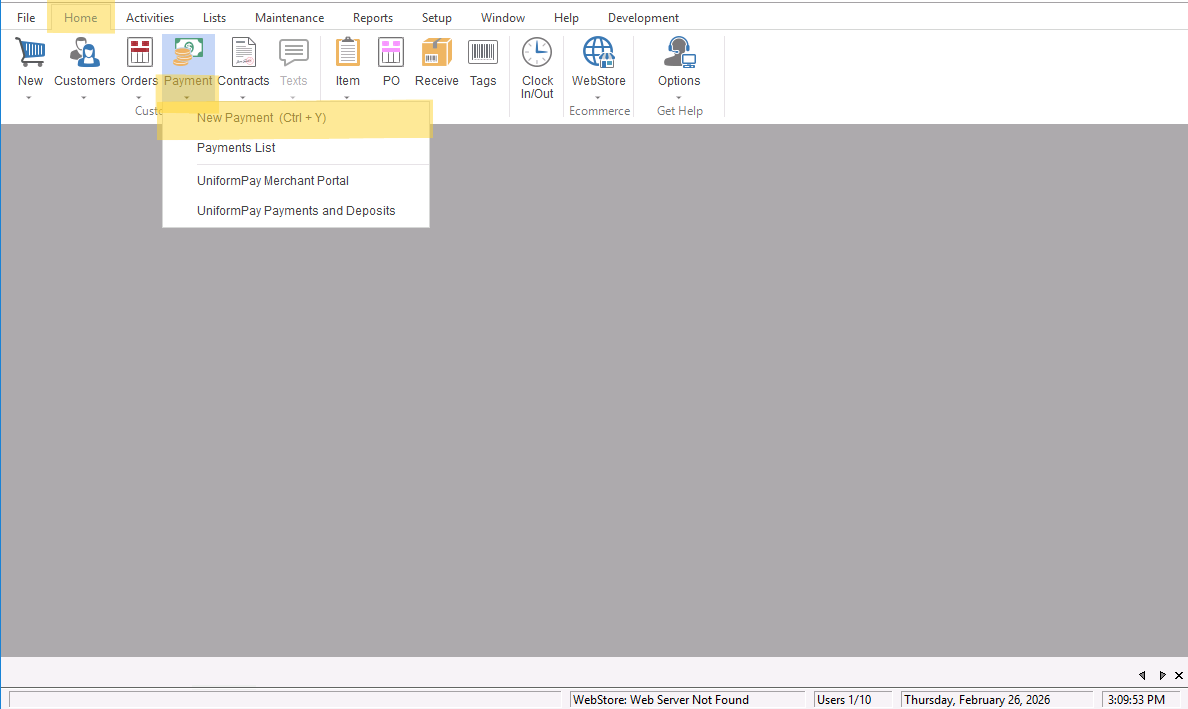
- You can now go to “Home>Payments>New Payments” to apply the payment to the invoice.
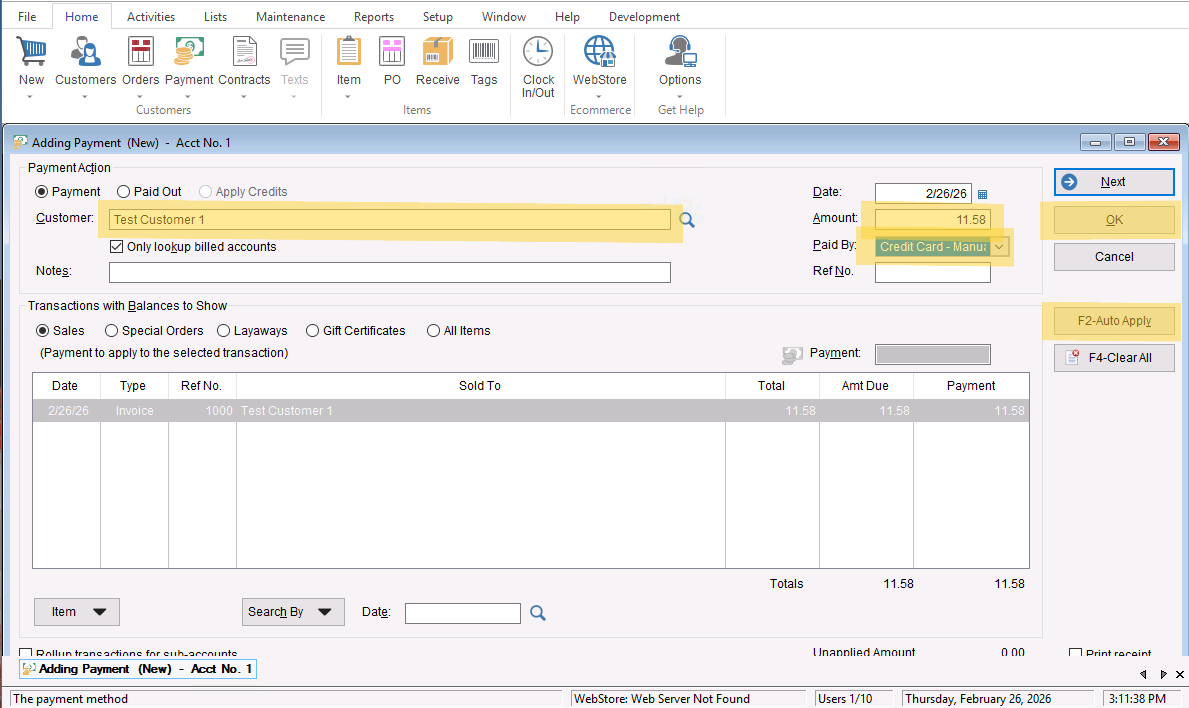
- Once open you will add the customer name in the “Customer field” which will populate the invoice, add the payment total in the “Amount” field and change the “Paid By” to the Unattached CC method (Credit Card- Manual). Once you have updated all that information you can select “F2-Auto Apply” to apply the payment to the invoice. Select “OK” and save the invoice to complete the transaction.