The Journal Entry Report and Accounting Export provides an easy way to record or transfer a summary of the financial activity in the program to an accounting package. By recording a journal entry of the summarized information in your accounting package, you will be able to maintain a complete financial picture of your company. The journal entry report creates a journal entry for deposits based on payment type and is used to reconcile the deposits you receive in your bank account.
The Journal Entry Report and Accounting Export creates a summary of the financial activity for sales, sales tax payable, cash received, accounts receivable, customer deposits, inventory, and cost of goods sold. This procedure can do a few things, as listed below:
-
Create a summary journal entry in report form to be entered by hand into an accounting package
-
Create a file that can be easily imported into a supported accounting package
-
Create both a report and an import file
Note: If you wish to transfer the summary data in this program to your accounting package, you should begin creating Journal Entry Reports or Exports after you begin creating sales in the program. The report and export features may not be available for all countries.
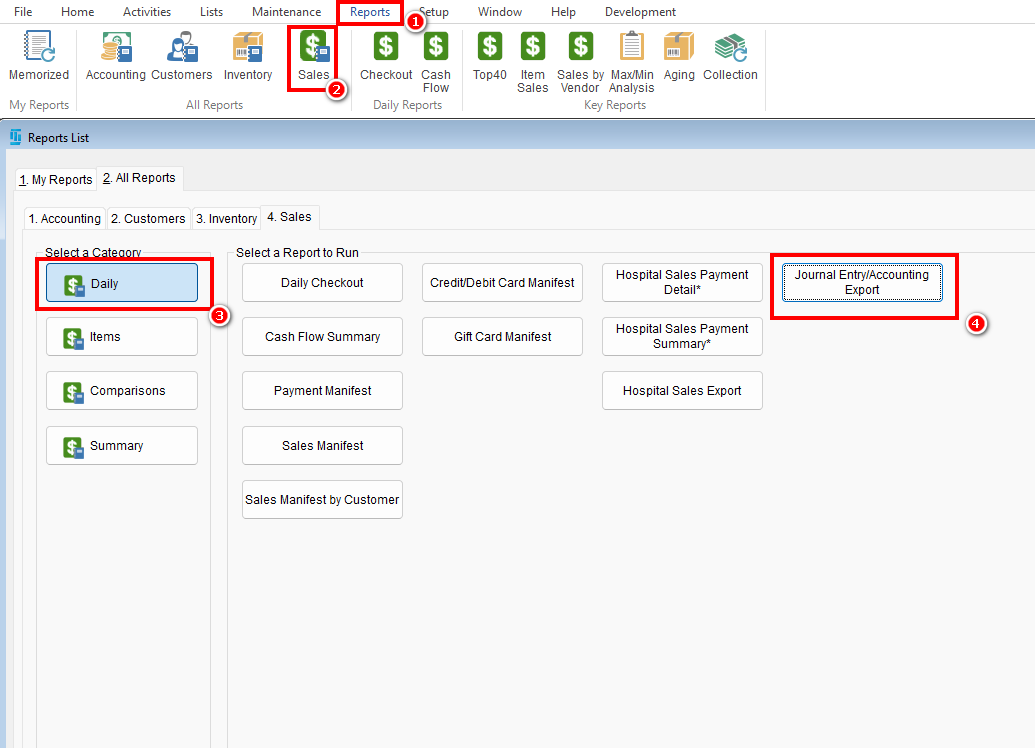
- Navigation: Reports > Sales > Daily > Journal Entry/Accounting Export
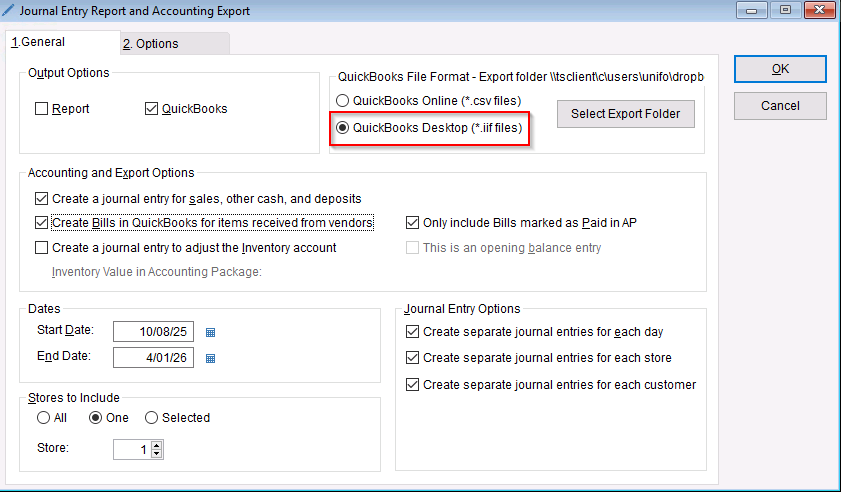
- Select the date ranges and options for what data you want to export > export report into a .IIF File
- Select Export Folder will allow you to select the folder destination for the files
- Select Export Folder will allow you to select the folder destination for the files
- From there you can follow the instructions below or others you may find online on how to import the IIF File into QuickBooks
- Import into Quickbooks Desktop
- Import into Quickbooks Cloud/Browser copy and paste the following link into your web browser for help: