This article will cover how to print a tag for a singular item.
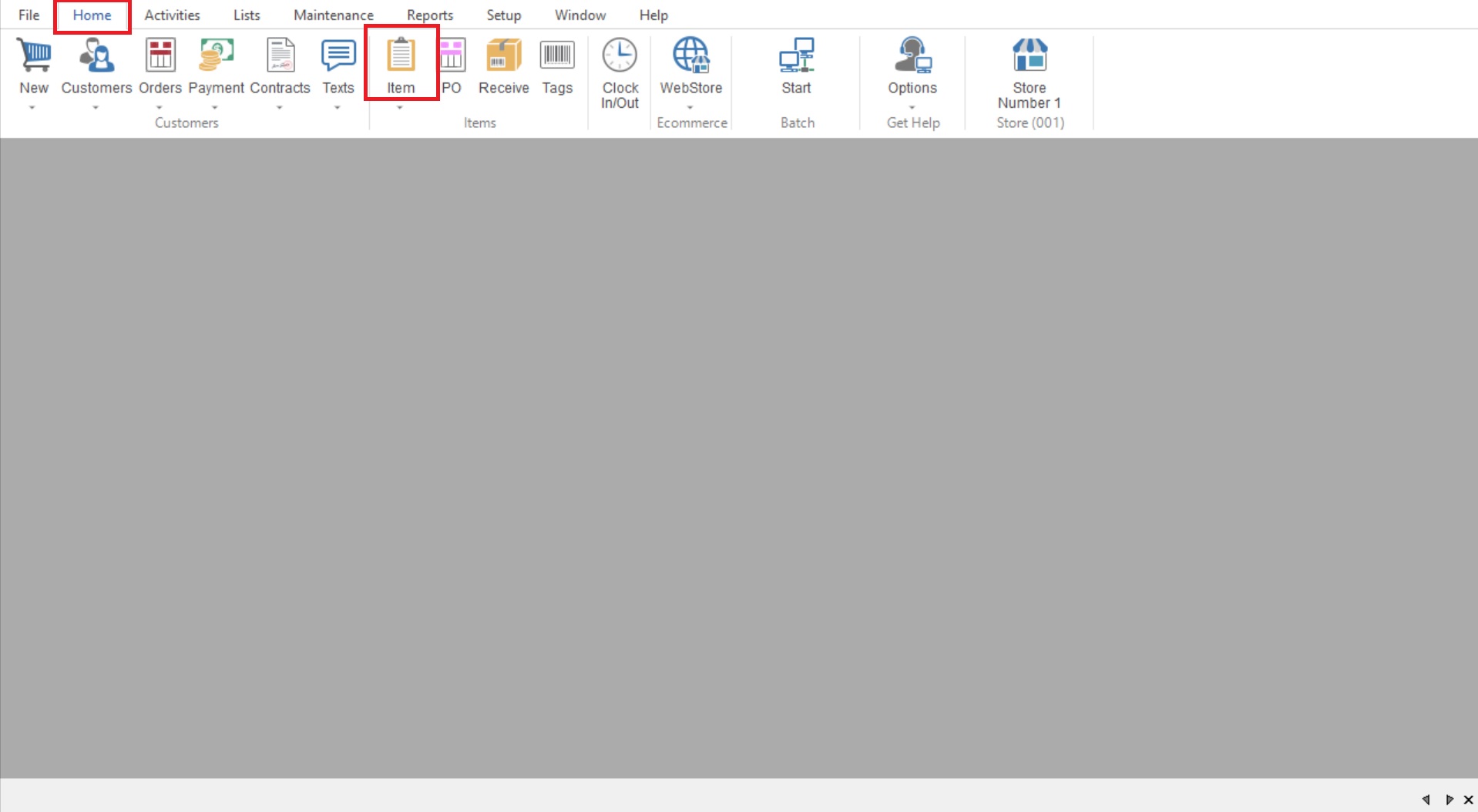
- First you will open your Inventory List by going to Home>Item.
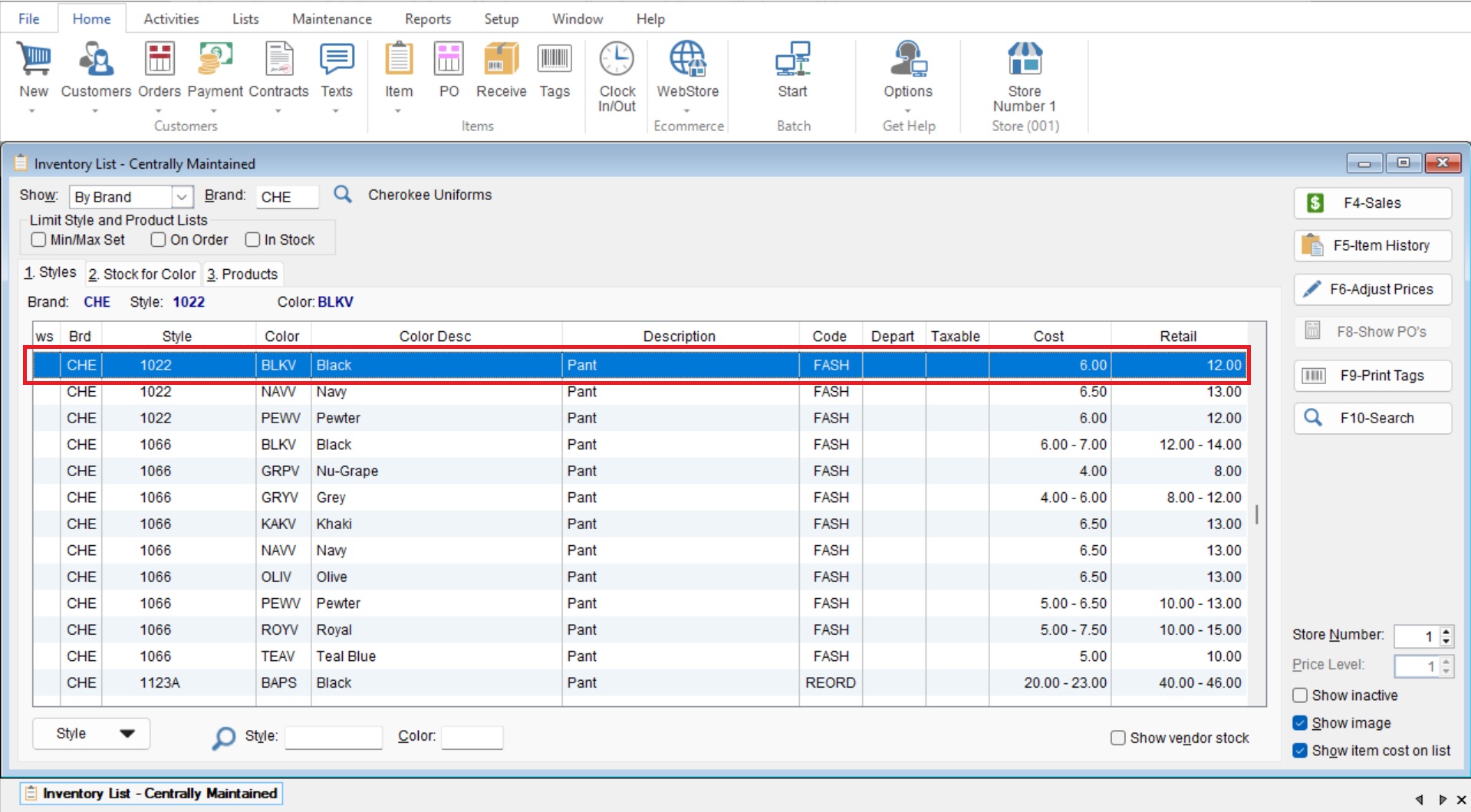
- Once in your Inventory List, you will locate your desired item and highlight it by single clicking on the style.
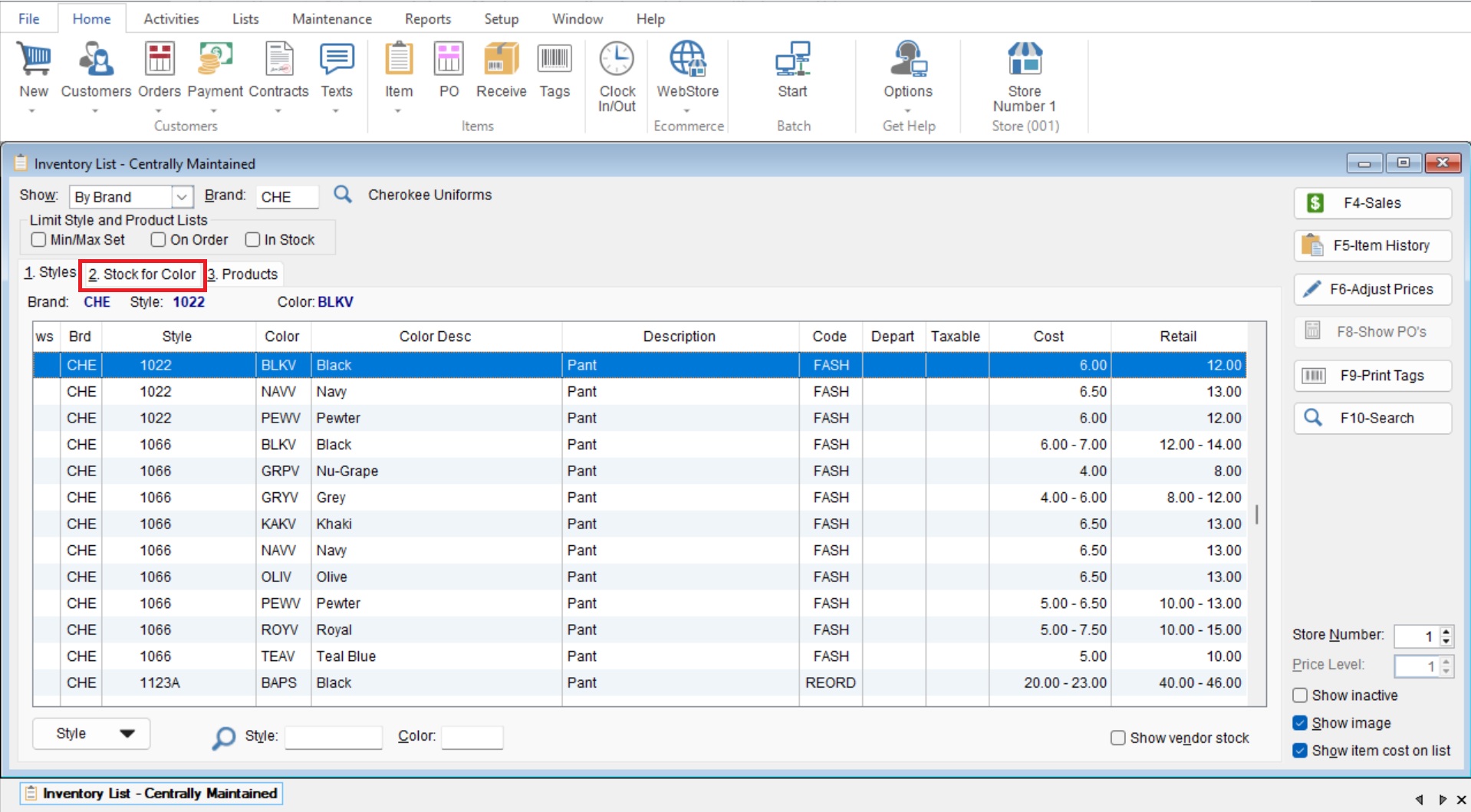
- Once highlighted, go to the “Stock for Color” tab to show individual sizes for the Style.
- In your Stock for Color tab you will highlight your desired style and select “F9-Print a Tag”.
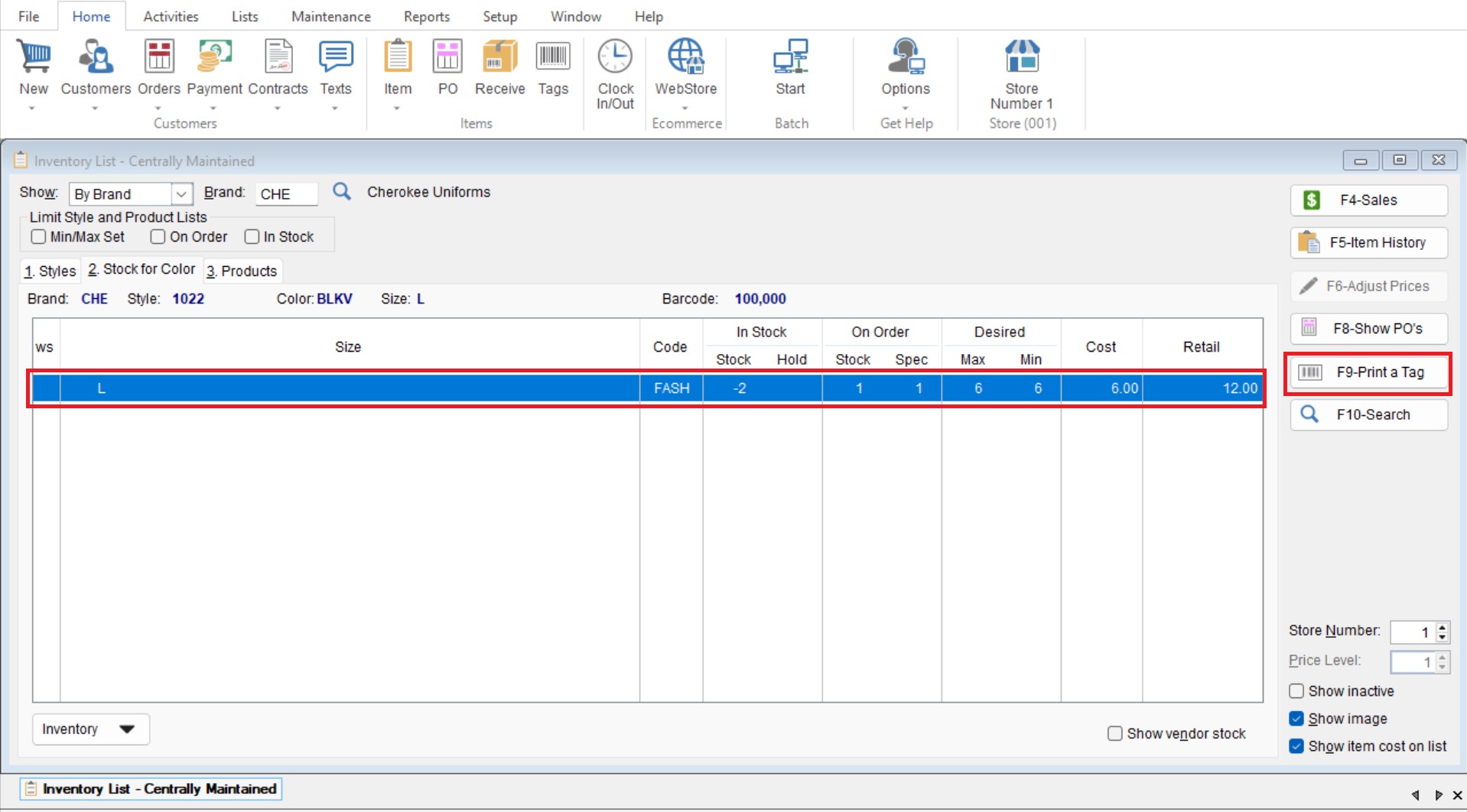
- This will not immediately print the tags but it will send the tag to the “Tag Queue” under “Home>Tags” where it will be stored to print upon selection.
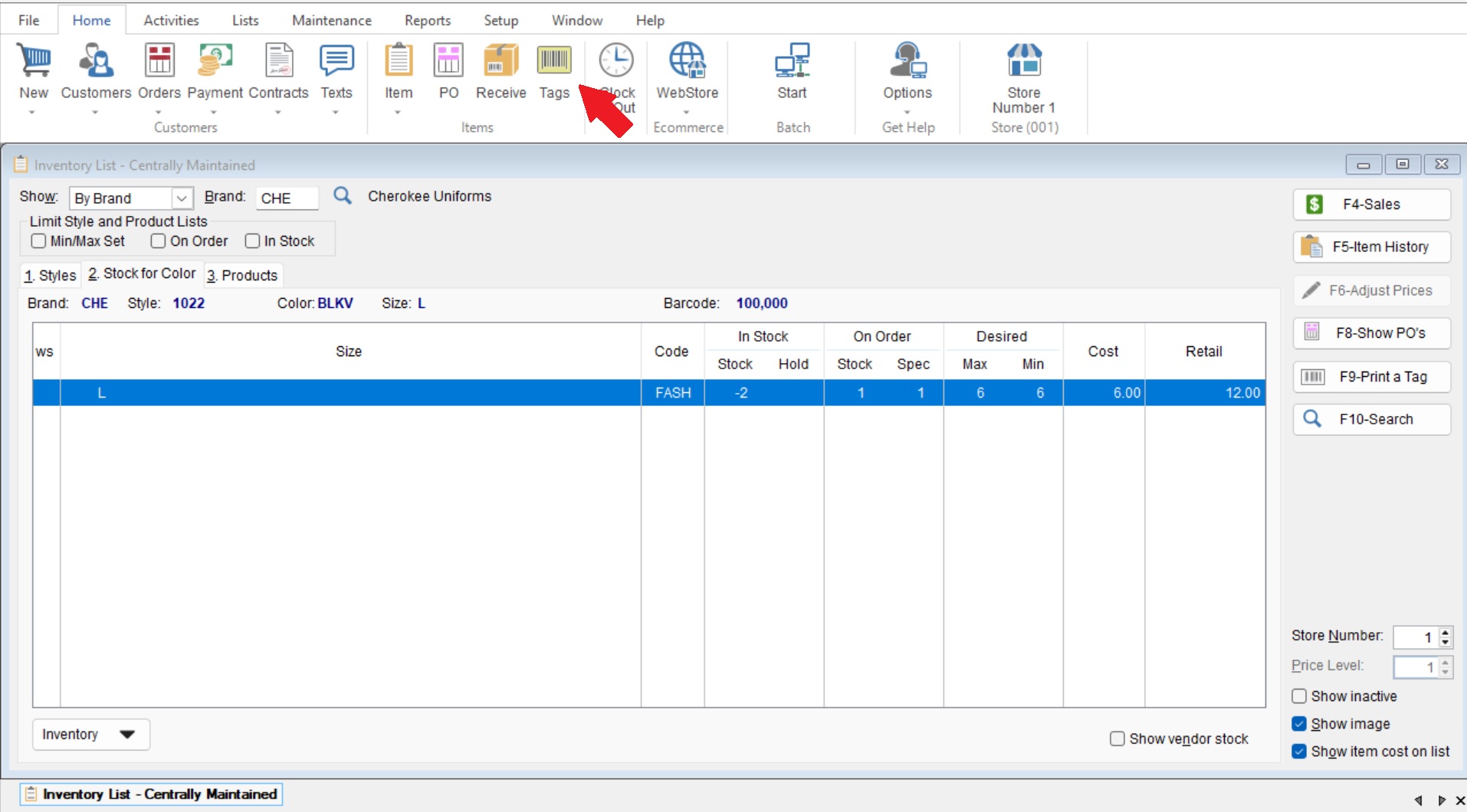
- Once you are ready to print you will go to “Home>Tags” to open your “Tag Queue”
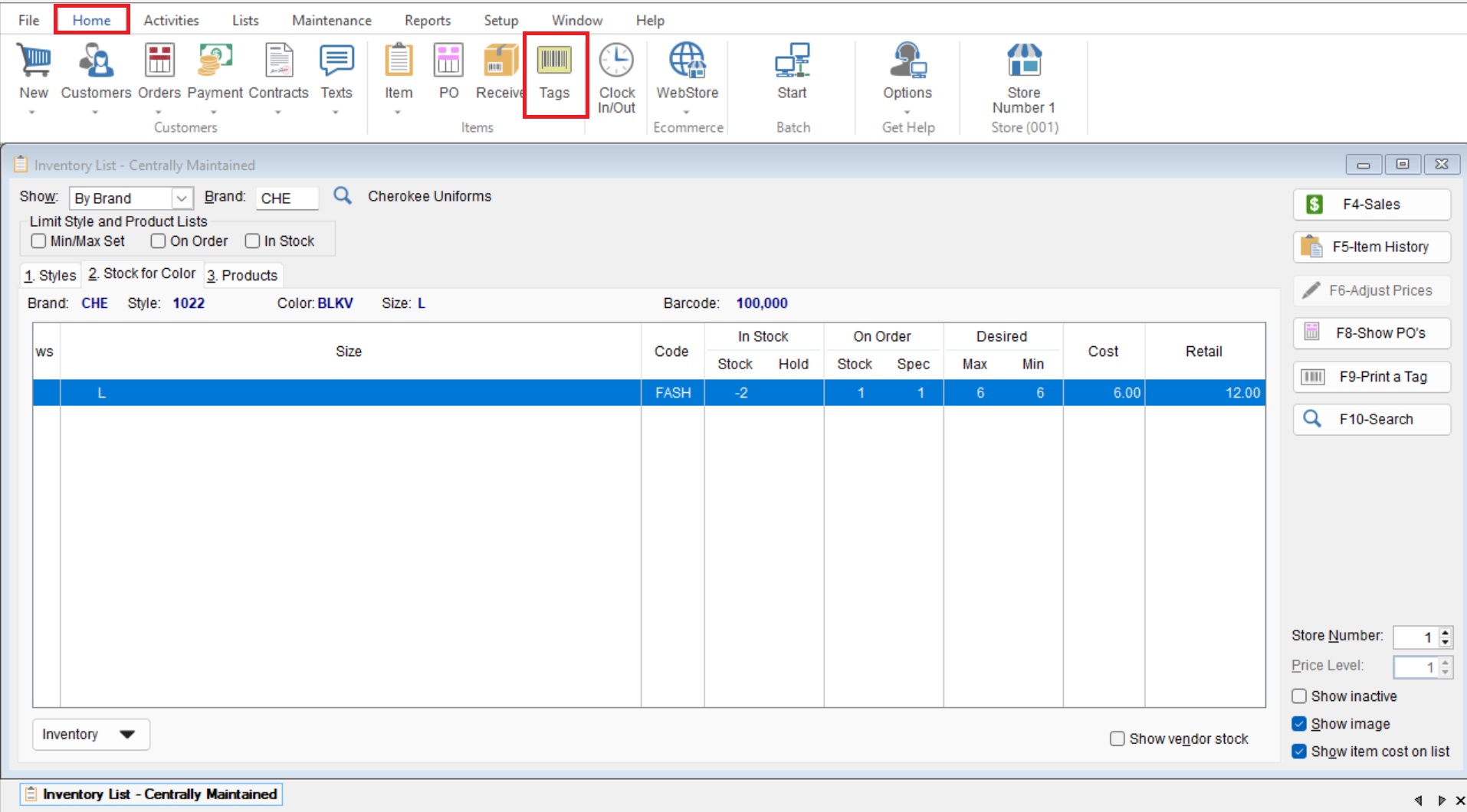
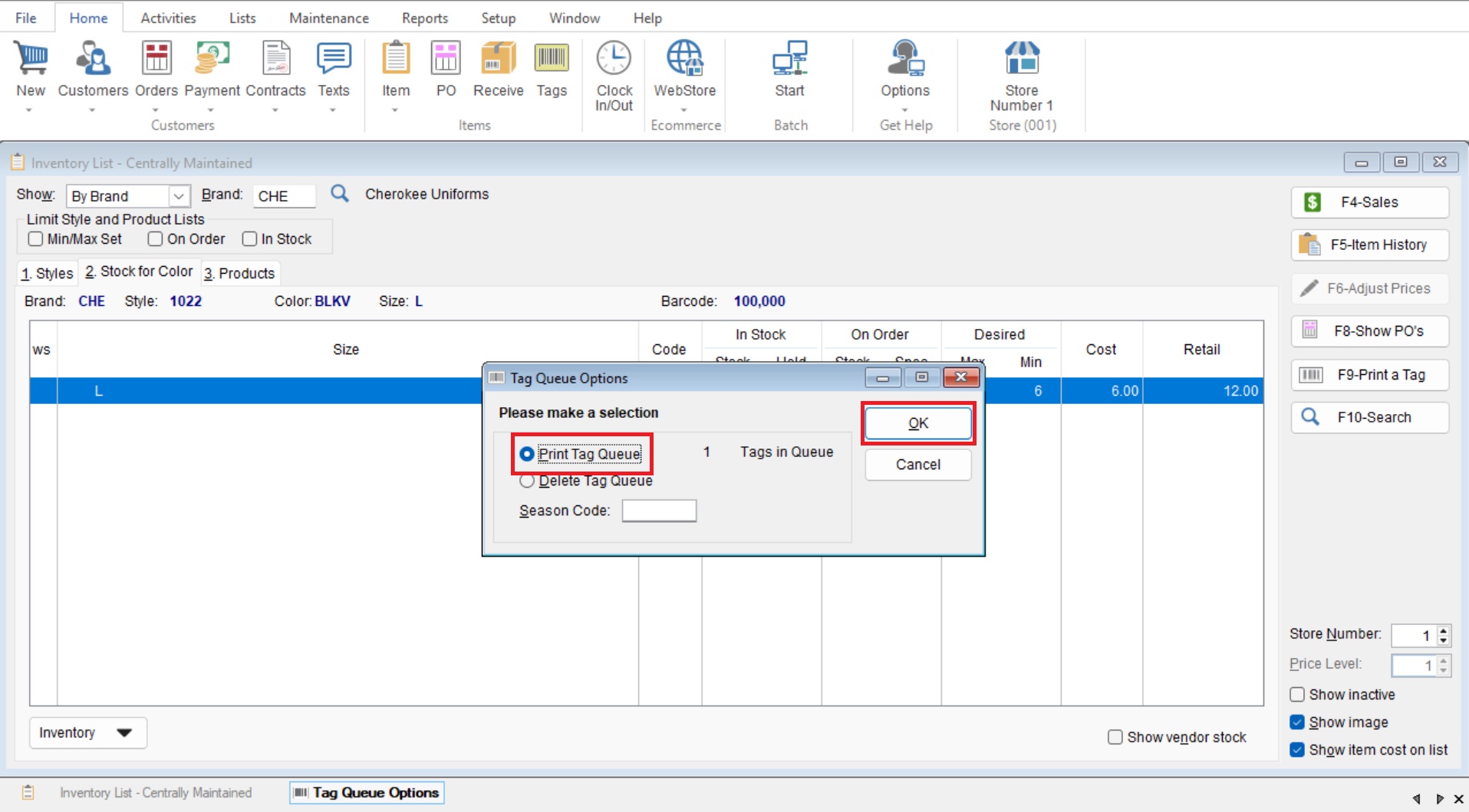
- Here you can make sure the “Print Tag Queue” bubble is selected and select “OK” to print your tags.