
- Adding a new payment method to The Uniform Solution is quick and easy. To begin, go to Setup>Payment Methods
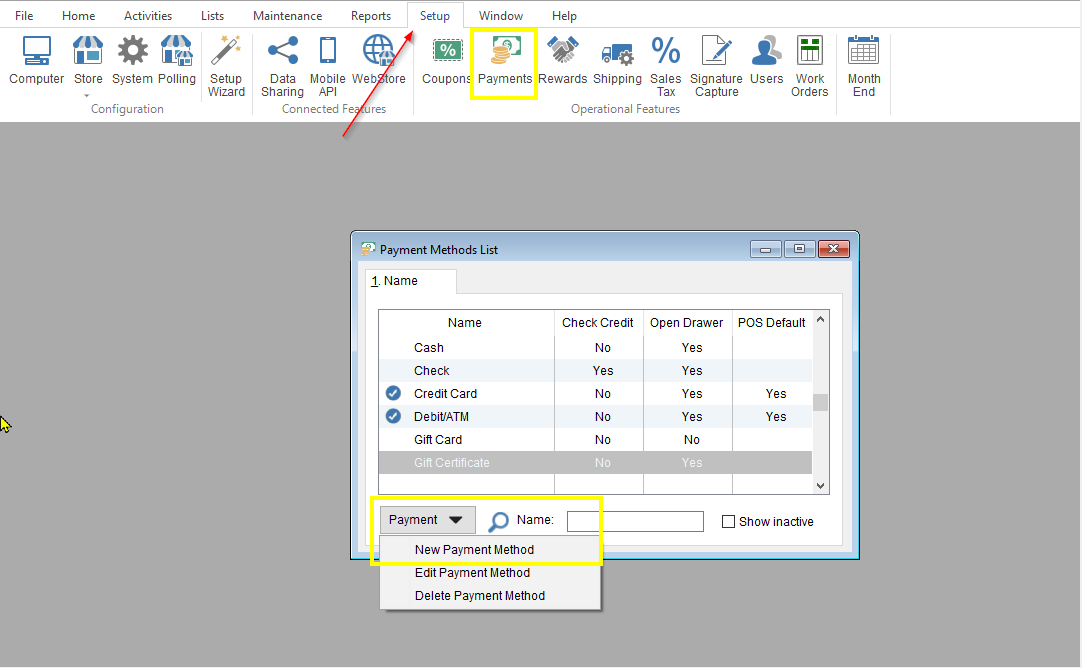
- Select the Payment button in the bottom left corner of the active screen, and select New Payment Method.

- On the General tab, you’ll want to name the new payment method. You can also add a description of the payment method if you wish.
- You’ll also be able to decide if you want to Allow refunds to be made by this method and if you want to Open the cash drawer during sales entry.
- Lastly, on the General tab, you’ll need to choose the Payment Processing Interface. Unless creating a payment type that will use one of the integrated payment interfaces such as UniformPay for credit/debit transactions or UniformGift for gift card transaction, leave None selected.

On the Options tab, you’ll be able to decide if a reference number is required, if the payment is allowed at the point-of-sale, and whether you’ll accept this payment from a customer that has bad credit.
 The Change tab is where you’ll decide how to handle over payments by this method.

Moving to the Accounting tab, decide if this new payment is a Special Payment Type, which Report Group it will fall into, and whether or not it should be included in the cash drawer shift count.
 The WebStore tab will allow you to decide how the payment name will appear on the WebStore.
 Once all desired changes have been made, select OK. to save your changes.
Creating a New Payment Method
Updated on February 11, 2026