
The program allows you to view vendor stock levels directly during a sale. This can be helpful when checking vendor availability before completing a transaction. Follow the steps below to enable and access vendor stock information.
-
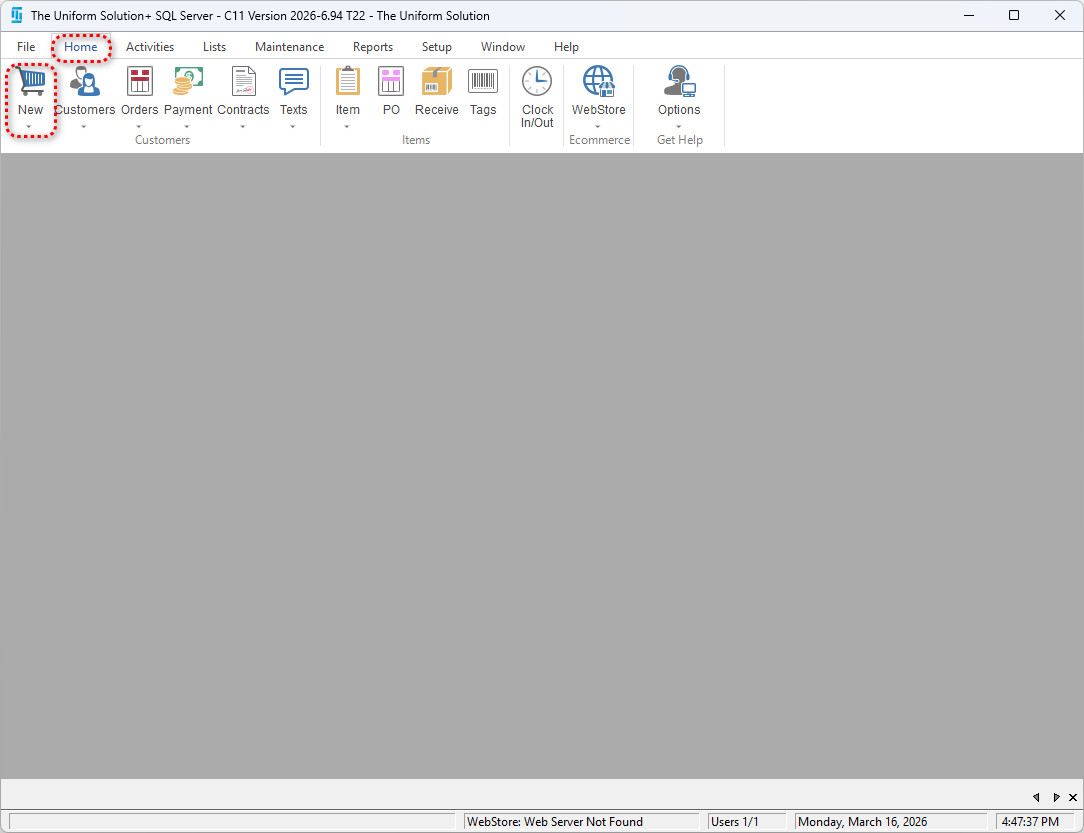
- Start a new sale – Home > New
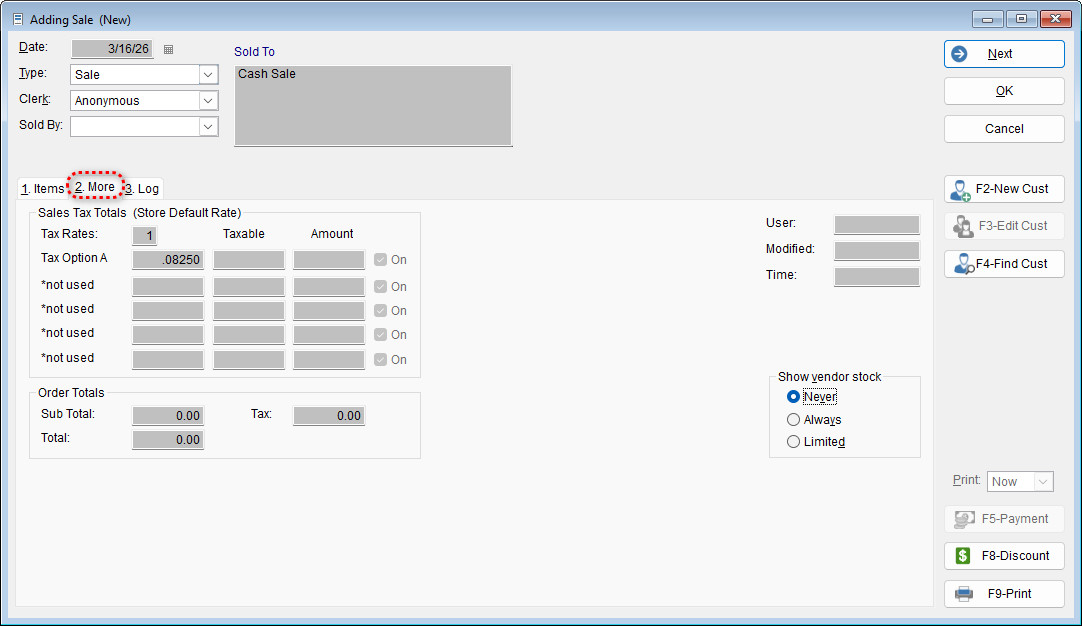
- Select the More tab
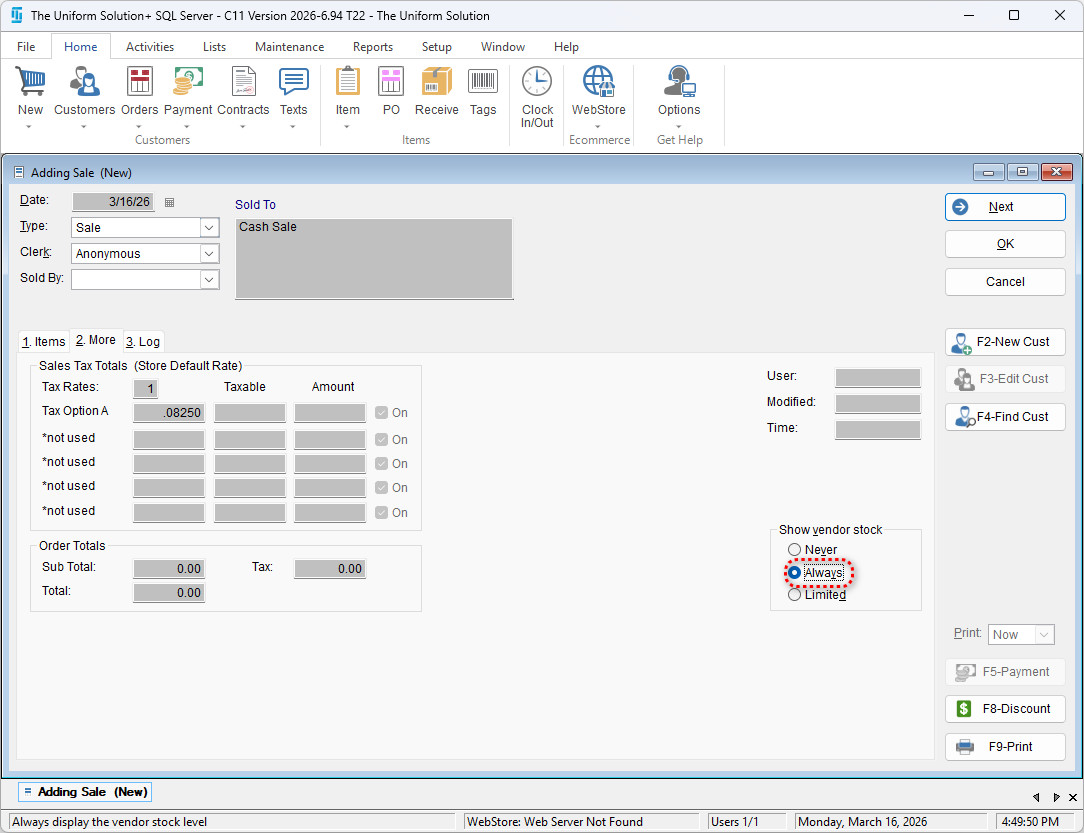
- Select the desired option in the Show vendor stock section
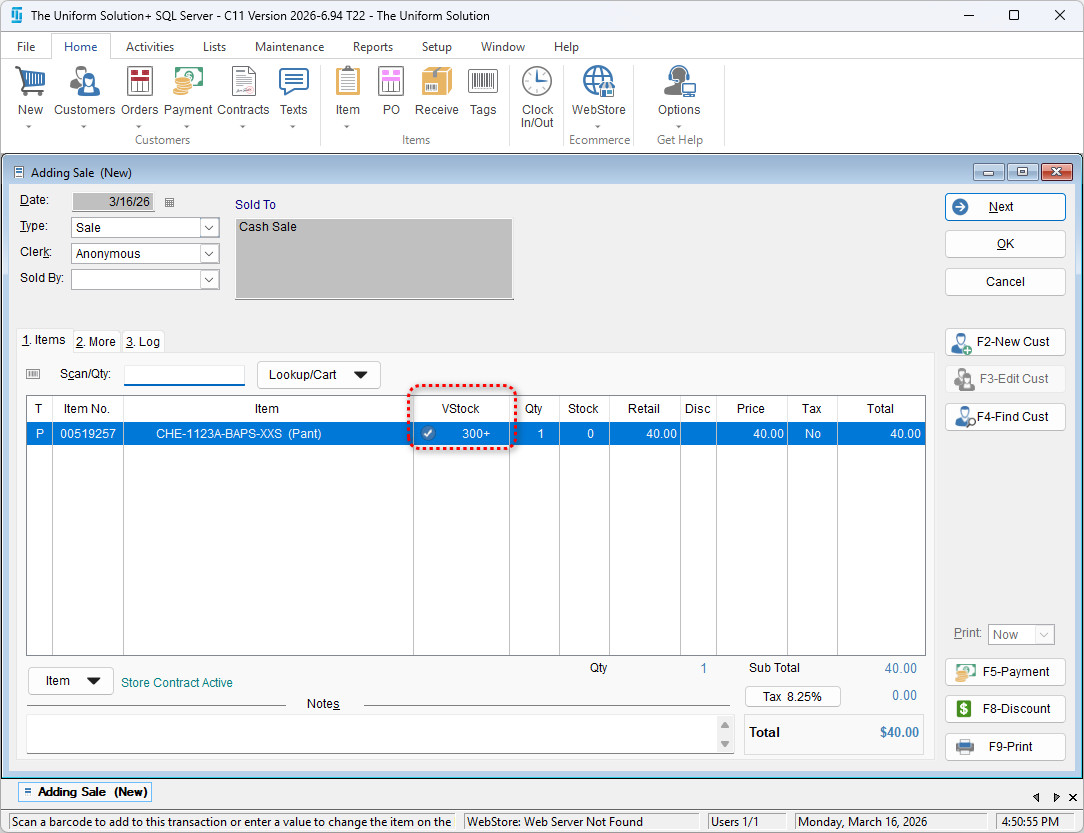
- Select the Items tab to return to the sale and once you scan in an item – it will show the Vendor Stock level in the new VStock Tab.
- Start a new sale – Home > New