
What Is Pulse?
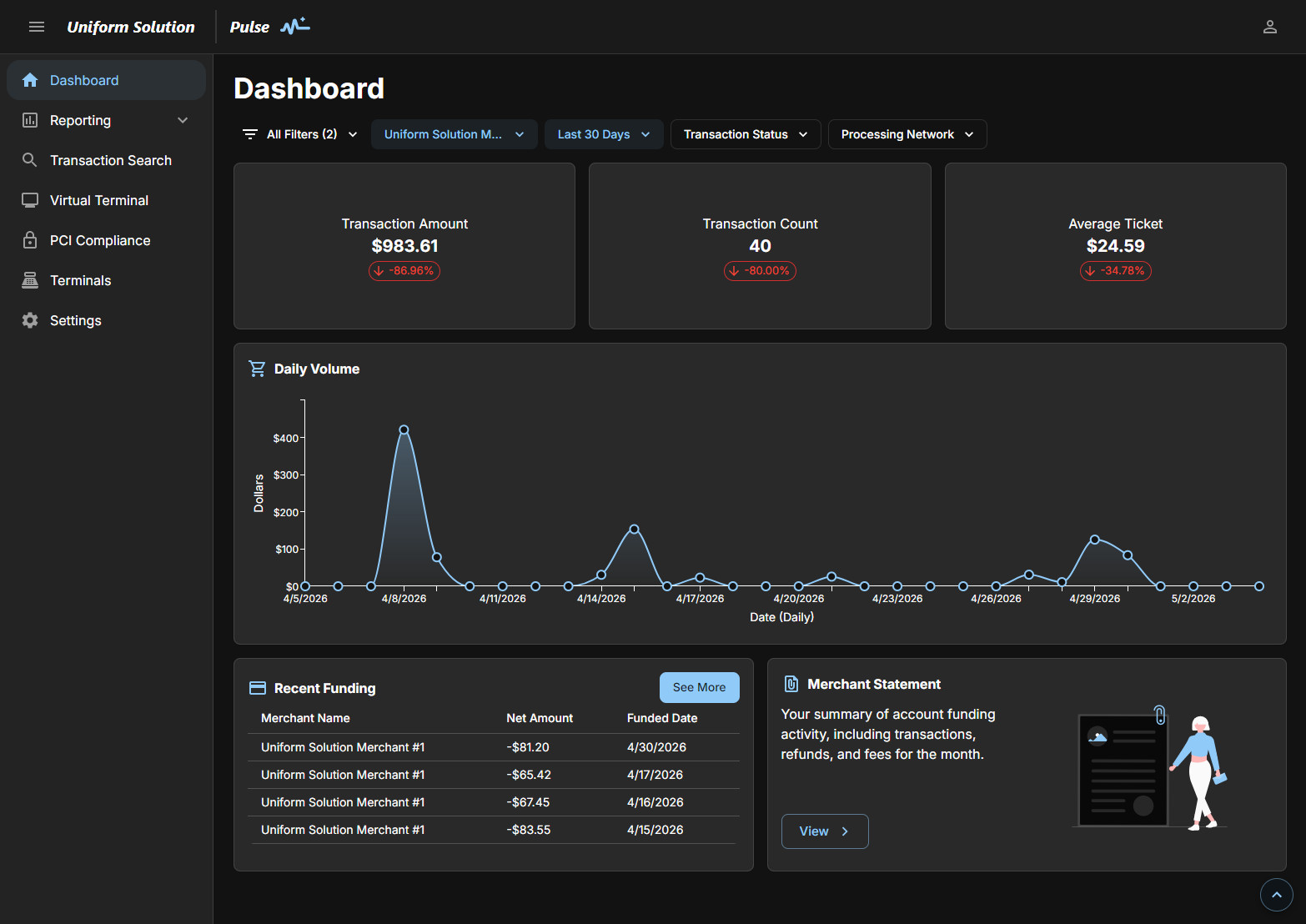
Pulse is a web-based payment management portal that gives merchants centralized access to their credit card processing activity. Rather than navigating multiple systems, Pulse brings reporting, transactions, funding visibility, manual payment processing, and account details into a single interface.
Pulse is designed to support both:
- Quick daily monitoring (without running reports), and
- Detailed investigation and reconciliation when deeper information is needed
Merchants typically interact with Pulse daily for visibility and customer support, and periodically for reconciliation, reporting, and account management.
Pulse at a Glance
Use Pulse to:
- ✅ Check daily sales volume, trends, and deposits
- ✅ Look up individual transactions and issue refunds or voids
- ✅ Run reports and exports for accounting and reconciliation
- ✅ Process manual / card‑not‑present payments when needed
- ✅ View payment terminals and manage user access visibility
Pulse is designed for visibility, investigation, and administration.
Which Area Should I Use?
Use the guide below to quickly choose the right Pulse section for your task:
| If you need to… | Use this section |
|---|---|
| Check today’s sales or confirm a deposit | Dashboard |
| Find a specific transaction or receipt | Transaction Search |
| Issue a refund or void | Transaction Search |
| Reconcile deposits with bank statements | Reporting |
| Export transactions for accounting or taxes | Reporting |
| Review chargebacks or disputes | Reporting |
| Process a phone or mail order payment (in the case of emergency/unable to access TUS) | Virtual Terminal |
| Check terminal activation or assignments | Terminals |
| Verify access, permissions, or profile info | Settings |
🔐 Accessing Pulse
To open the Pulse Portal directly from The Uniform Solution (TUS):
-
Go to Home > Payment (dropdown) > UniformPay Merchant Portal
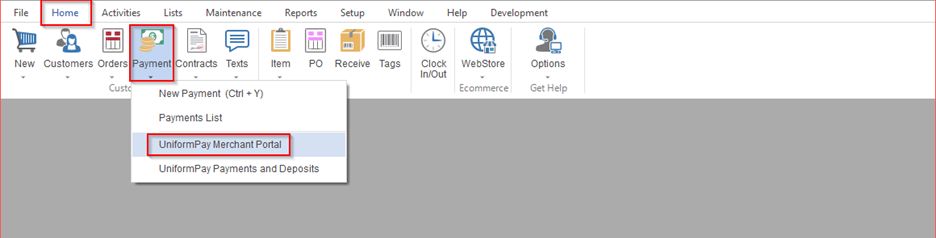
✅ Note: Single Sign-On (SSO) must be enabled in your system settings for direct access – For step-by-step instructions, check out: UniformPay System and User Permissions Setup Guide
Pulse Navigation at a Glance
Pulse is organized into core sections accessed from the left-hand navigation menu:
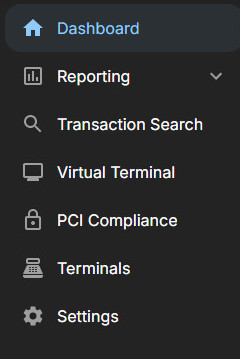
- Dashboard – Real-time performance overview
- Reporting – Structured reports and exports
- Transaction Search – Individual transaction lookup and actions
- Virtual Terminal – Keyed and card-not-present payments
- Terminals – Physical device visibility and activation
- Settings – User profile details and access permissions
Each section serves a distinct purpose and is summarized in more detail below.
Dashboard: Real-Time Business Snapshot
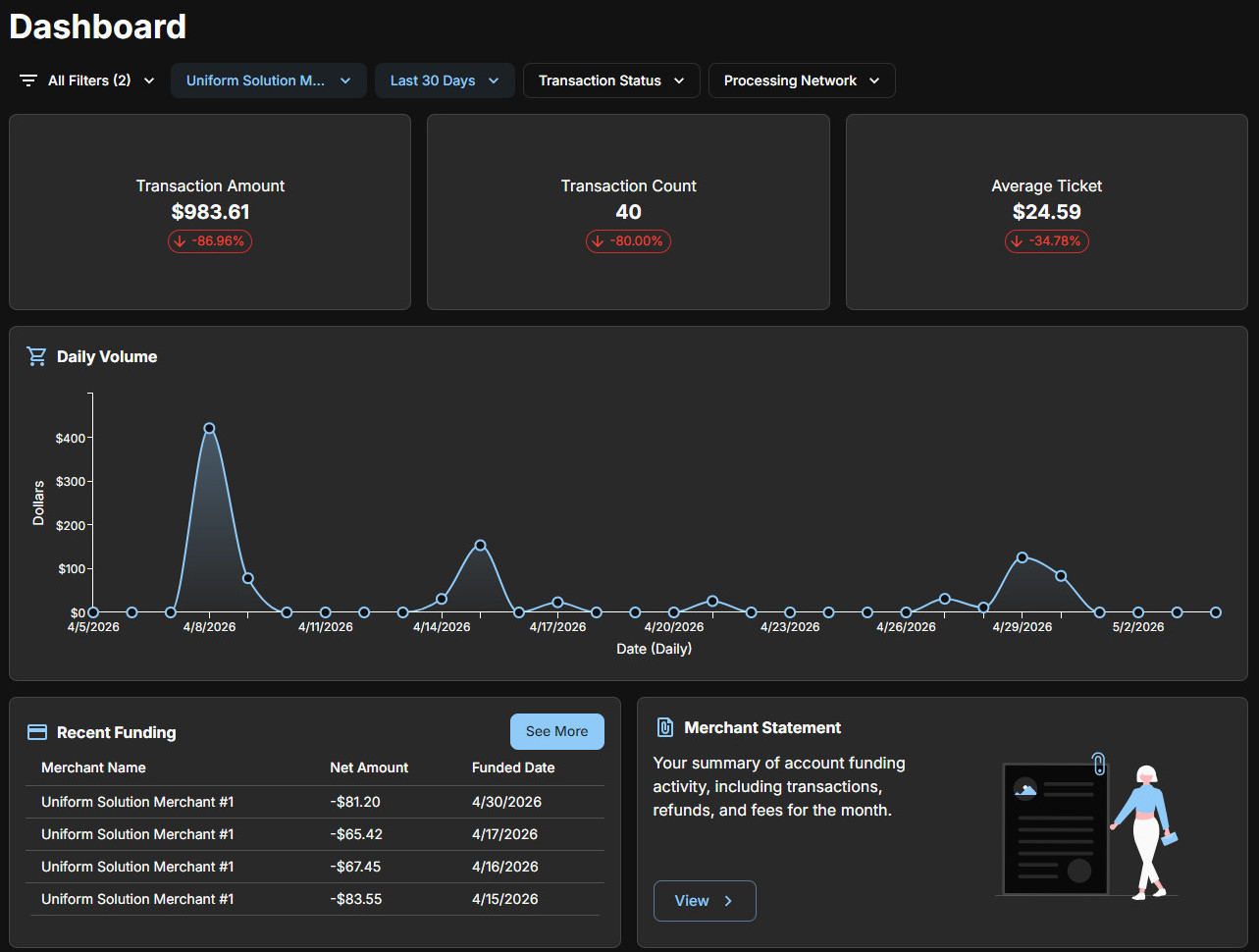
The Dashboard is the Pulse landing page and provides an immediate view of how the business is performing over a selected time period.
What the Dashboard Shows
- Key performance metrics, including:
- Total transaction amount processed
- Number of transactions
- Average ticket size
- Percentage comparisons against the prior period to highlight growth or decline
- A daily volume chart that visualizes transaction trends over time
- Recent funding activity, including net deposit amounts and funded dates
- Direct access to monthly merchant statements
Filters & Controls

Dashboard data can be refined using filters such as:
- Merchant or location
- Date range
- Transaction status
- Processing network
Any change to filters automatically updates all metrics and charts on the page.
When Merchants Use the Dashboard
- Morning or end-of-day performance checks
- Identifying unusually high or low volume days
- Confirming deposits without running reports
- Accessing monthly statements quickly
The Dashboard is designed for visibility, not investigation. For transaction-level details or exports, merchants should use Transaction Search or Reporting.
Reporting: Detailed Analytics & Data Exports
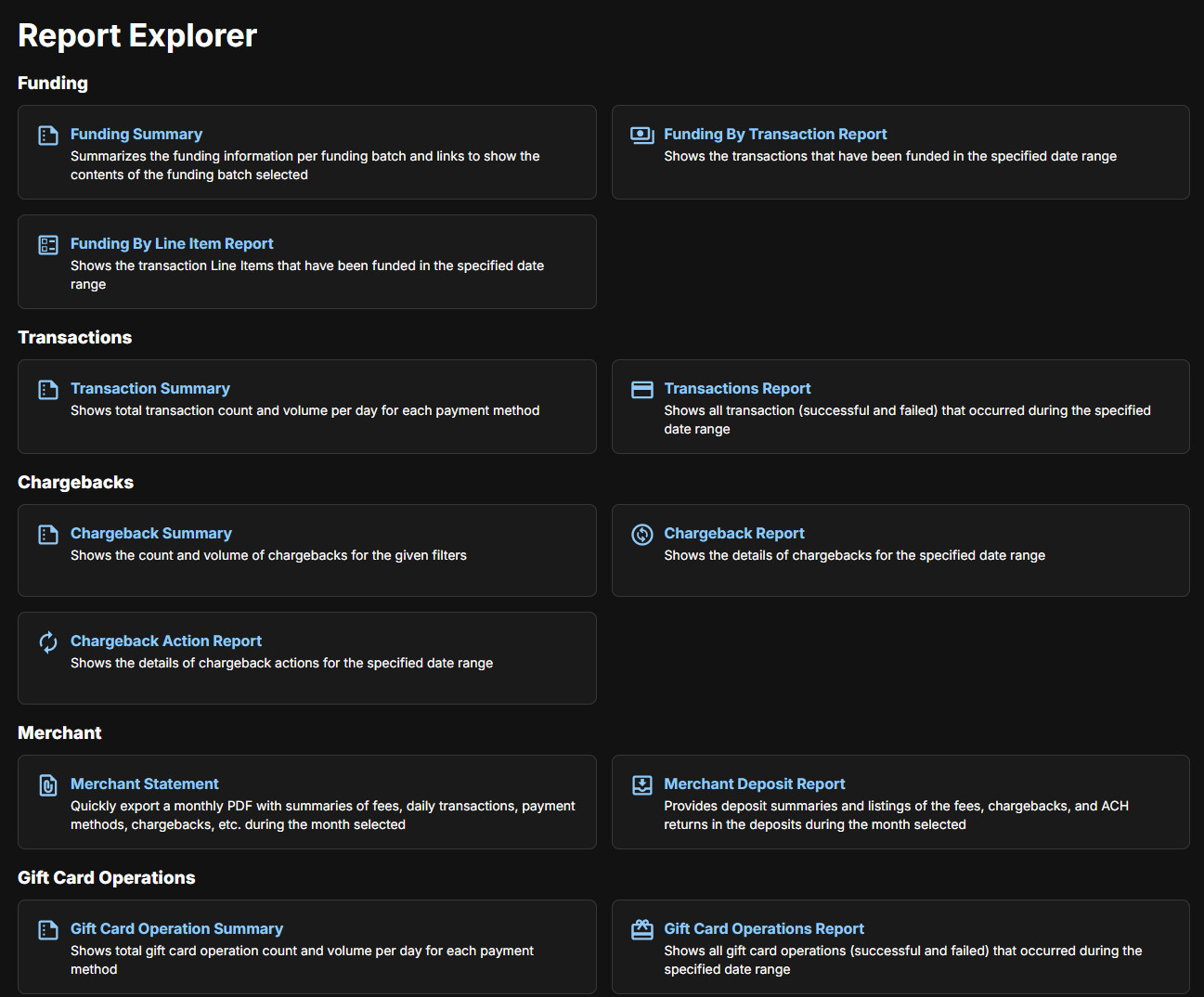
The Reporting section provides structured, filterable reports for deeper analysis, reconciliation, and recordkeeping.
Report Organization
Reports are grouped into categories, including:
- Funding – How and when deposits were made
- Transactions – Sales activity summaries and details
- Chargebacks – Disputes and outcomes
- Merchant – Monthly statements and deposit summaries
- Gift Card Operations – Gift card activity tracking
📁 Funding Reports
| Report | Description |
| Funding Summary Report | Shows each funding (deposit) batch with totals and links to detailed transaction data within the batch. |
| Funding by Transaction Report | Lists each individual transaction that was included in funded deposits for the selected date range. |
| Funding by Line Item Report | Breaks down funded transactions into individual line items, including fees, adjustments, and transaction-level details. |
🧾 Transaction Reports
| Report | Description |
| Transaction Summary Report | Displays daily transaction counts and total dollar volume, grouped by payment method. |
| Transactions Report | Lists all successful and failed transactions within the selected date range, including error details for failed transactions. |
⚠️ Chargeback Reports
| Report | Description |
| Chargeback Summary Report | Summarizes total chargeback count and dollar volume based on selected filters. |
| Chargeback Report | Provides a detailed view of individual chargebacks, including amounts, dates, and current status. |
| Chargeback Action Report | Tracks actions taken on chargebacks, such as responses submitted, updates, and outcomes. |
🏪 Merchant Reports
| Report | Description |
| Merchant Statement | Monthly PDF statement summarizing transactions, fees, payment methods, deposits, and chargebacks. |
| Merchant Deposit Report | Monthly deposit breakdown showing fees, chargebacks, ACH returns, and other adjustments included in deposits. |
🎁 Gift Card Operations Reports
| Report | Description |
| Gift Card Operations Report | Lists all gift card attempts and outcomes (successful and failed) for the selected date range. |
| Gift Card Operation Summary Report | Summarizes gift card activity by day and payment or operation type. |
Common Capabilities
- Date range filtering
- Drill-down from summary to detail
- Exporting reports for accounting or external use
When Merchants Use Reporting
- Reconciling deposits with bank statements
- Exporting transaction data for bookkeeping or taxes
- Reviewing chargeback trends and outcomes
- Auditing fees, adjustments, or line-item details
Reporting is best for analysis and exports, not immediate transaction actions.
Transaction Search: Transaction-Level Actions & Investigation
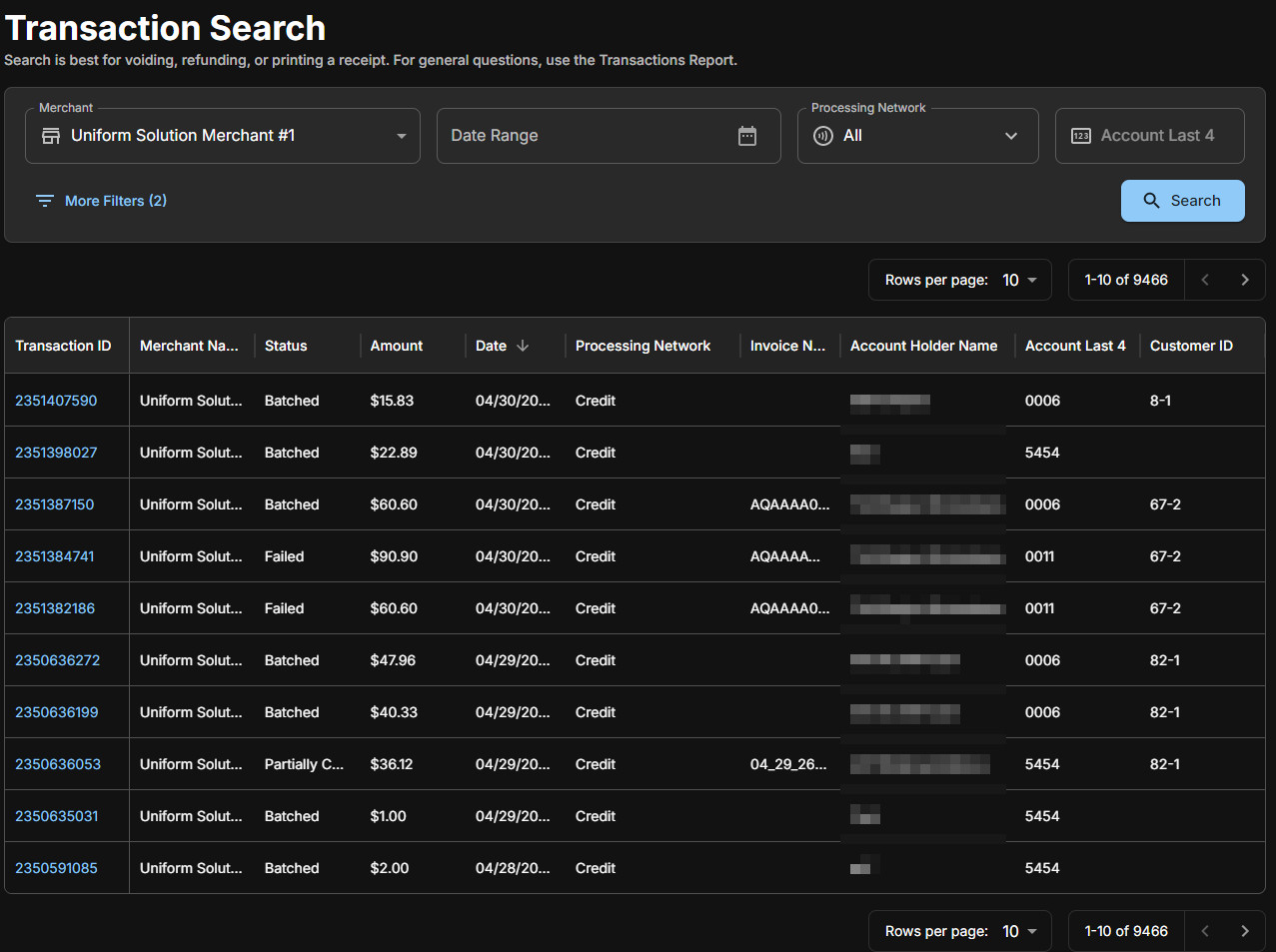
Transaction Search is designed for locating specific transactions when an action or investigation is required.
What Merchants Can Do
- Search transactions by:
- Merchant/location
- Date range
- Processing network
- Card details or transaction ID
- View transaction status and metadata
- Open transaction details for:
- Receipt viewing or reprinting
- Voids or refunds (when eligible)
- Authorization and processing review
Search Results & Details
Search results display each transaction as a single row, with the ability to click into full transaction details. Available actions depend on settlement status and permissions.
When Merchants Use Transaction Search
- Responding to customer questions
- Issuing refunds or voids
- Reprinting receipts
- Investigating failed, declined, or disputed transactions
If the goal is totals, trends, or exports, Reporting is the recommended tool instead.
Need to process a refund via TUS? Follow this guide to run the refund and then you can see the status change from Batched to Refund.
Virtual Terminal: Card‑Not‑Present & Keyed Payments
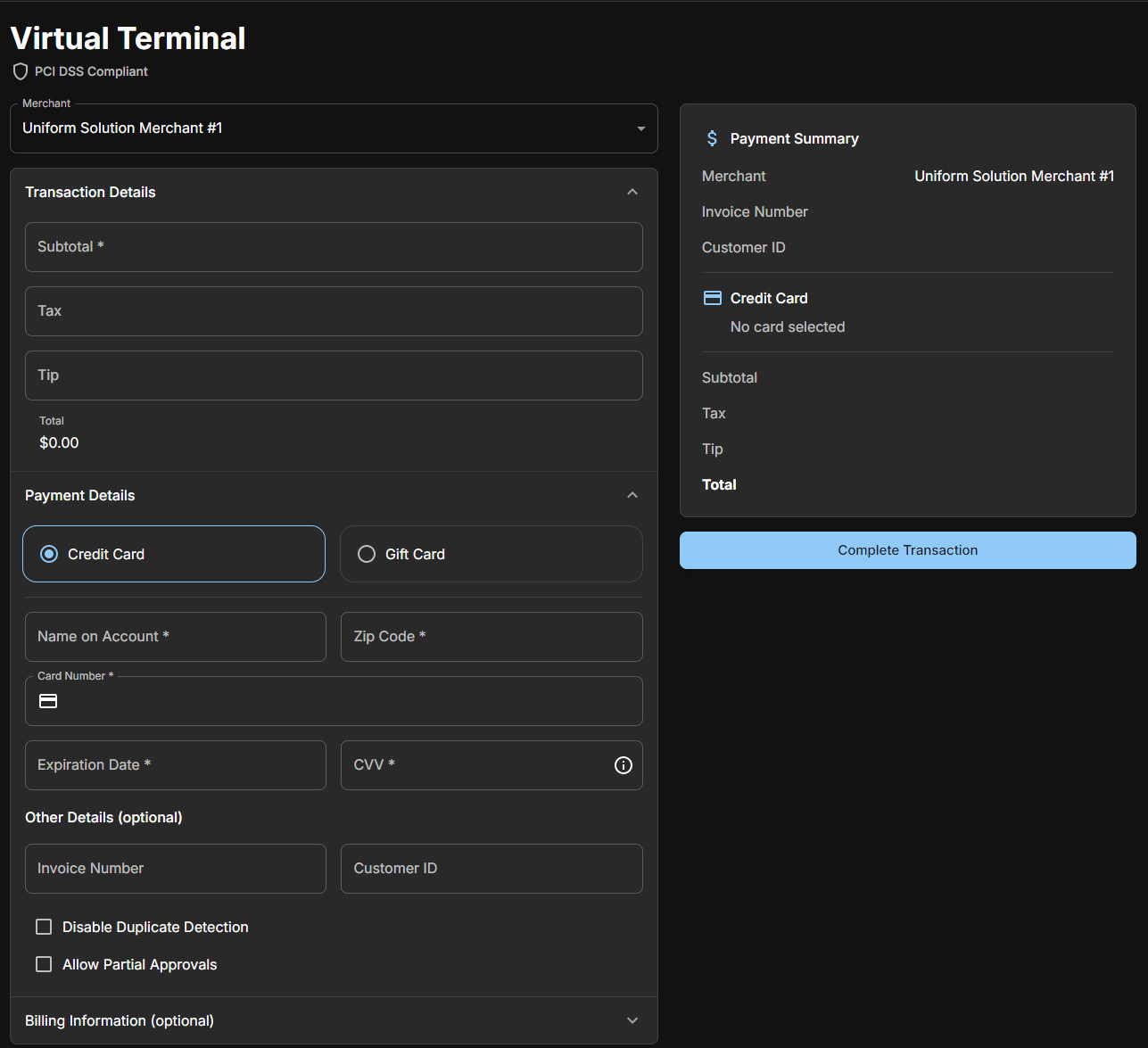
The Virtual Terminal allows merchants to manually enter payment information when a physical terminal is not used.
Common Use Cases
- Backup processing during software outages
Key Capabilities
- PCI DSS–compliant payment entry
- Support for:
- Credit card payments
- Gift card transactions
- Automatic calculation of totals (subtotal, tax, tip)
- Optional invoice and customer reference fields
- Advanced controls such as:
- Duplicate detection
Transaction Completion
Once submitted, successful transactions appear in:
- Transaction Search
- Reporting
- Dashboard metrics
⚠️ Important: The Virtual Terminal is not integrated with TUS and should only be used in emergency situations or when access to TUS is temporarily unavailable.
If a payment is processed through the Virtual Terminal and the sale must later be recreated in TUS, a non‑integrated payment method must be created and used. This allows the payment to be recorded in the system without attempting to charge the credit card again.
Use this knowledge base article to correctly set up and apply a non‑integrated payment method for these scenarios.
Terminals: Physical Device Visibility & Activation
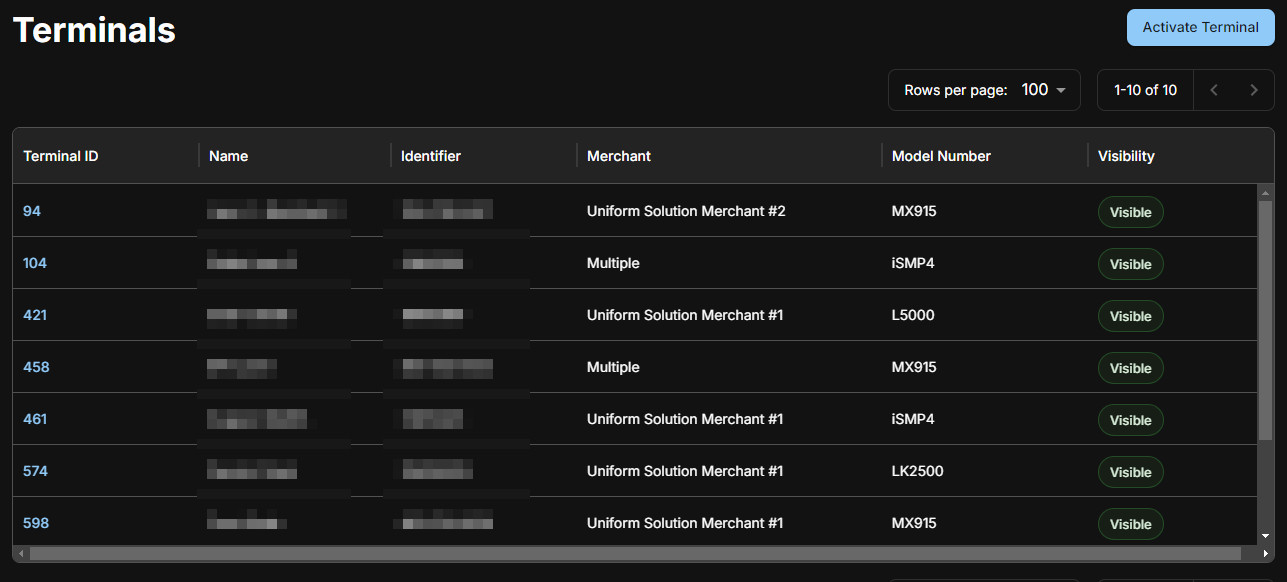
The Terminals section provides an administrative view of all physical payment devices associated with a merchant account.
What Merchants Can See
- Terminal IDs and friendly names
- Hardware models
- Merchant or location assignments
- Visibility and activation status
Terminal Activation
Merchants or support teams can initiate activation for:
- New devices
- Replacement terminals
- Reactivated hardware
This section does not process transactions—it reflects system recognition and configuration only.
When Merchants Use Terminals
- Confirming which devices are active
- Verifying terminal assignments
- Supporting new device deployments
⚠️ Caution:
This section should only be used:
With guidance from Technical Support
If you have prior experience with terminal activation or re-registration
Settings: User Profile & Access Visibility
The Settings section allows users to review and manage personal profile details while viewing assigned access.
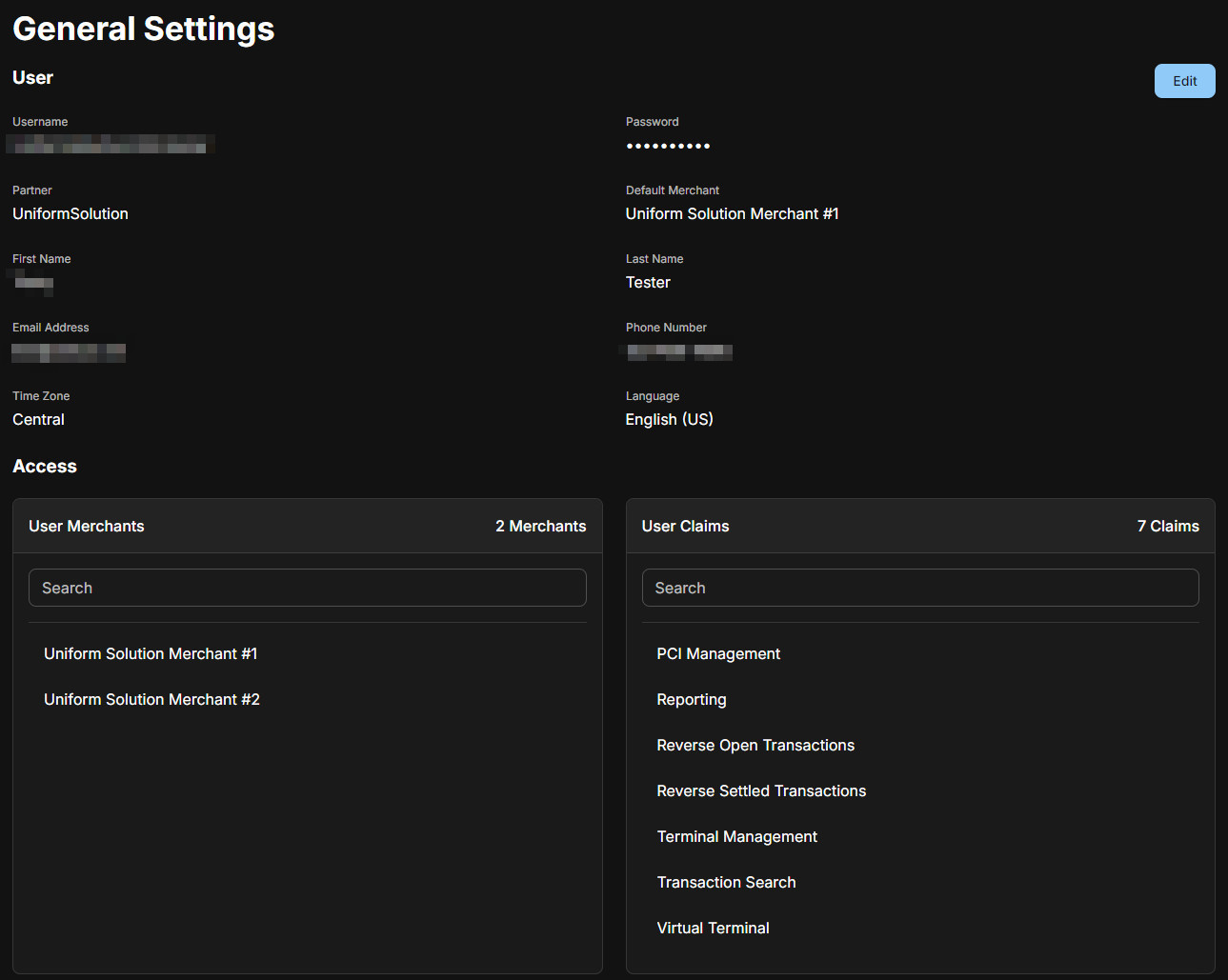
Profile Information
Users can view (and update, where permitted):
- Contact information
- Time zone and language
- Default merchant selection
Access & Permissions
Settings also display:
- Assigned merchants the user can access
- Feature-level permissions (claims) that control:
- Which menu items appear
- Which actions the user can perform
Some fields and permissions are administrator-controlled.
When Merchants Use Settings
- Verifying default merchant selection
- Confirming access to features or merchants
- Updating contact information
- Troubleshooting missing functionality