
Overview
This guide explains how to configure Third-Party Billing on the WebStore within The Uniform Solution. This feature allows a main account to be billed for purchases made by sub-accounts, which is useful for organizations managing employees, departments, or groups under a single billing entity.
Before You Begin
Ensure:
- The main billing account has already been created
- Sub-accounts (customers) exist or will be created
- You have appropriate permissions to modify customer and system settings
Step 1: Access Customer Setup
- Navigate to:
Lists → Customers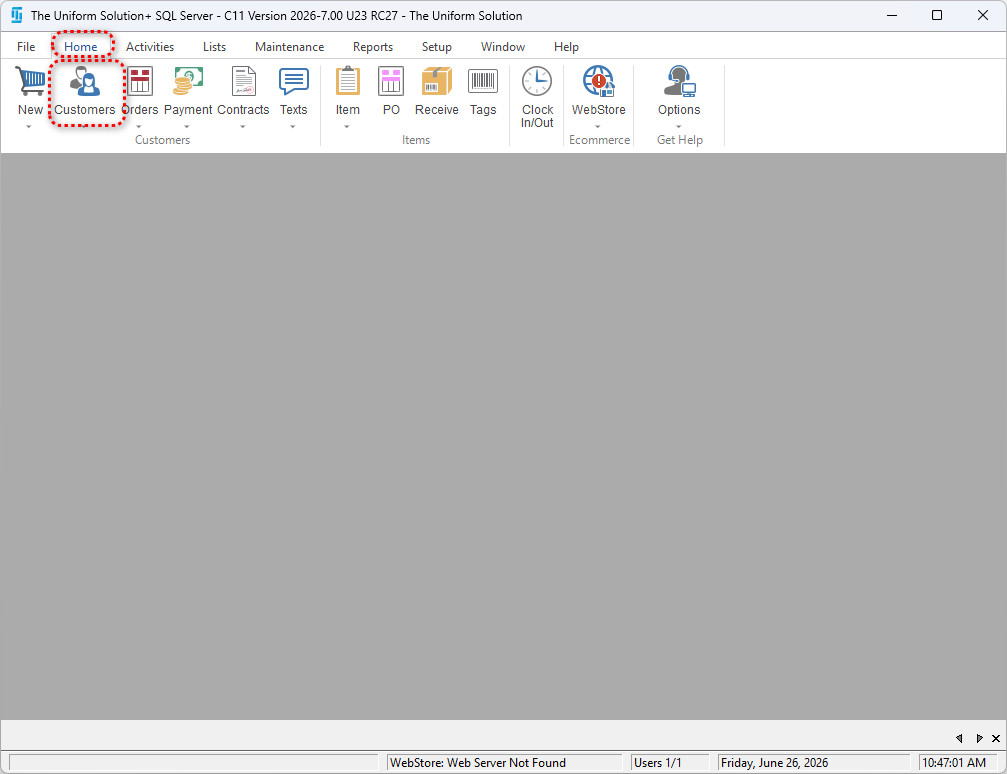
- Locate the main account that will be billed
- Double-click the account
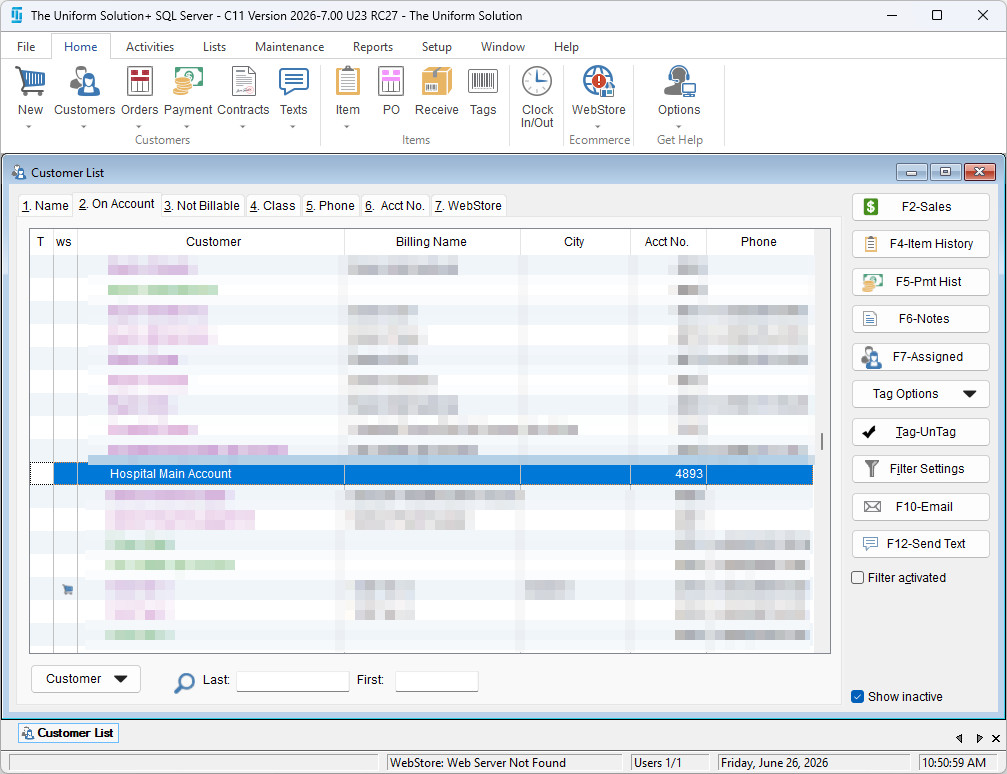
Step 2: Enable WebStore Billing Options
- Open the selected customer account
- Navigate to the WebStore tab
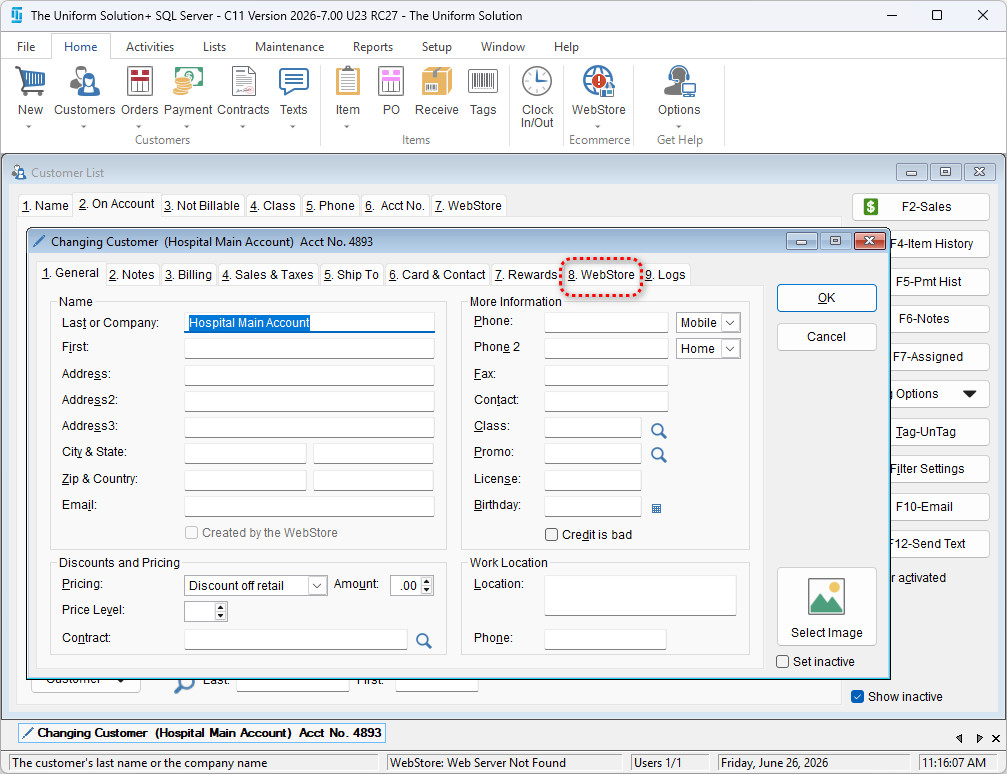
- Enable the following options:
Billing Options
- ✅ Allow WebStore Purchases to be billed
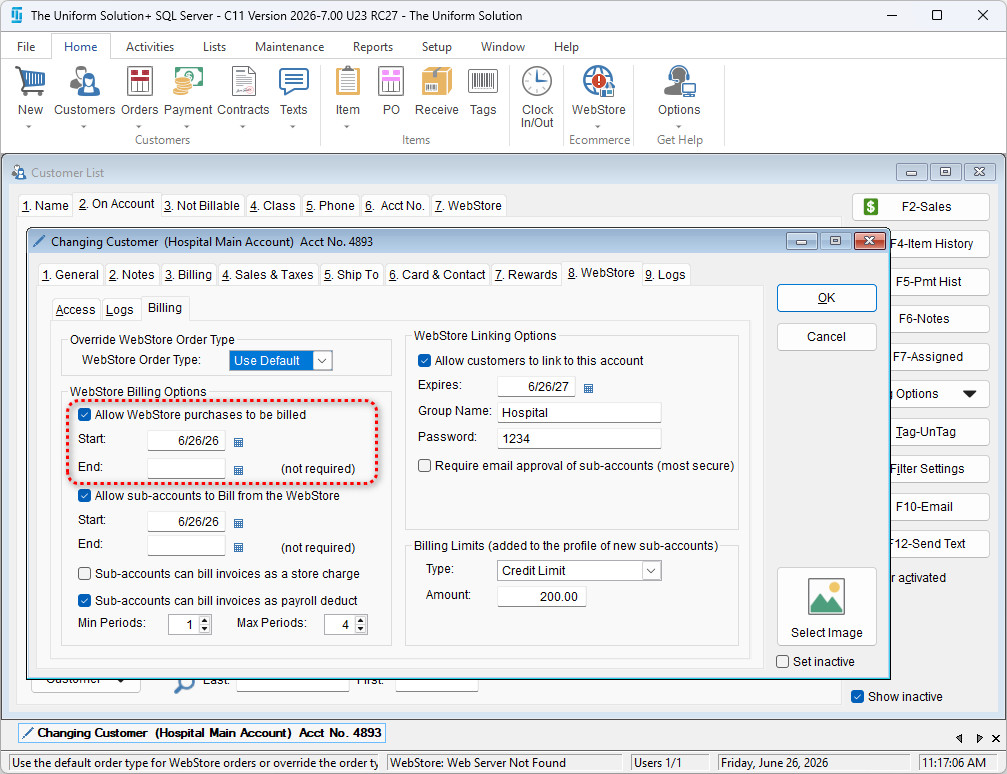
- Set a Start Date and (optional) End Date
Sub-Account Billing
- ✅ Enable Allow sub-accounts to bill from this WebStore
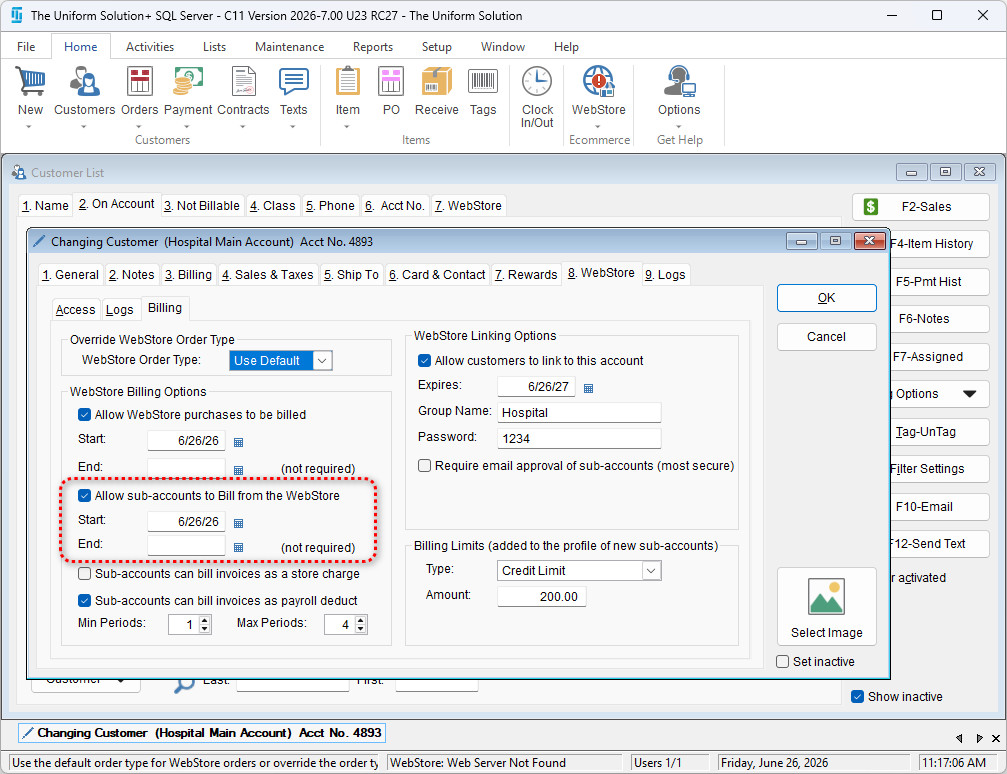
- Set applicable date range
Billing Behavior
Choose how sub-account purchases are handled:
- Bill invoices directly to the main (store charge) account
- OR process invoices through payroll deductions (You can choose the minimum and maximum number of pay period to deduct from payroll using the respective options.)
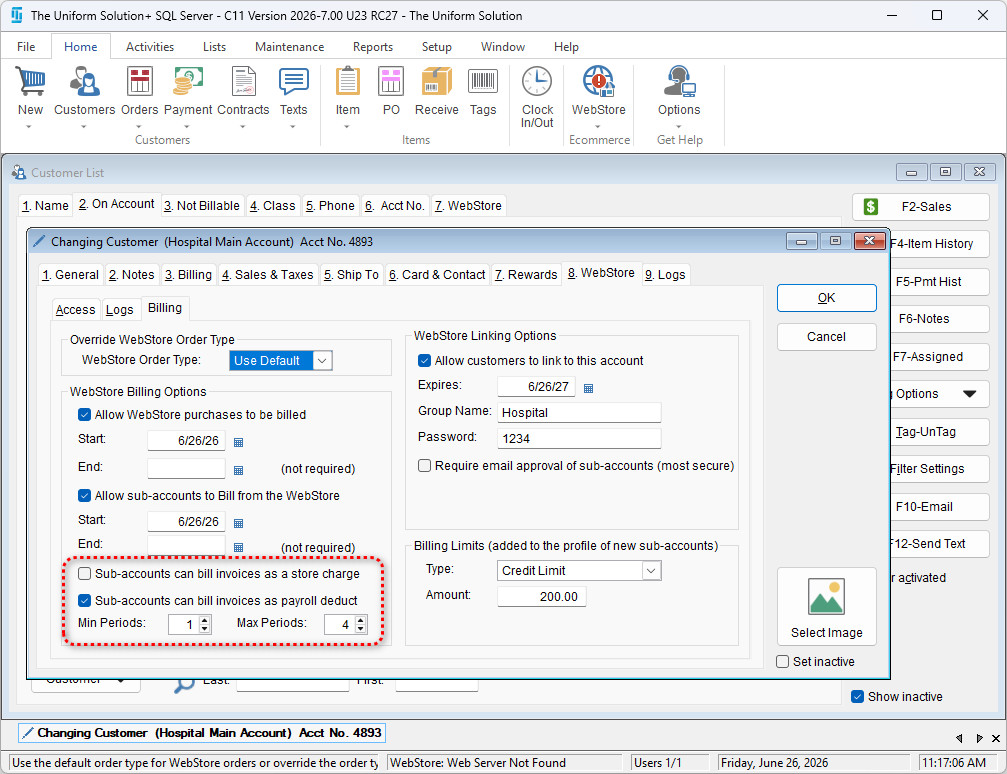
✅ Tip: Choose the billing method that aligns with how your organization tracks and collects payments.
Step 4: Configure WebStore Linking Options
These settings allow sub-accounts to connect to the main billing account.
Steps:
- Enable Allow customers to link to this account
- Set an expiration date for linking access
- Assign:
- A Group Name
- A Password
- If you would like to require email approval of sub accounts – enable the option below the group name and password field.
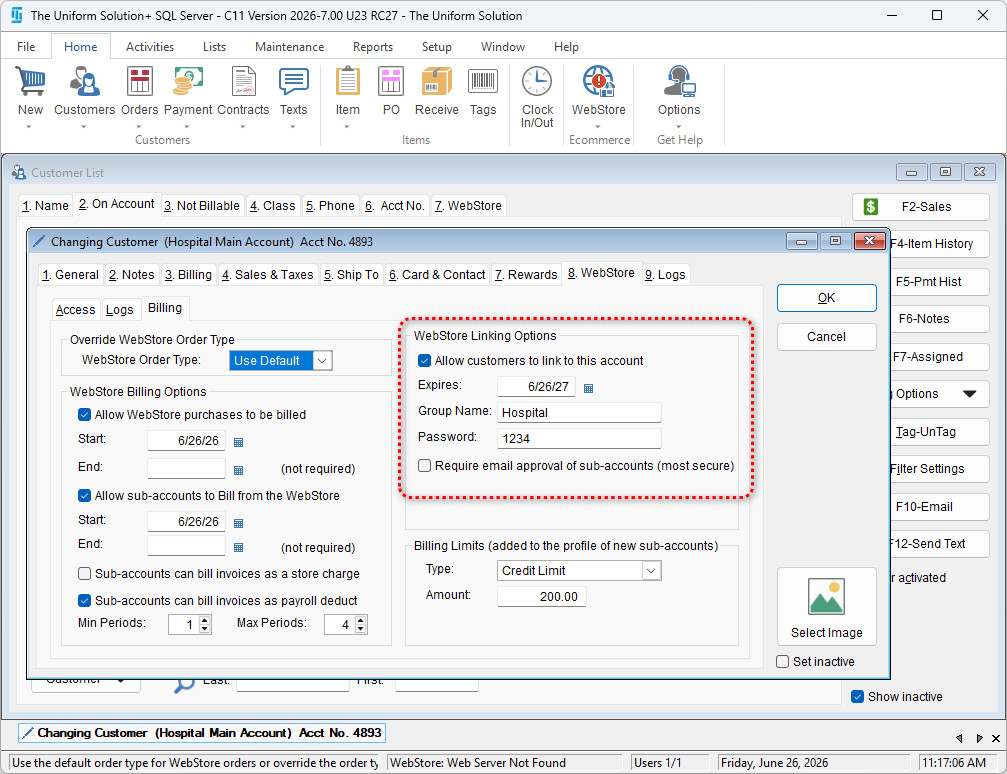
These credentials will be used by sub-accounts to link themselves to the main billing account.
Step 3: Configure Billing Limits
- In the same account setup, locate Billing Limits
- Select a limit type:
- Allowance Limit (fixed spending amount)
- Credit Limit
- None
- Enter the allowed spending amount (if applicable)
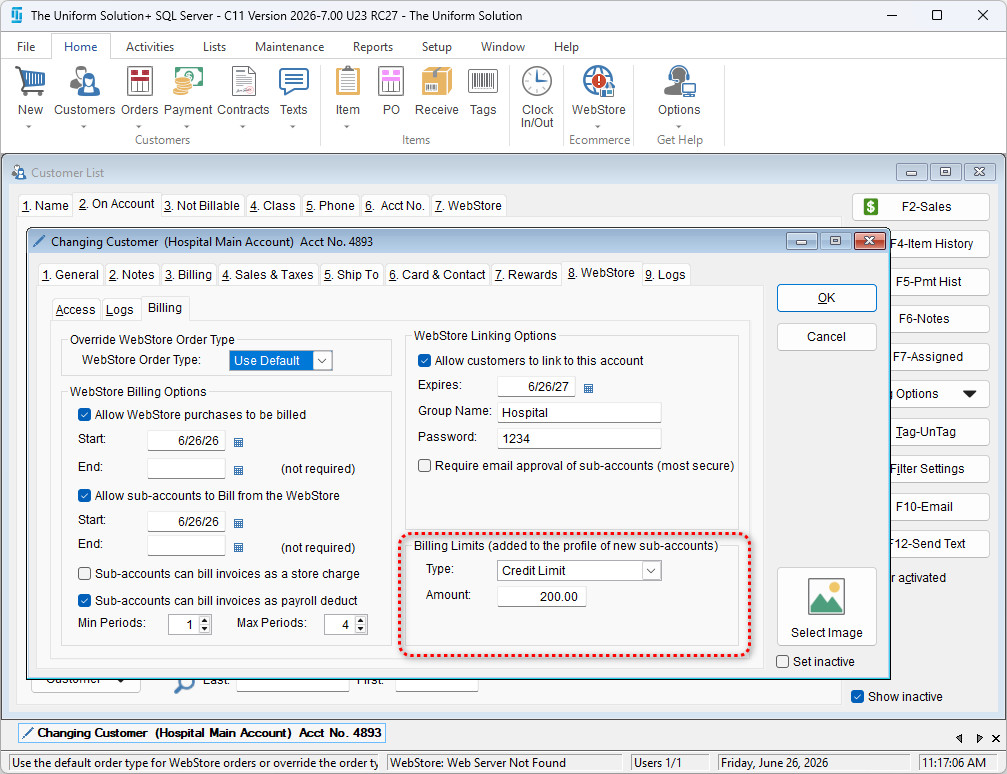
✅ Note: Limits apply to all sub-accounts linked to the main account.
Step 4: Save Your Changes
- Click OK to save all settings
- The system will now allow third-party billing configurations on the WebStore
How It Works (Summary)
- Sub-accounts shop on the WebStore
- Charges are routed to the main account
- Billing rules (limits, periods, and restrictions) are enforced automatically
- Transactions are recorded based on selected billing behavior
Best Practices
- Clearly define spending limits before enabling billing
- Communicate login and linking credentials securely
- Test with one sub-account before rolling out broadly
- Review reporting to ensure billing flows correctly
Troubleshooting
Sub-account cannot bill to main account
- Verify WebStore billing is enabled
- Confirm date ranges are valid
- Ensure sub-account linking is completed
Billing not appearing correctly
- Check billing option selected (store charge vs payroll)
- Confirm limits are not exceeded
User cannot link account
- Verify group name and password
- Ensure linking has not expired