
- Navigate to the file tab < Backup < select Full Backup or SQL Backup Only
- Full Backup includes images while SQL Backup Only does not

- Full Backup includes images while SQL Backup Only does not
- You will now save the Backup within your Quick Access shortcuts.
- If you have not setup your quick access, please see the following KB article. Quick Access Setup.
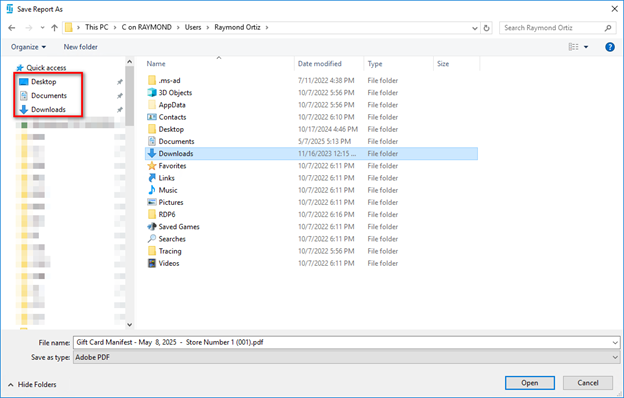
- If you have not setup your quick access, please see the following KB article. Quick Access Setup.
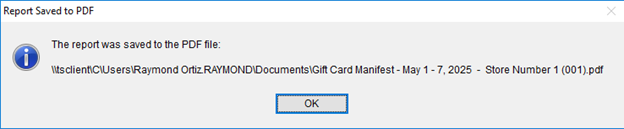
- Once you have Selected the file location you want the Backup to be saved at. You will get a prompt stating the backup has been saved and you can click ok.
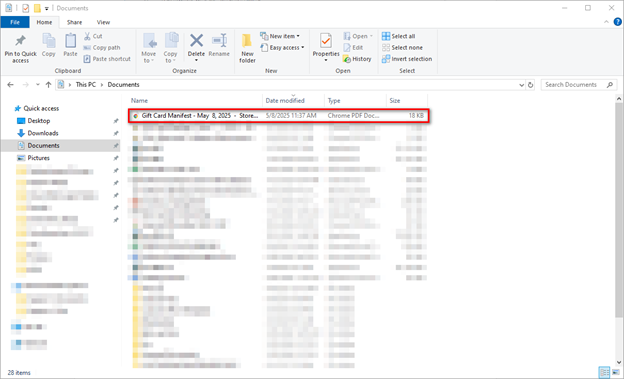
- The Backup will then be saved in the folder designated on the local machine
Creating A Backup
Updated on September 4, 2025