
PWA Installation Instructions
The Progressive Web App (PWA) is the latest version of the mobile application. Unlike traditional apps, it is not available in the App Store or Google Play Store.
Instead, it is a web-based application that can be installed directly from your browser and saved to your device for quick access.
- Application URL: https://pwa.theuniformsolution.com/
For iOS Devices (iPhone / iPad)
⚠️ Important: Installation must be done using Safari
Steps:
- Open Safari.
- Navigate to: https://pwa.theuniformsolution.com/
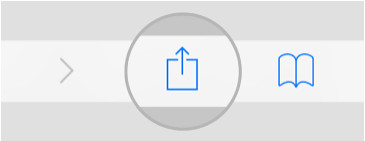
- Tap the Share icon.
- Select Add to Home Screen.
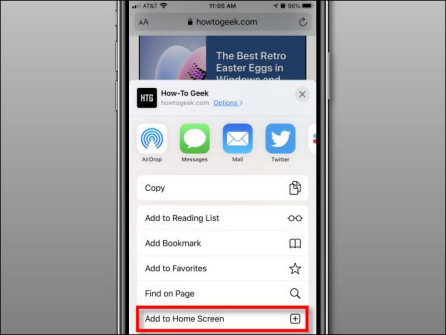
- The app icon will appear on your Home Screen.
For Android Devices
Supported Browsers:
- Microsoft Edge (recommended)
- Google Chrome
Steps:
- Open Microsoft Edge or Google Chrome.
- Go to: https://pwa.theuniformsolution.com/
- Tap the menu (⋯) icon.
- Select Add to Home Screen.
- The app will appear as an icon on your device.
For Desktop Computers
Supported Browser: Google Chrome
Steps:
- Open Google Chrome.
- Navigate to: https://pwa.theuniformsolution.com/
- Locate the Install icon in the address bar.
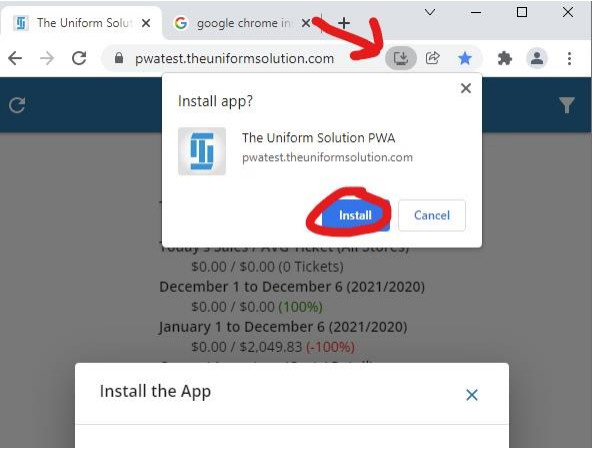
- Click Install.
- The PWA will install as a desktop application.
Logging into the PWA
When you open the PWA for the first time, you will be presented with the login screen below:
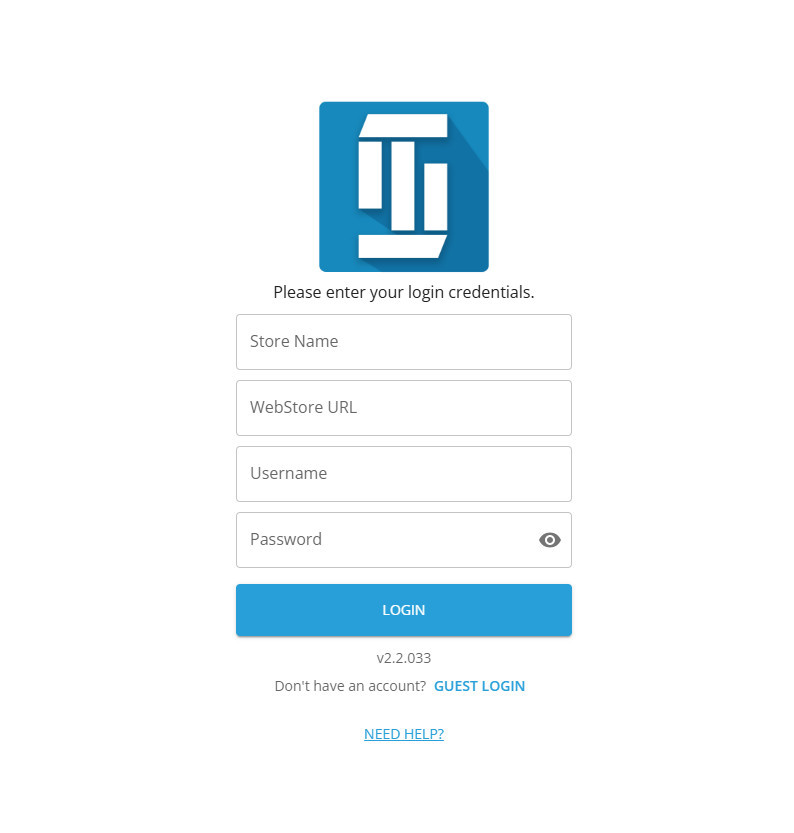
Field Descriptions
- Store Name
Enter any name you would like to use to identify your store within the PWA APP. - WebStore URL
Enter your store’s web address. - Username
Enter the same username used to log into The Uniform Solution. - Password
Enter the same password used for The Uniform Solution.
Additional Notes
- The installed PWA behaves like a native application.
- Once installed, users can launch it directly from:
- Home Screen (mobile)
- Desktop or Start Menu (desktop)
- No app updates are required via an app store—updates are applied automatically.
How to add Users to The Uniform Solution Program
In order to properly configure the mobile app, you will need to set up users in The Uniform Solution software. If you are already utilizing the “Users” feature in the software, then make sure you know the username and password and simply move on to configuring your mobile app. Below are instruction on how to quickly set up a new user in The Uniform Solution Software.
-
Go to Setup > Users
-
Right-click that list anywhere and select New User
-
Fill in the information fields provided.
-
If you are the owner of the business, make sure that Type is set to Owner and the Default Security Level is set to 5.
-
Click OK to save the newly created user.
- Note: After the installation – you will want to go back into the security settings and adjust the permissions needed for the user.
Remember your name and password. You will need them to properly configure the mobile app.