
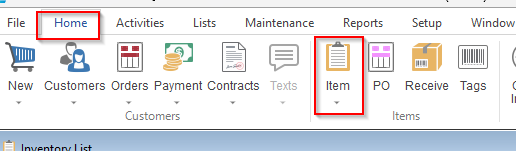
- Select the home tab < item icon.
- Double clicks into the item and color you want to add the image to.
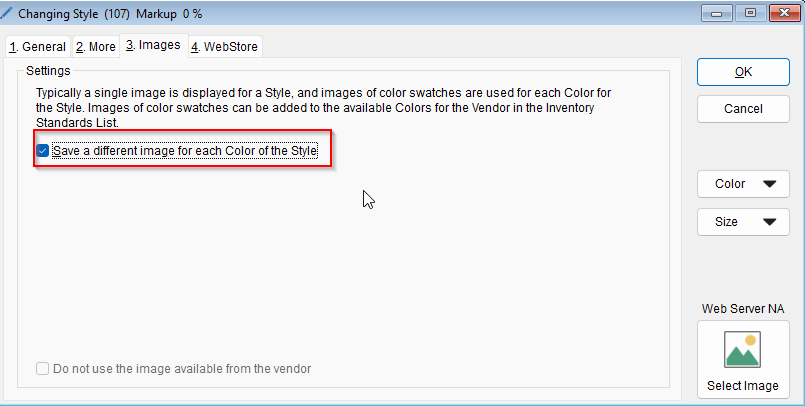
- If these is a style that will have different color images, please select the image tab < check the “Save a different image for each Color of the Style”(you only need to do this once for each style). If not, please skip to step 4.
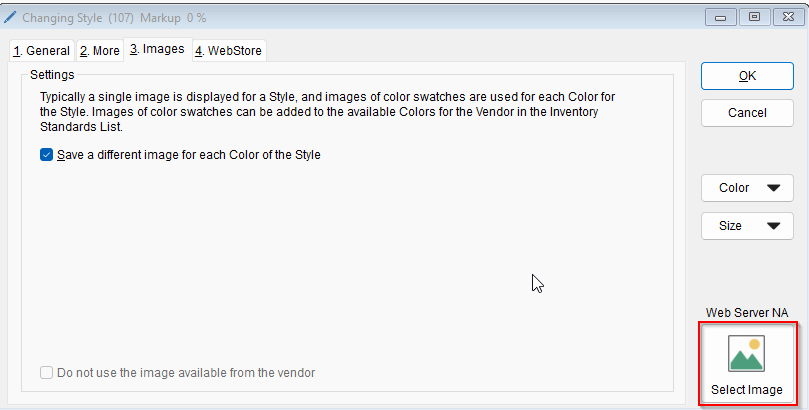
- Hit the select image button
- F2-New Image
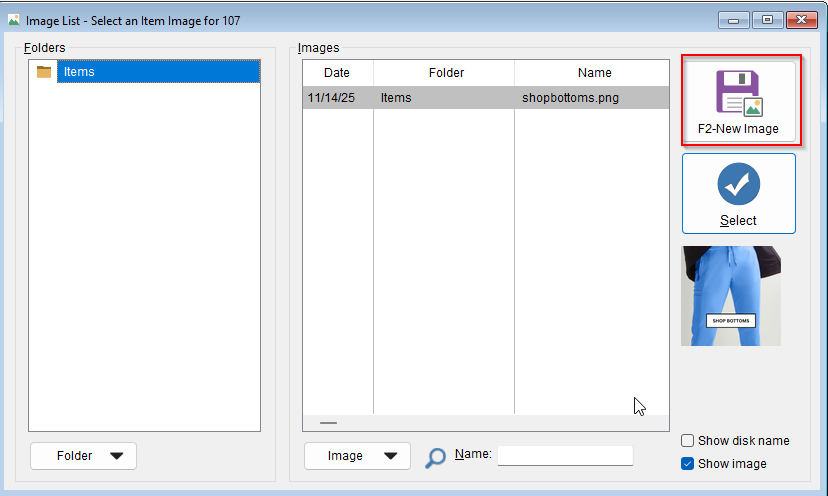
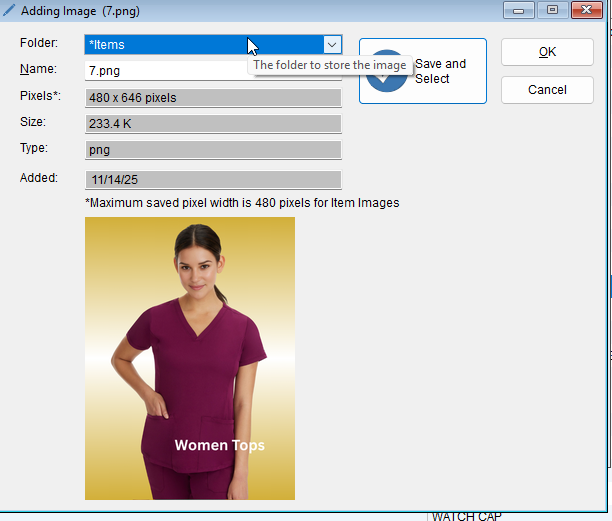
- Select the image from your computer and hit Save and Select. Click Ok
How To Upload an Image to an Item
Updated on November 17, 2025