
This document will be covering how to create a order and set it up to “Drop Ship” to a customer as opposed to ordering the items to the store.
- You will first create a “Special Order” in the program by going to “Home> New> New Special Order”

- From here you will start creating your special order by adding a “Customer” record (Note that you will need to have updated address information for the customer) and add the items to the order like you normally would.

- Once you have added your customer and item, you will need to update the “Item Type” by double clicking into your style and changing the “Type” drop down at the top right to “Drop Ship”

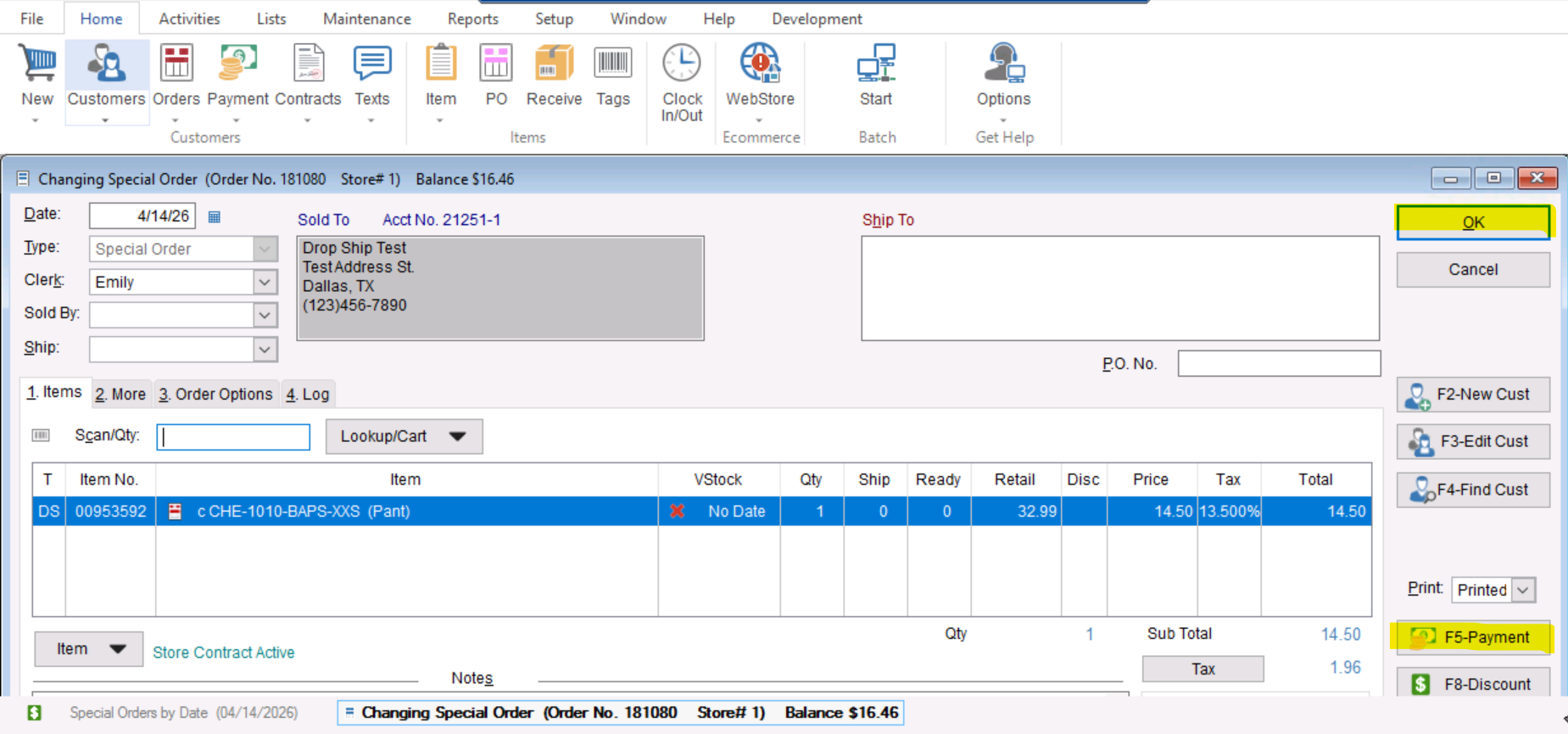
- After updating the “Item Type” you can save your Special Order (Drop Shipment Order) by selecting “OK” or “F5- Payment” if you want to be able to take a deposit for the order.
- Now that your order is saved we can put this item on a “Purchase Order”, you can do this by going to “Home>PO”

- Once you have reached the “Purchase Order List”, you will select “F2- AutoCreate”, make sure the “Drop Shipments” box is checked and select “OK” to generate your Purchase Order.


- This will generate a Drop Shipment Purchase Order in your list that you can then send out to your vendor, using the AutoCreate function to generate this purchase order allows for the customer shipping address to be entered into the “Ship To” section for the vendor to know its not coming to the store.

