
This feature enables you to create different pricing strategies for vendors or customers by applying multiple markup formulas.
Using multiple pricing levels, you can:
- Assign a selected price level to a customer or store
- Offer flexible pricing based on item cost ranges
- Print and compare price tags across different levels
- Apply different markup strategies depending on product type or cost
-
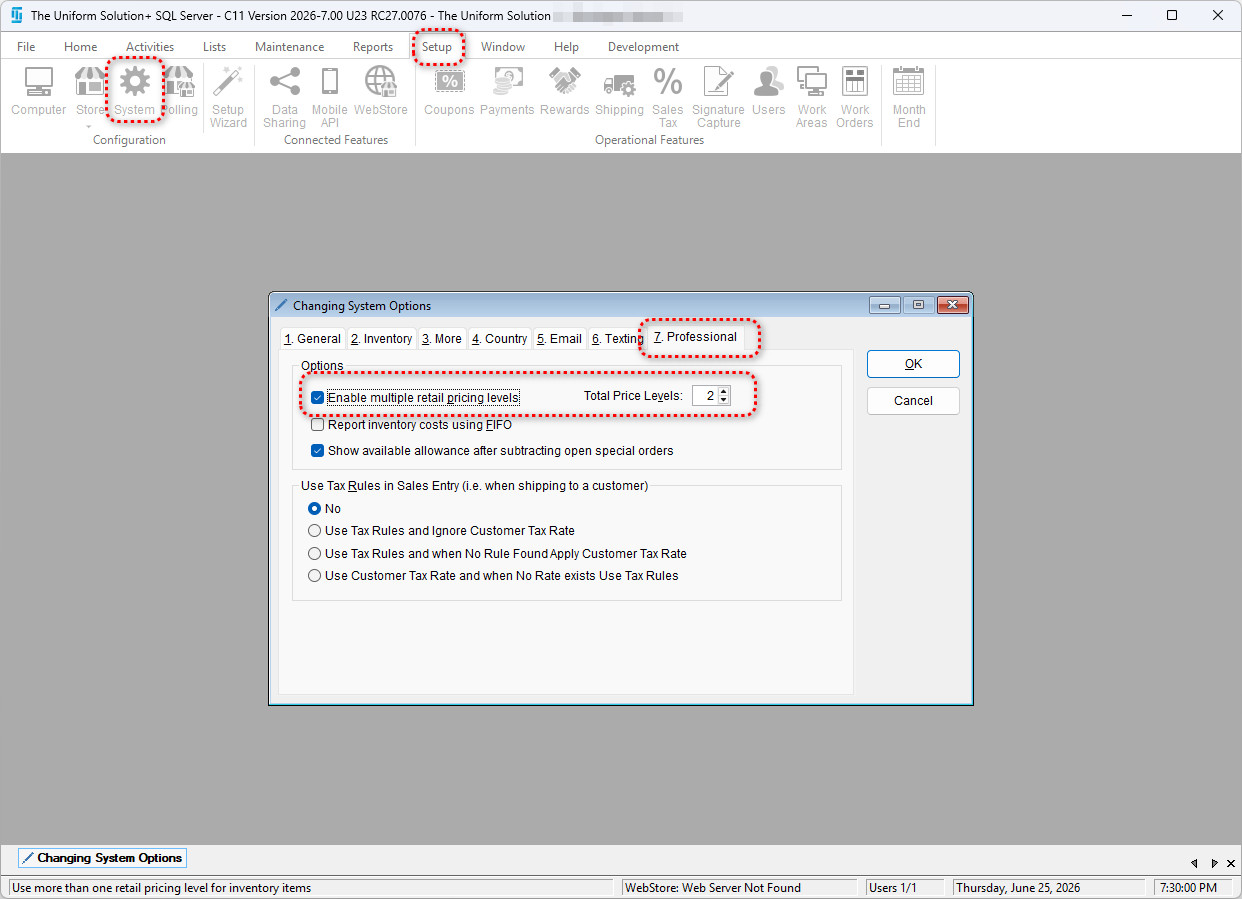
- Navigate to Setup
- Select System Options
- Open the Professional tab
- Under the Options section, check:
- Enable multiple retail pricing levels
- Use the Total Price Levels up/down arrows to choose the number of pricing levels
- (Maximum: 5 levels)
- Click OK to save your changes
Example Pricing Strategy
Multiple pricing levels allow for flexible markup strategies based on item cost.
Example:
- Items priced $1–$50
→ Apply a standard markup over wholesale price - Items priced $51–$99
→ Apply a higher markup (for example, double + $2)
Each pricing level can represent a different markup formula, allowing you to optimize pricing based on product cost and customer expectations.