
In some situations, you may need to manually add a style to your inventory list. This is common when working outside of standard catalog workflows or when an item is not available through the vendor’s catalog.
If the vendor is configured as a Connected Partner, additional settings must be adjusted before creating a new style. Without making this change, you may encounter an error when attempting to add the style:
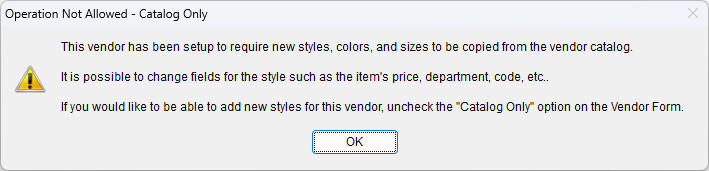
First, we’ll need to make a change to the desired vendor.
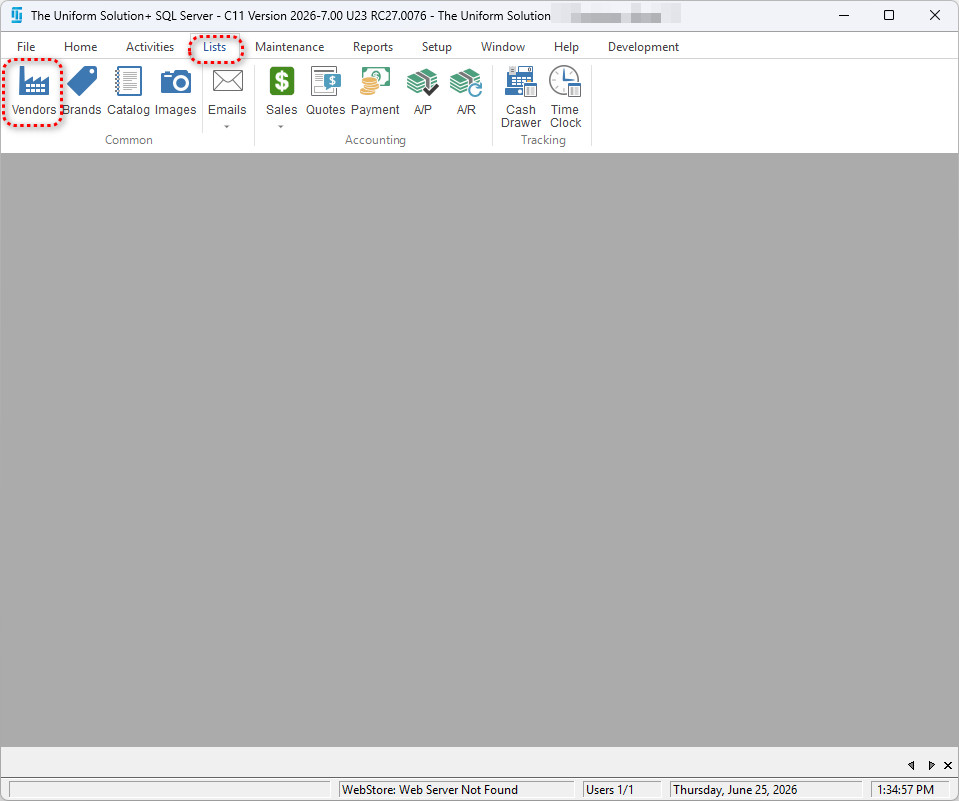
- To access the vendor list, go to: Lists > Vendors
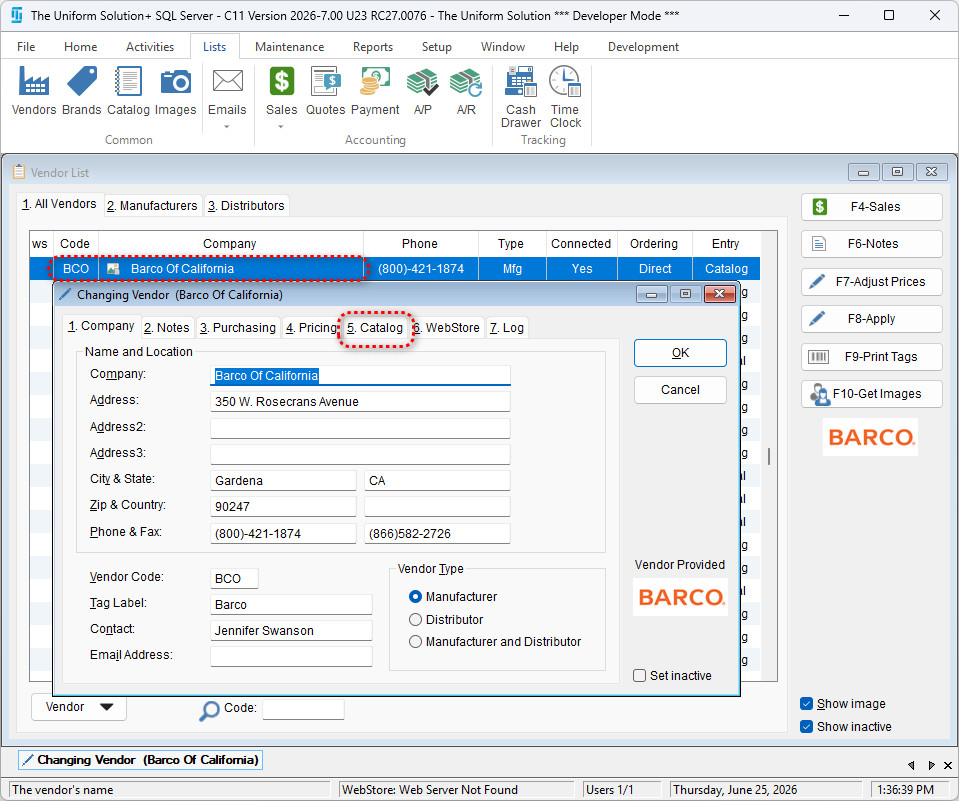
- Double-click to open the desired vendor then select the 5. Catalog tab
- Under the Preferences section, uncheck the box next to the Only allow inventory items to be added through the Catalog option
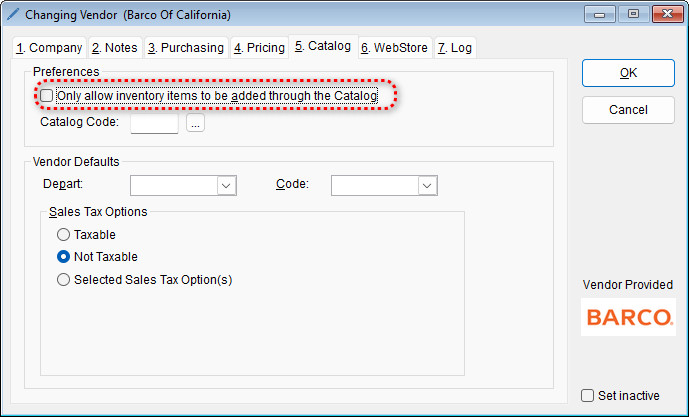
- Select OK to save your changes
After completing these steps, you will be able to manually create and add new styles for the vendor without encountering the previous error.