
Email Setup & Configuration Guide – The Uniform Solution
This guide covers everything needed to configure, troubleshoot, and send emails through The Uniform Solution (TUS), including provider-specific requirements and the newer AWS email option.
1. Overview
The Uniform Solution can send emails using:
- Your existing email provider (Gmail, Microsoft 365, Yahoo, etc.)
- The built-in TUS email service (AWS SES – recommended)
⚠️ Important:
Modern email providers have increased security restrictions. Additional configuration (such as app passwords or SMTP settings) is often required to prevent emails from being blocked.
2. Recommended Option: Use TUS Email Service (AWS)
TUS now supports sending emails through its built-in AWS email system, which improves:
- Reliability
- Deliverability
- Compatibility with modern security policies
When to use this
- Emails are failing consistently
- You don’t want to manage SMTP/security settings
- Your provider blocks external applications
How to enable
- Go to: Setup > System
- Locate My Email Server
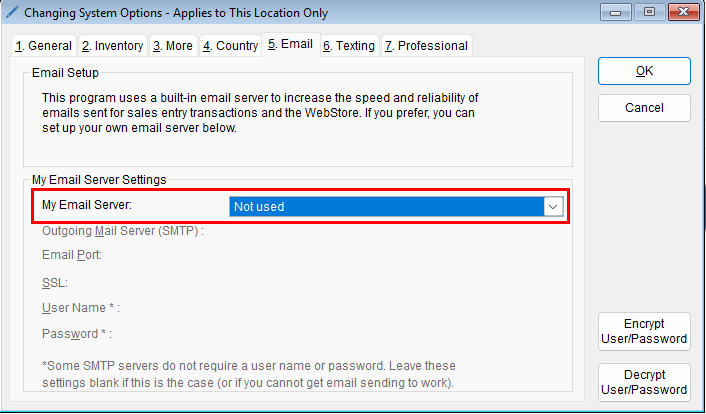
- Select: Not Used
- Save changes
This enables TUS to send emails through AWS instead of your provider.
Store-Level Override (Optional)
To override settings for specific stores:
- Go to:
Setup > Store > Store List > Options > Emails - Enable:
Override My Email Server Settings on the System Options Form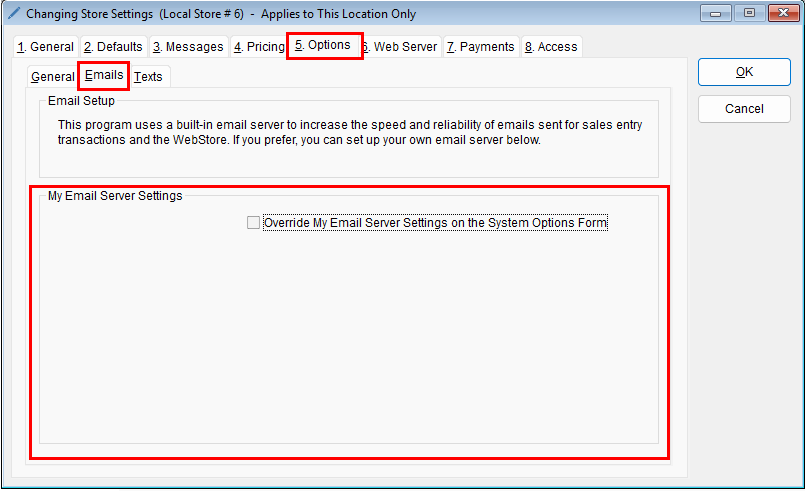
3. Setting Up Email Using Your Provider (SMTP)
If you prefer to use your own email provider:
Configuration Steps
- Go to: Setup
- Select: System
- Open the Email tab
- Choose your provider under My Email Server
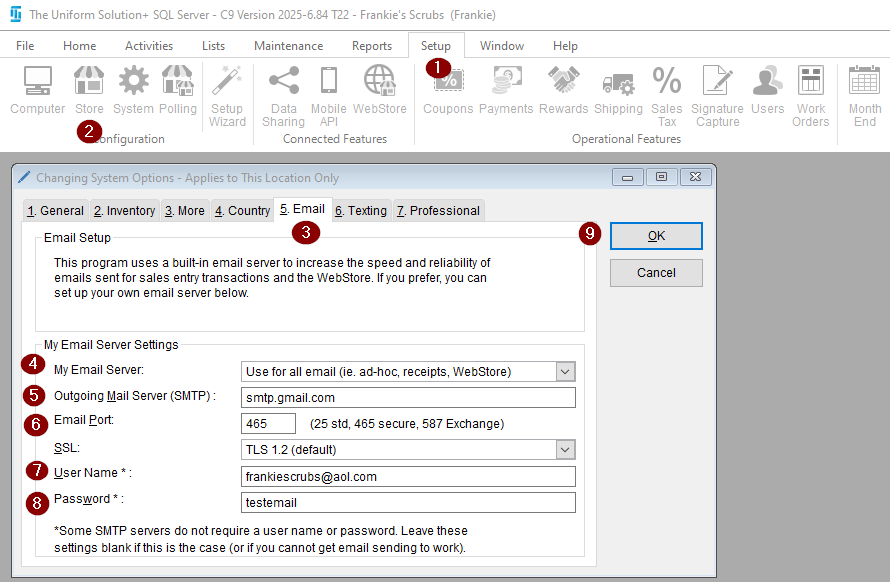
- Enter:
- Outgoing Mail Server (SMTP)
- Port
- SSL setting
- Username (email address)
- Password
- Click OK to save
💡 Tip:
If unsure of SMTP settings, contact your IT admin or look them up online.
4. Email Provider-Specific Setup
4.1 Gmail / Google Account
⚠️ Important Change (Since May 30, 2022)
Google no longer allows basic username/password authentication for third-party apps.
You MUST use:
- 2-Step Verification
- App Password
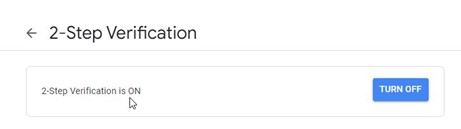
Step 1: Enable 2-Step Verification
- Log into Gmail
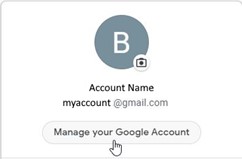
- Go to: Manage your Google Account
- Select: Security
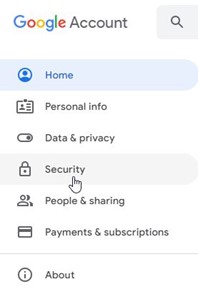
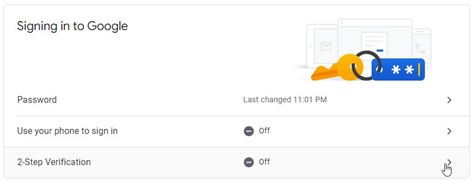
- Under Signing in to Google, select 2-Step Verification
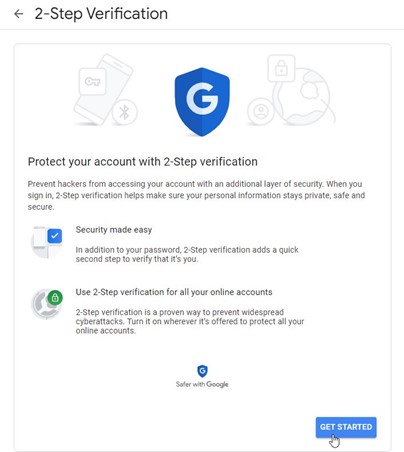
- Click Get Started
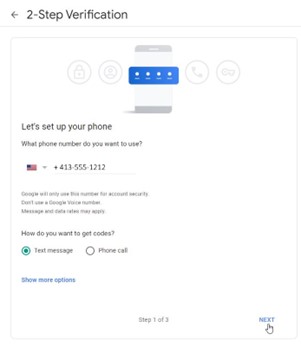
- Enter phone number and verify
- Click Turn On
Step 2: Create App Password
- Return to Security
- Select App Passwords
- Choose:
- App: Mail
- Device: Windows Computer
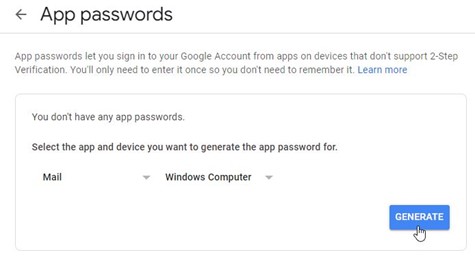
- Click Generate
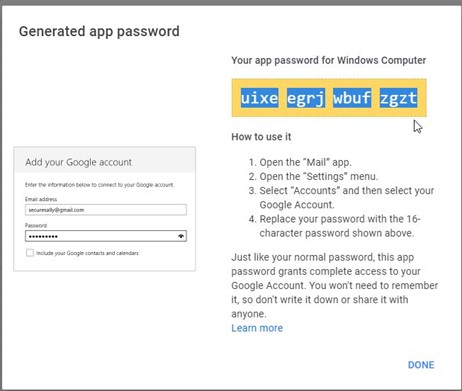
- Copy the generated password and paste it into your TUS Email Settings under Password.
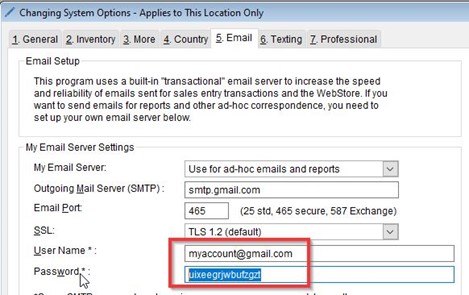
✅ Use this app password (NOT your Gmail password) in TUS SMTP settings.
4.2 Microsoft 365 (O365 / Outlook)
SMTP authentication must be allowed in your tenant.
Steps (Admin Required)
- Log into: https://admin.microsoft.com
- Go to: Exchange Admin Center
- Select: Settings
- Select: Mail FlowEnsure:
- SMTP AUTH is NOT disabled
✅ If disabled, emails from TUS will fail.
4.3 Yahoo Mail
Yahoo may block external applications unless explicitly allowed.
Steps
- Log into Yahoo Mail
- Click your profile (top-right)
- Select: Account Info
- Go to: Account Security
- Enable:
Allow apps that use less secure sign-in
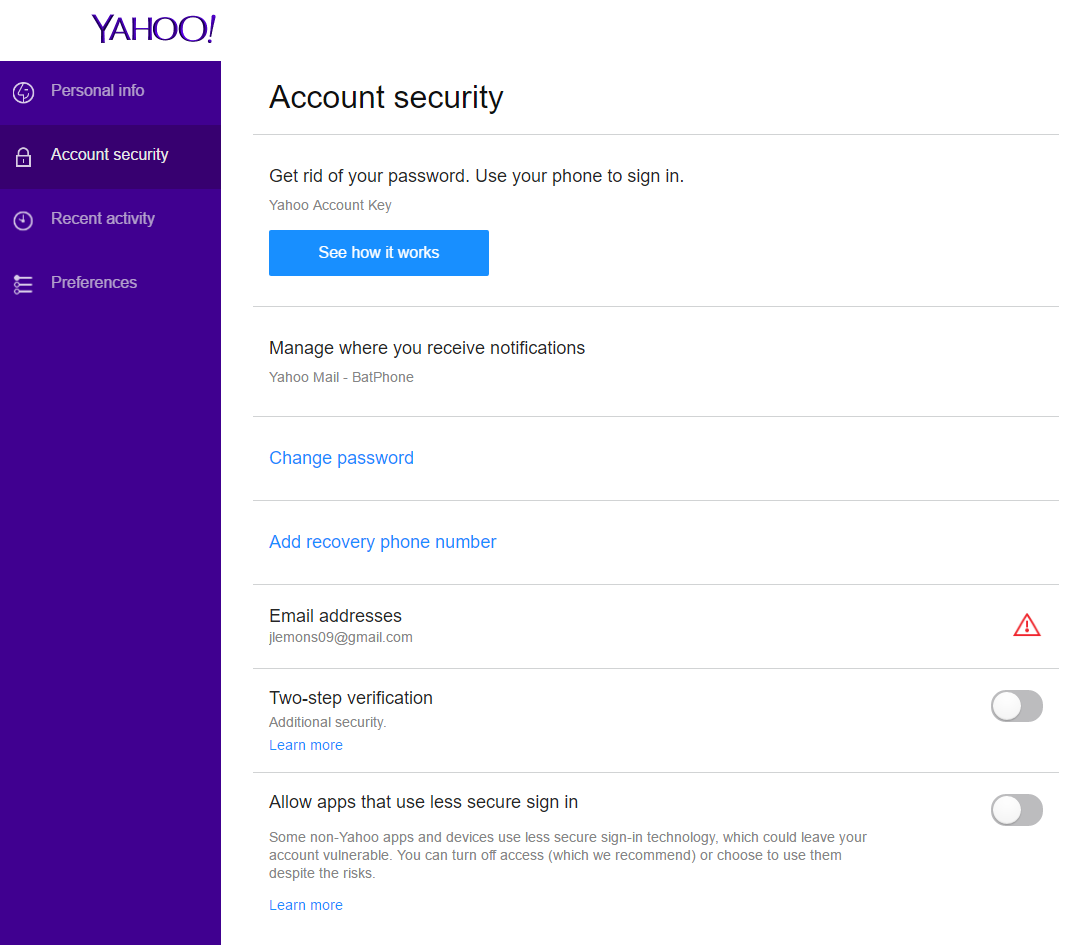
✅ This allows TUS to authenticate and send emails.
5. Sending Emails in The Program
Once email is configured:
Steps
- Go to: List > Email
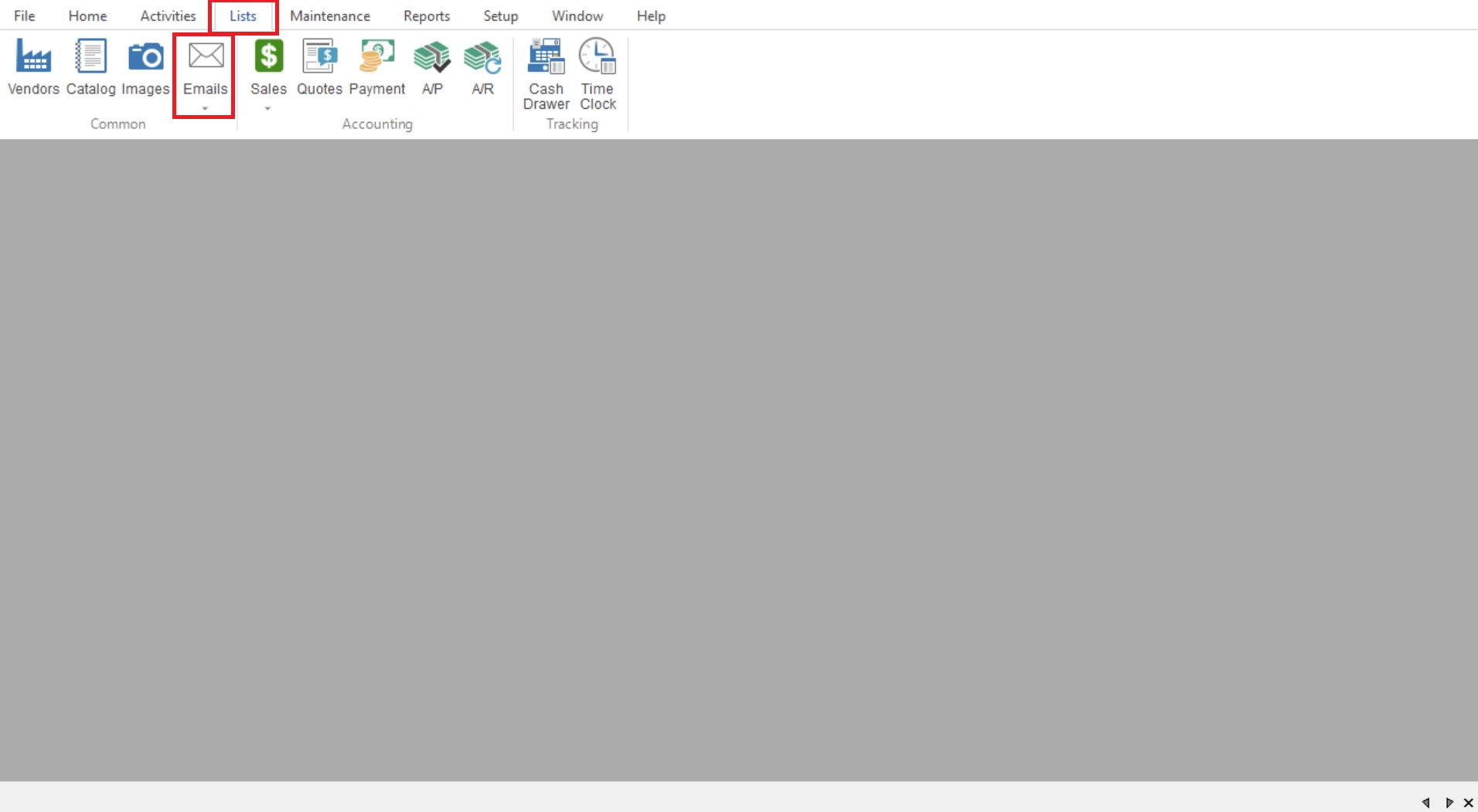
- Click: Email > New Email
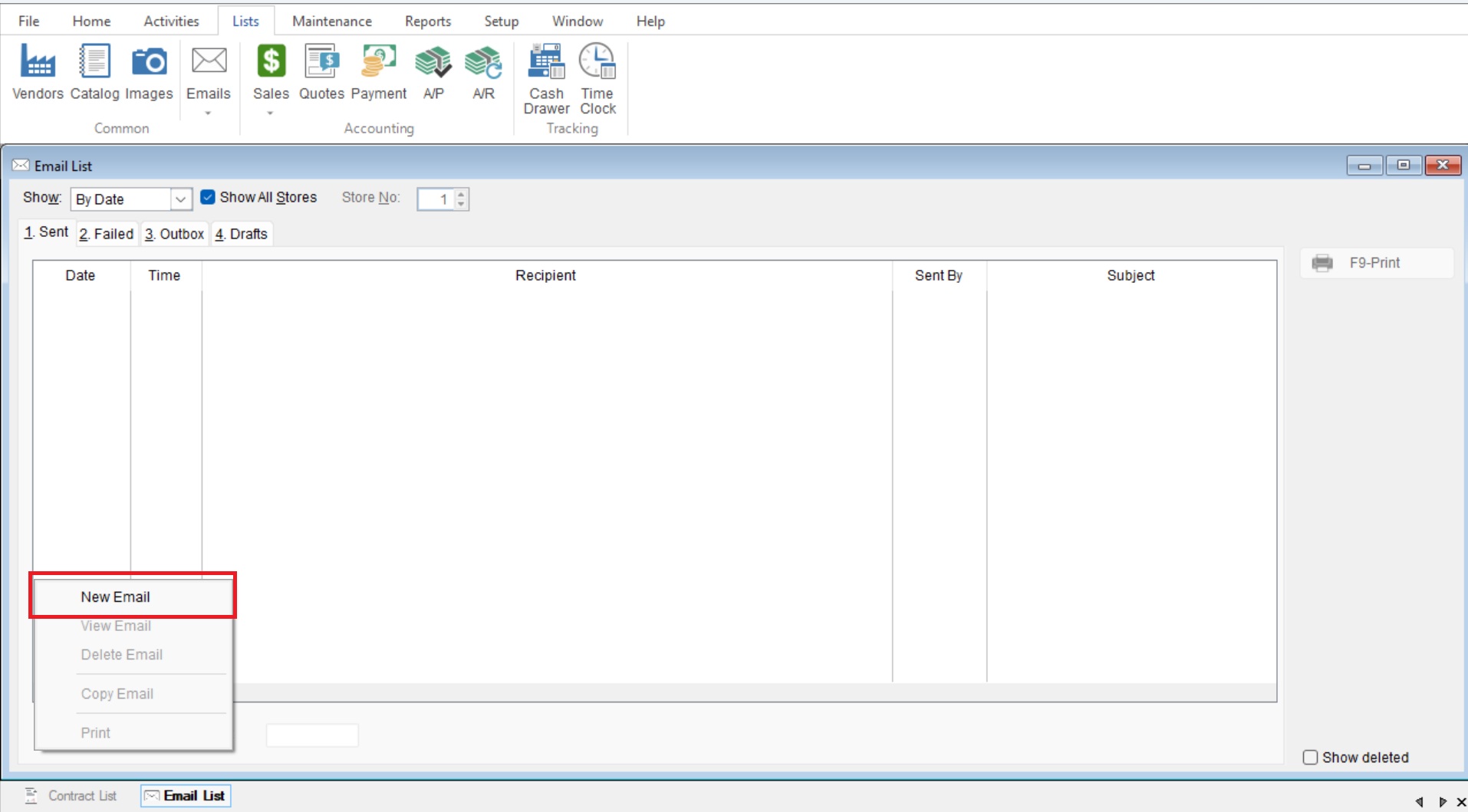
- Fill out email details
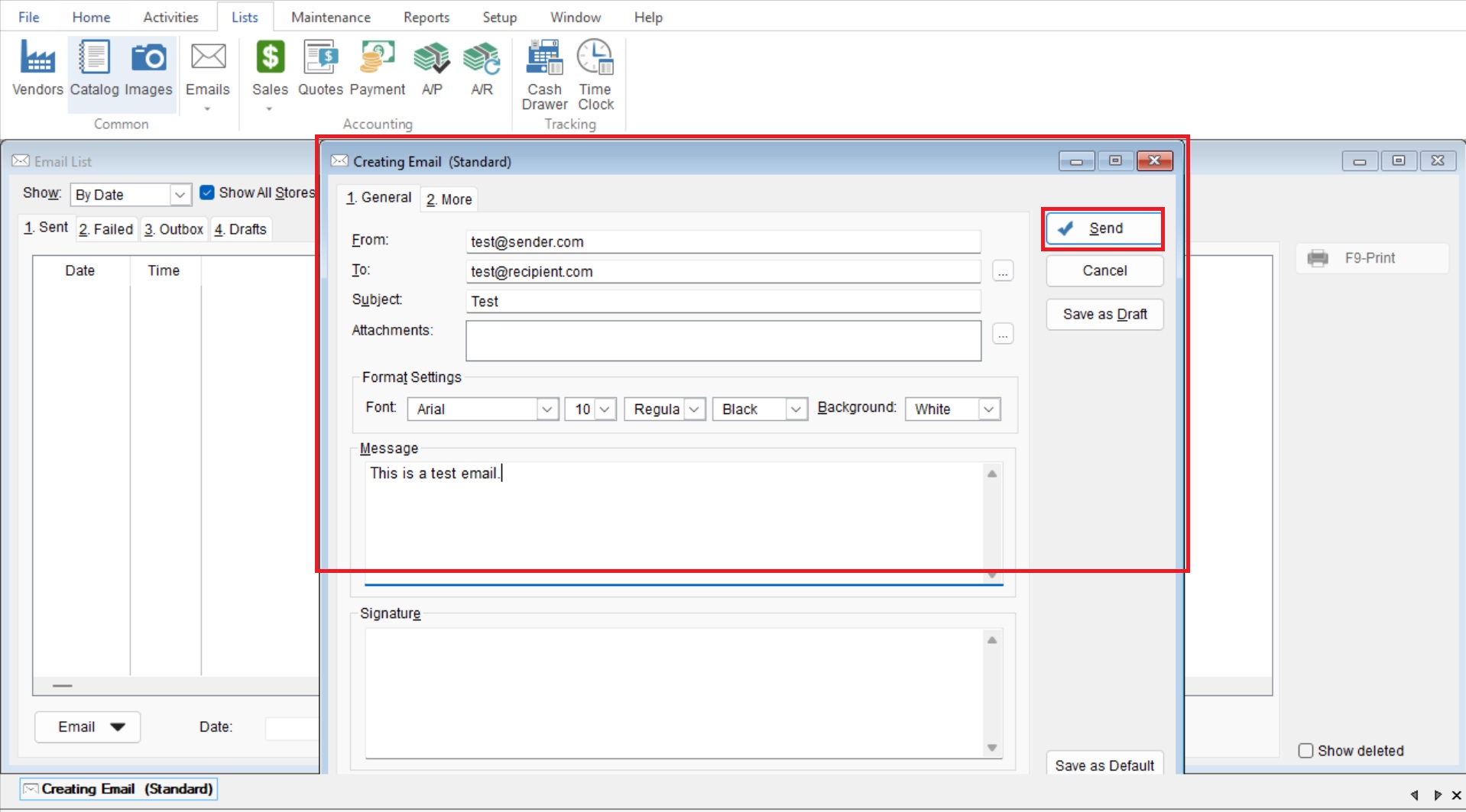
- Click Send
📌 Important Note:
The From address must be filled out with the email set up in System settings (or if using the AWS set-up, the email you plan on using) in order to receive emails that get replied to.
6. Troubleshooting Email Issues
Check Failed Emails
- Go to: List > Email > Email List
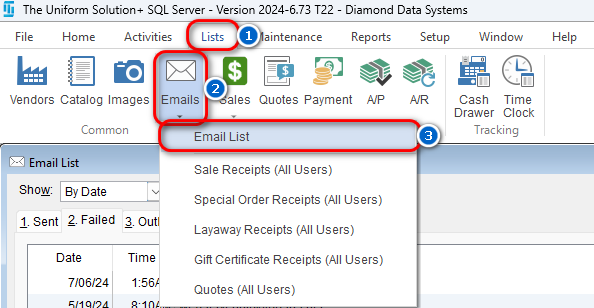
- Select the Failed tab
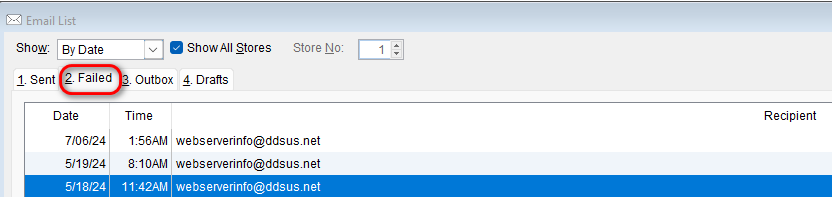
If you see multiple failed emails:
- Your provider may be blocking SMTP
- Settings may be incorrect
- Security requirements may not be met
Common Fixes
- Switch to TUS AWS email service
- Verify SMTP settings
- Use app passwords (Gmail)
- Enable SMTP AUTH (Microsoft)
- Allow less secure apps (Yahoo)
7. Best Practice Recommendations
✅ Use TUS AWS email service whenever possible
✅ Keep email credentials secure
✅ Use app passwords instead of main passwords
✅ Avoid relying on “less secure apps” long-term
✅ Monitor failed emails regularly
8. When to Contact Support
If emails still fail after setup:
- SMTP settings verified
- Security requirements met
- AWS option tested
👉 Contact support:
https://www.theuniformsolution.com/support-ticket
Summary
| Option | Recommended | Notes |
|---|---|---|
| TUS AWS Email | ✅ Yes | Easiest, most reliable |
| Gmail SMTP | ⚠️ Conditional | Requires 2FA + app password |
| Microsoft SMTP | ⚠️ Conditional | Requires SMTP AUTH enabled |
| Yahoo SMTP | ⚠️ Conditional | Requires less secure apps |