
This document will cover how we can Take payments using the TUS Mobile App.
Please note that these payments are not connected to an invoice; this is a way for you to accept a single payment in the event you are unable to access TUS or experience network issues.
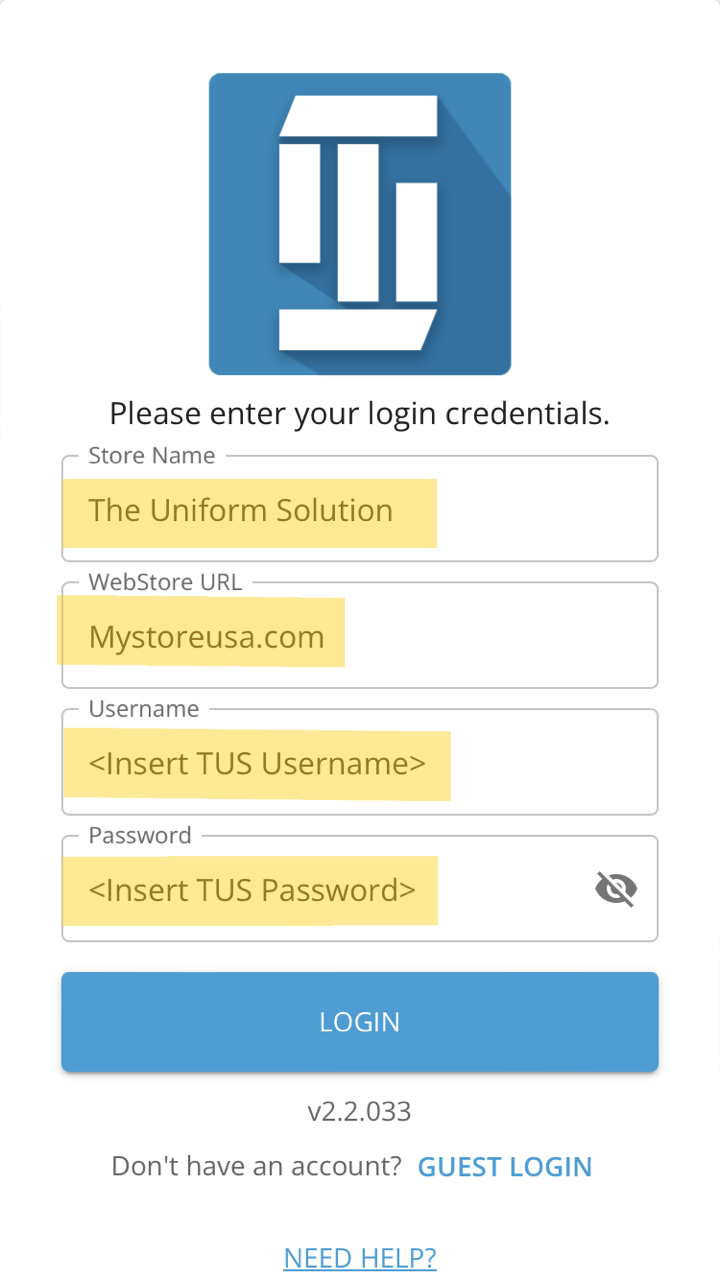
- First, you will need to access the TUS Mobile App by going to theuniformsolution.com, selecting Support>Other Documentation and Downloads, and choosing TUS Mobile App. Choose your operating system to see the instructions for accessing the app. Once the app is available, you will insert your Store Name, Webstore URL, TUS username (User you clock in with), and the password for said User on the following screen.
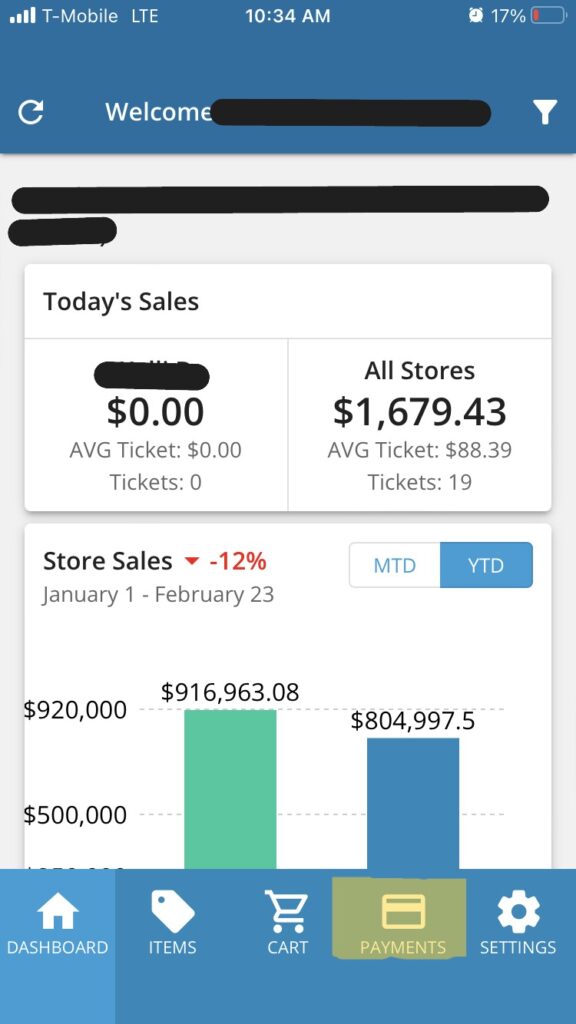
- Once you have filled in your store and webstore information to log into the app you will be brought to the following screen. To take a payment, you will be directed to the “Payments” button.
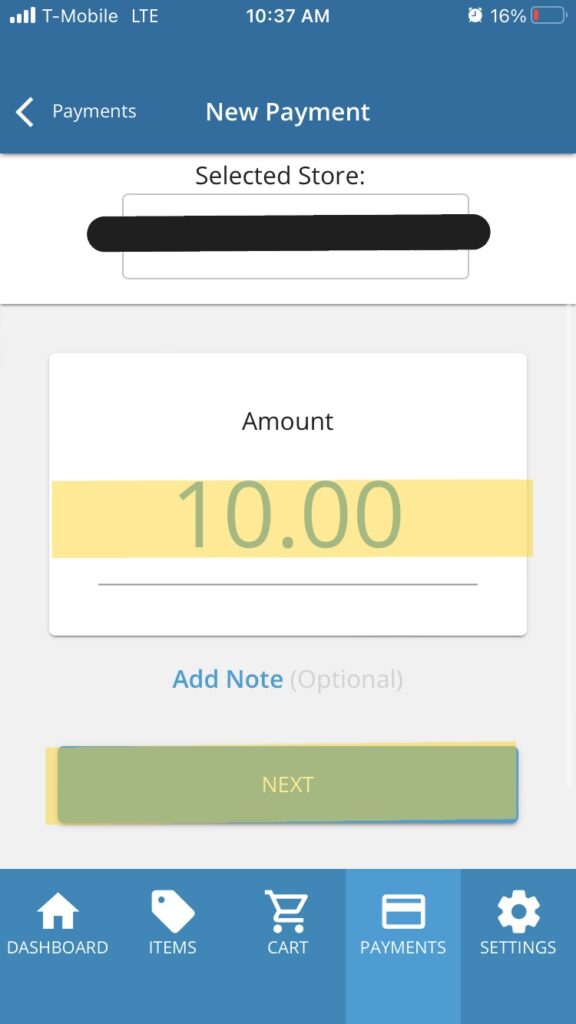
- Once you are on the payments screen you will choose “New Payment” which will allow you to enter an amount to charge to a customers card.

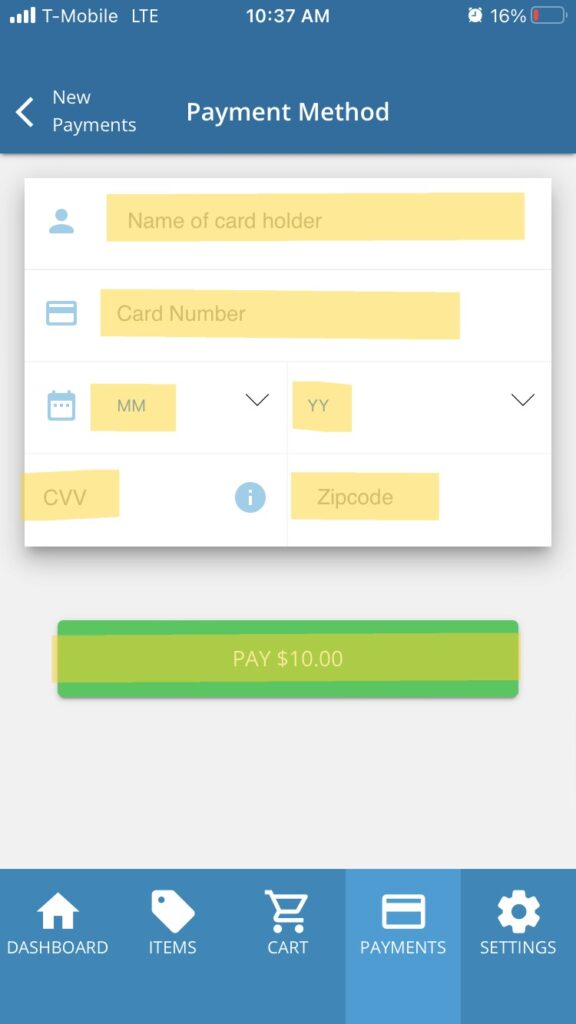
- Once you have selected “New Payment”, you will be able to confirm the amount and fill out your card information and select “Pay”
- Note, the payment we have applied is not linked to any invoice, it will show in your TUS UniformPay Merchant portal but not in the payment list in TUS. When doing this you want to be sure to come back in and create the corresponding invoice in TUS so the merchant portal and TUS payments match.