
🏪 Activating UniformPay Terminals and Configuration in The Uniform Solution (TUS)
This guide walks you through the complete activation process for UniformPay, including enabling devices, linking the store and workstation, and configuring manual entry options.
1️⃣ Activate Terminal in Pulse
To activate a payment terminal that will be used with UniformPay:
Steps in The Uniform Solution:
-
Go to Help > UniformPay > Activate Terminals

2. Enter the Merchant Identifier (MID)
-
- 🔑 This will be provided by your Support or Sales Representative

Steps in Pulse:
- Navigate to Terminals
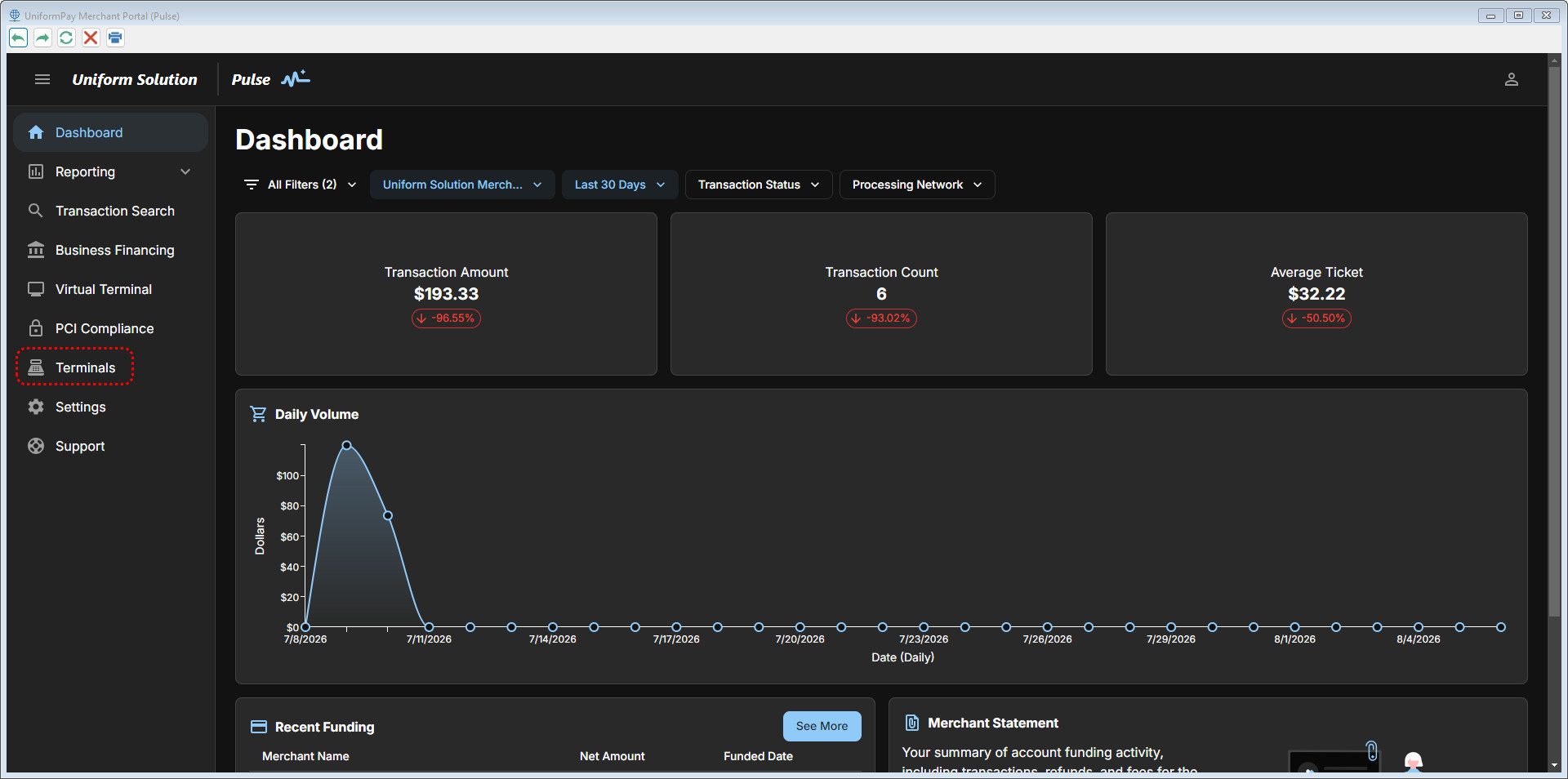
- Select “Activate Terminal”
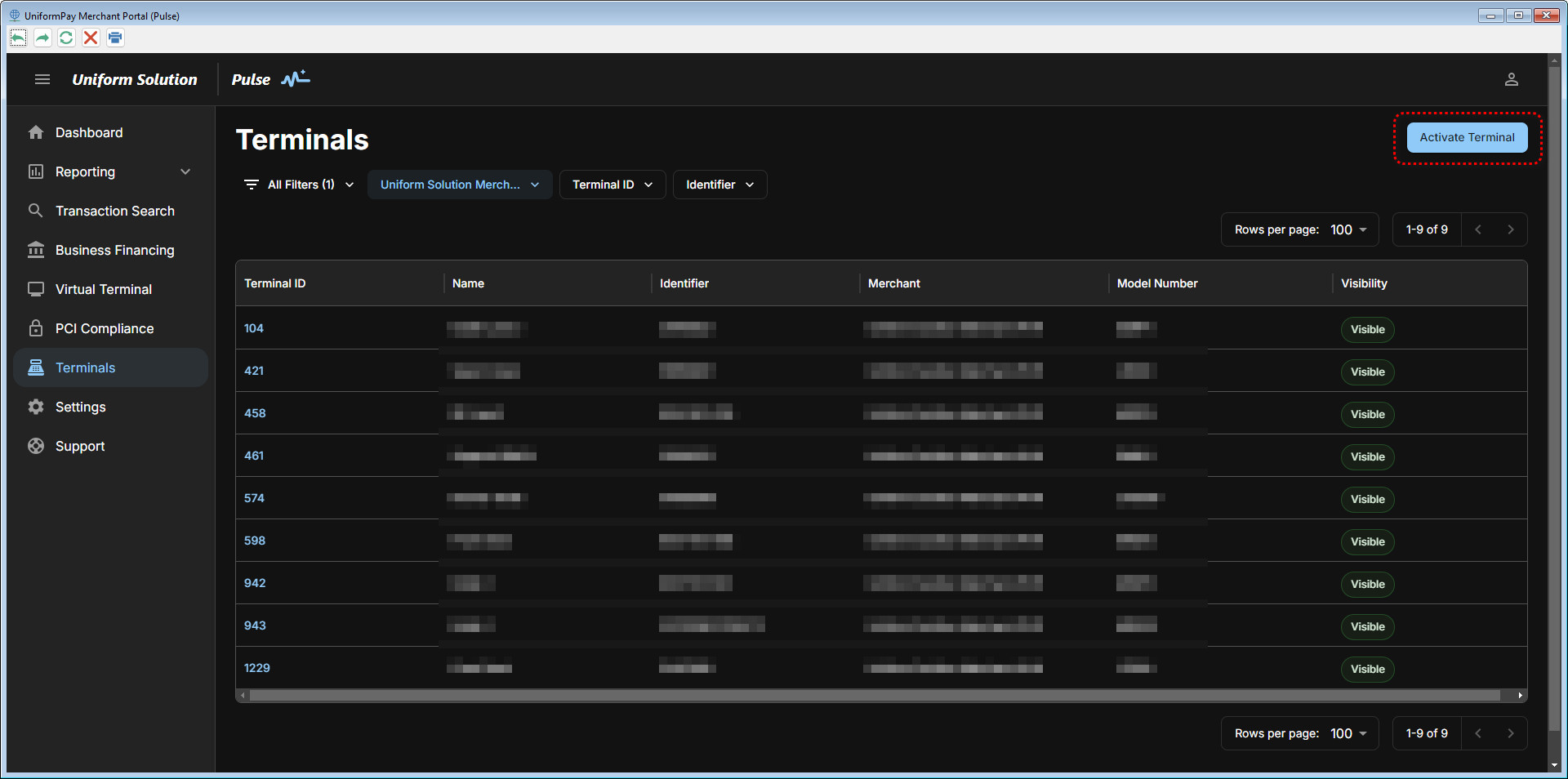
- Select the Merchant Name, Terminal Manufacturer, Terminal Type (default – Standard)
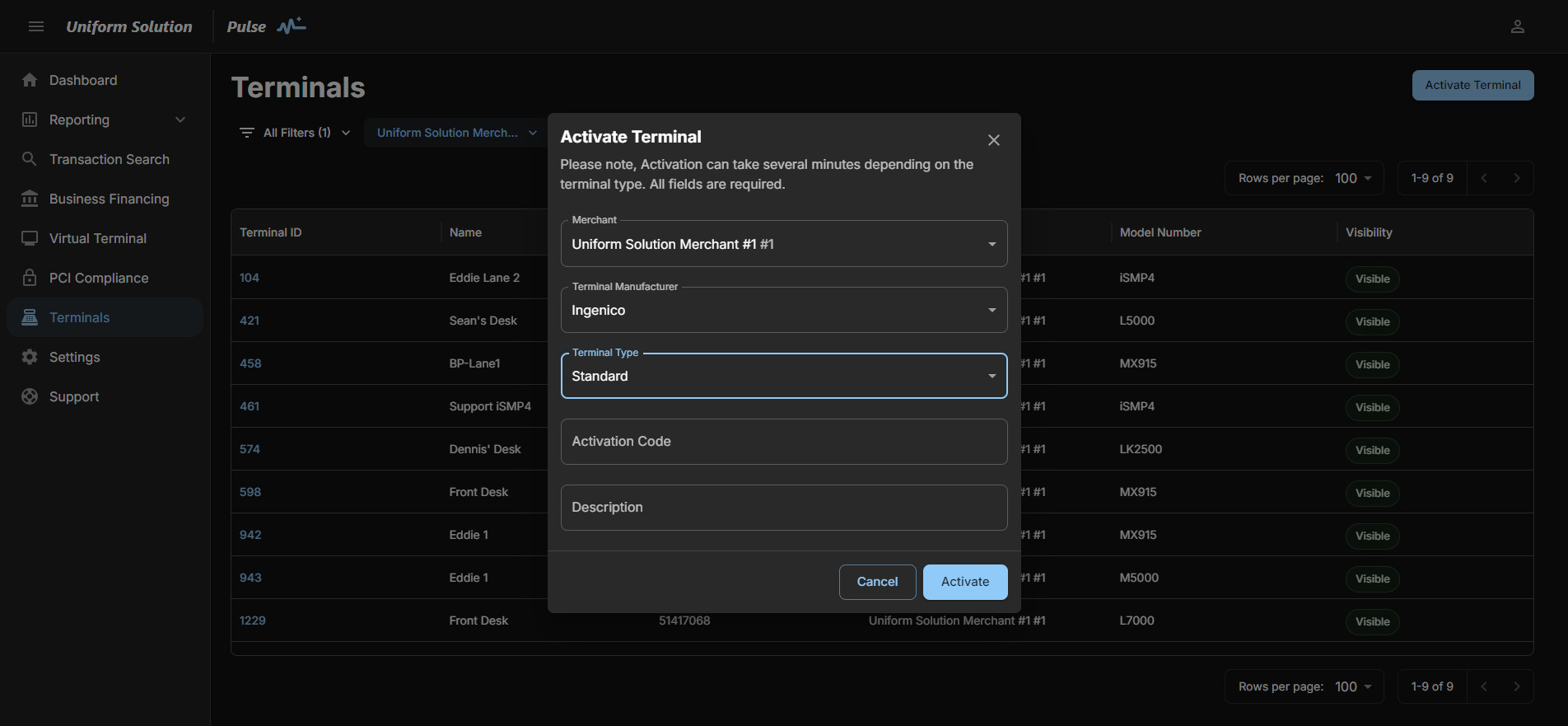
- Enter the Activation Code
This is displayed on the connected device.
4. Assign a Device Name
Example: Front Desk, Register 2
5. Click Activate
The device will reboot into a TriPOS logo.
2️⃣ Activate UniformPay on the Workstation
Each workstation using UniformPay must be individually configured.
Steps:
-
Go to Setup > Computer > Credit Cards tab
-
Select UniformPay and click Select Device

3. Confirm the prompt:
“Select Credit Card Device for the active store?” → Click Yes
4. Select the appropriate activated terminal device, then click Select

❗ If No Device is Attached:
-
Select “No Device” to activate Manual Entry Form functionality.
3️⃣ Configure Device and Manual Entry Options
After selecting the terminal device, configure the following options:
a. Device Option (Manual Entry Behavior)
| Option | Description |
|---|---|
| Never allow | Blocks manual entry when a terminal is present |
| Always allow | Always permits manual entry after Cancel is pressed on the terminal |
| Clerk can allow (✅ Recommended) | Prompts clerk to choose whether to allow manual entry |

b. Enable “Clerk Manual Entry Form”
-
Check this box to allow direct card entry into TUS

-
📌 Note:
You must also assign Manual Entry permissions to each user under:-
Setup > Users > UniformPay Tab > Operations Section
-
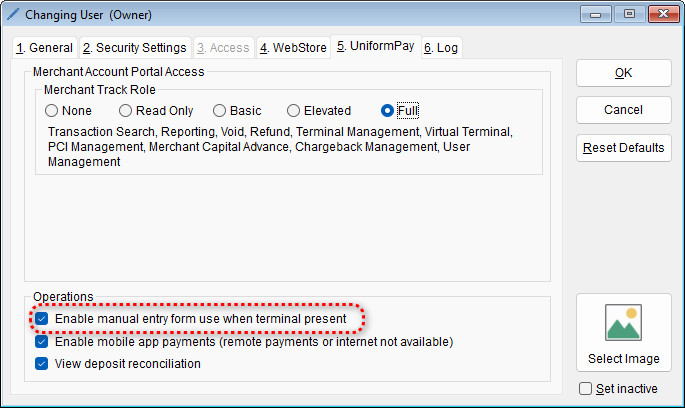
💳 Run a Test Transaction
Once your UniformPay terminal is successfully configured, it’s important to verify the setup by running a quick test transaction. For step-by-step instructions, check out: Running a Test Transaction to Verify UniformPay Integration
✅ Summary
| Task | Location | Notes |
|---|---|---|
| Activate Terminal | Pulse | Requires device code & manufacturer |
| Link Merchant ID to Store | Setup > Store > Payments | Paste MID from your sales rep |
| Configure Workstation | Setup > Computer > Credit Cards | Select terminal or enable manual entry |
| Set Entry Permissions | UniformPay tab (User setup) | Needed for clerk manual entry access |