In this article we will cover how to add a note to a Purchase Order in TUS.
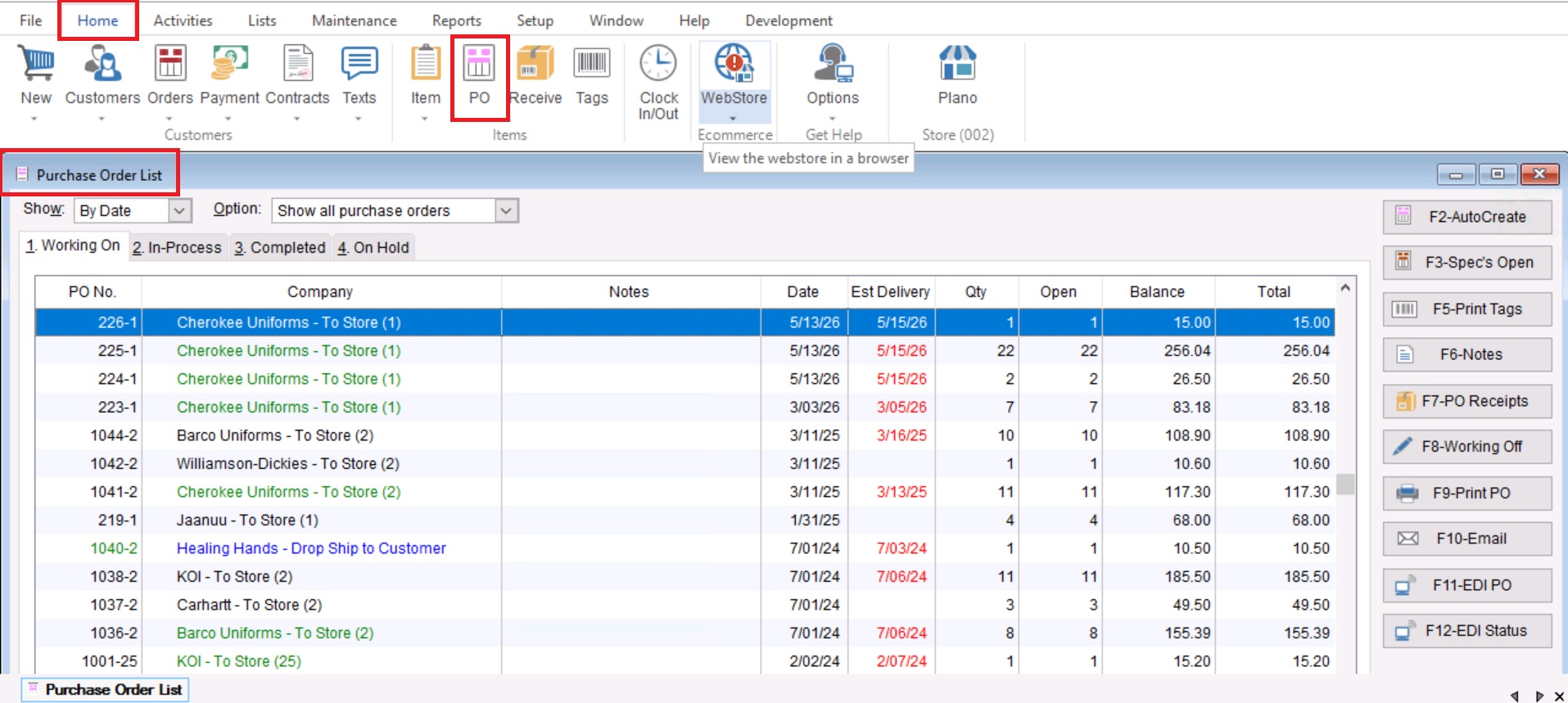
- You will start by going to Home>PO to open your Purchase Order List.
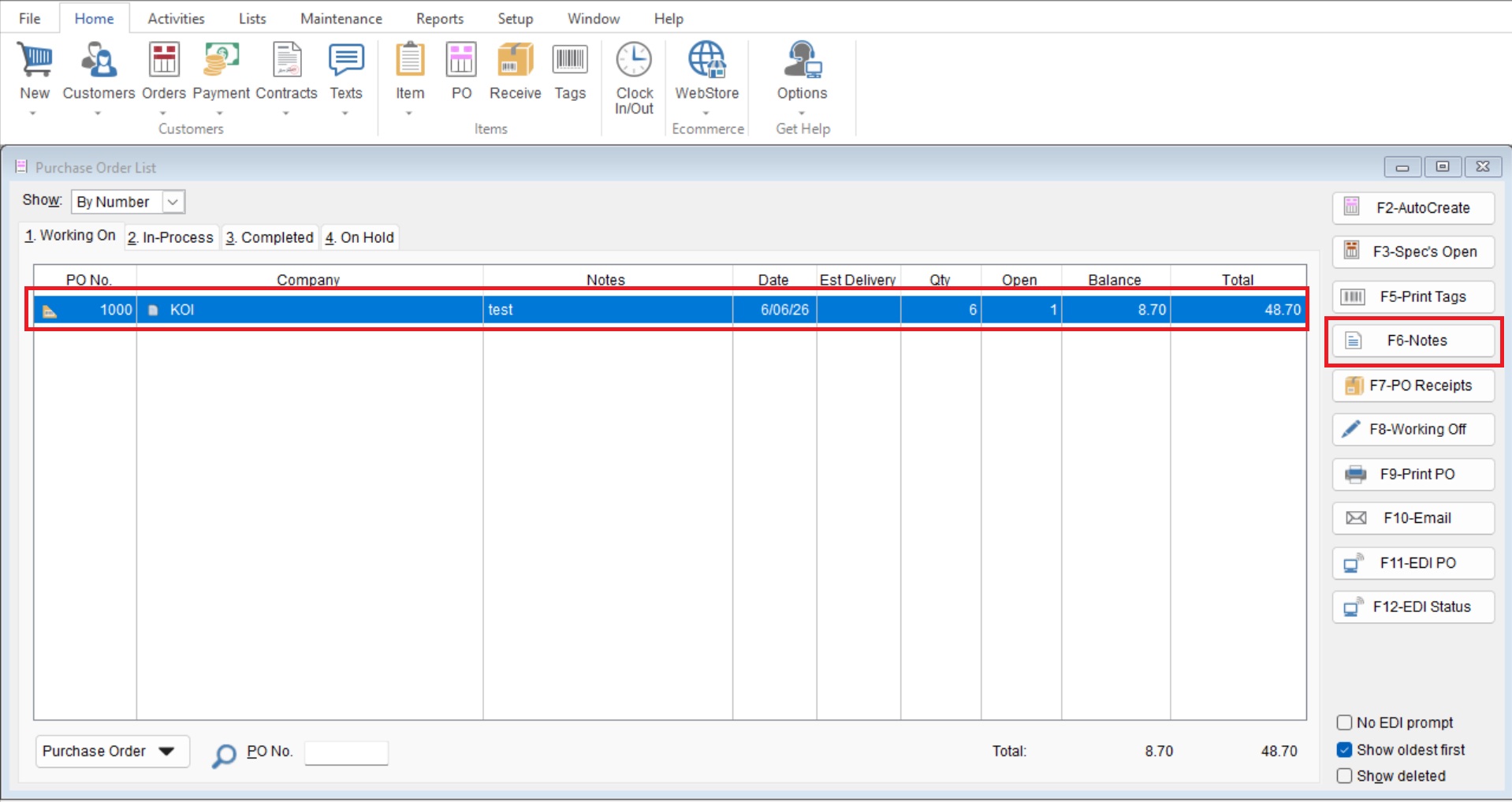
- From here you will highlight your desired Purchase Order and select the “F6-Notes” button on the right hand side.
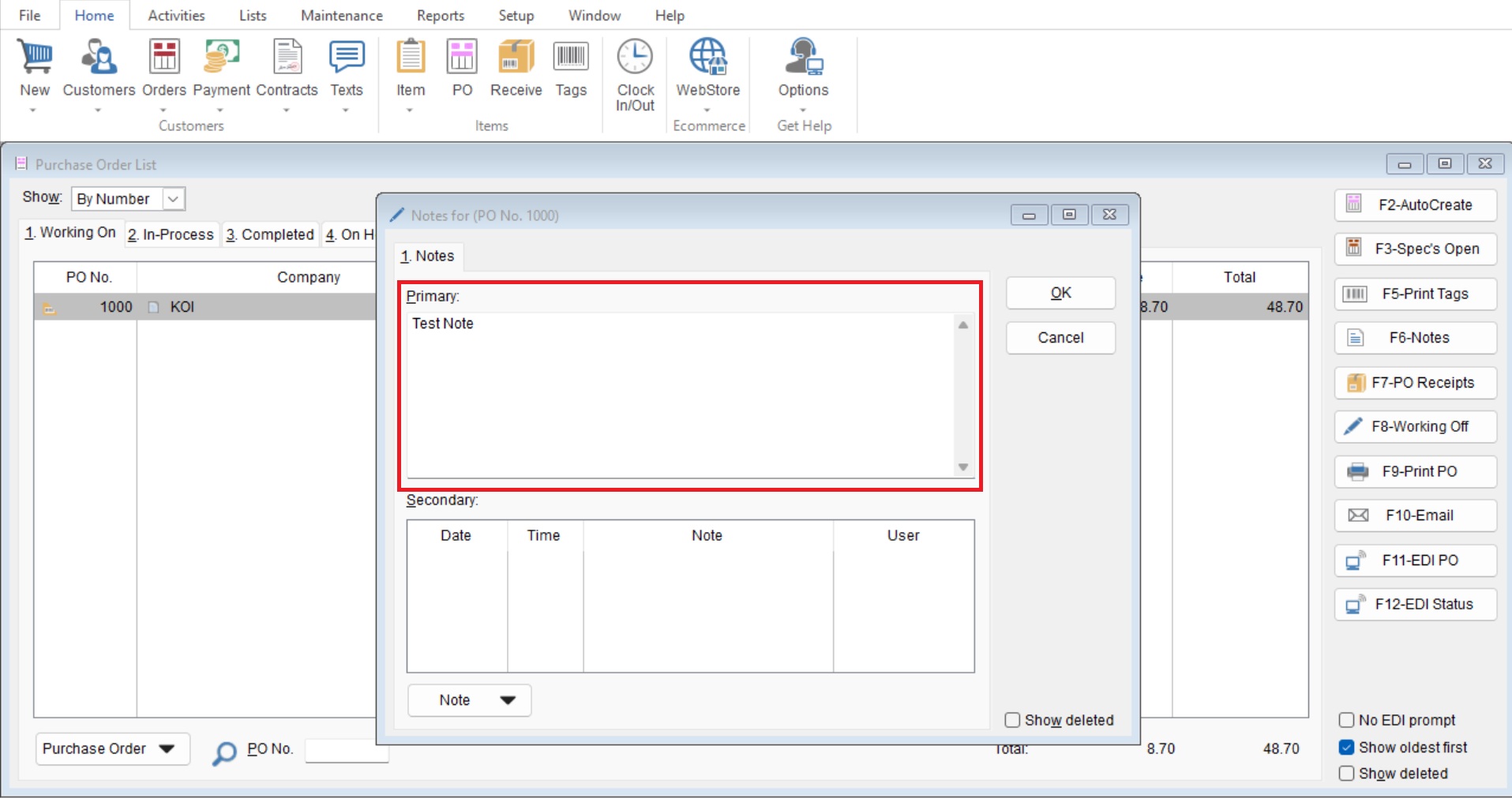
- This will open your “Notes for PO” window, here you can add a note into the “Primary” section, this note will not have a time stamp, its meant for generic additional information to the Purchase Order. This Note will also show up on the bottom of the actual Purchase Order you have created.
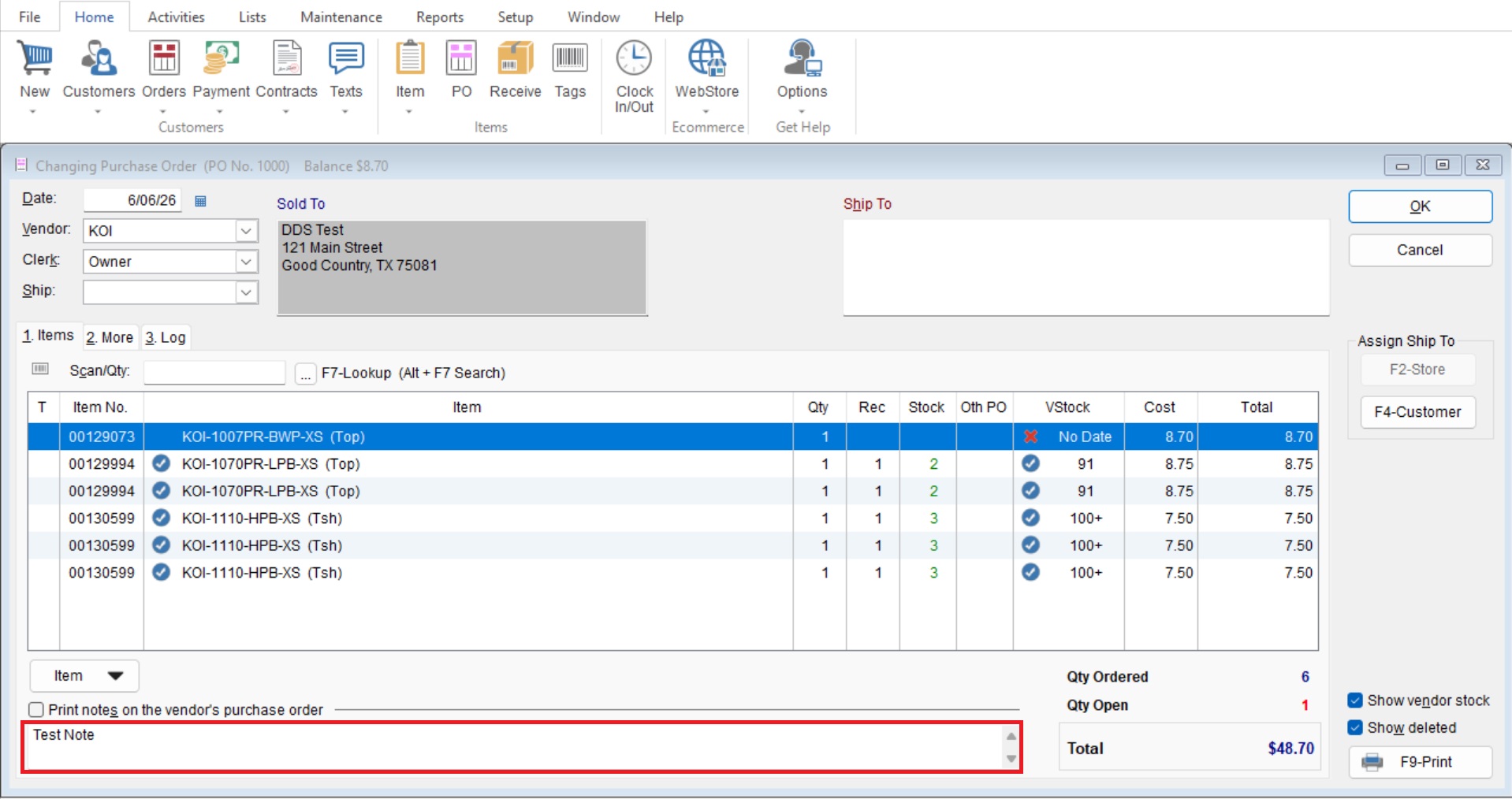
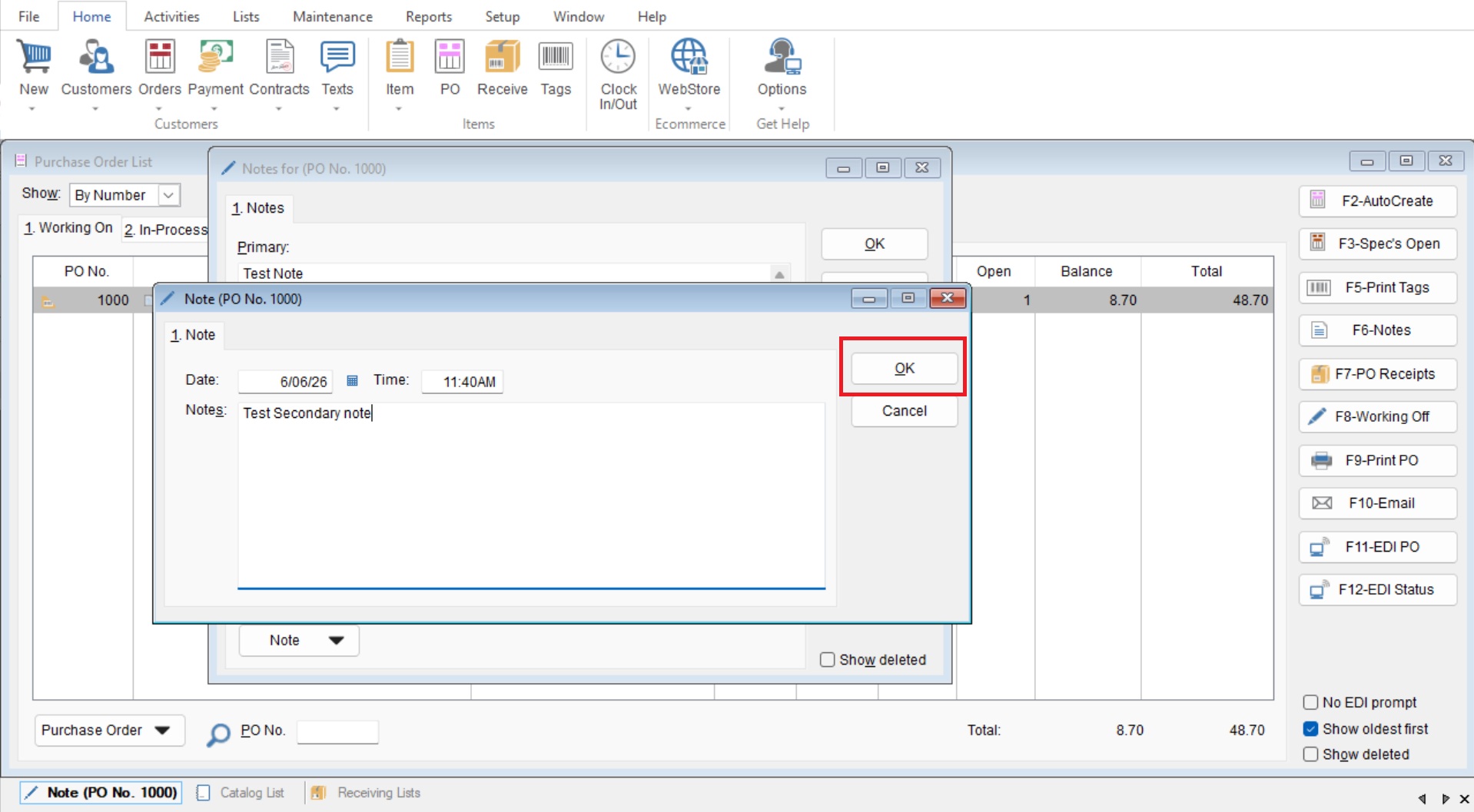
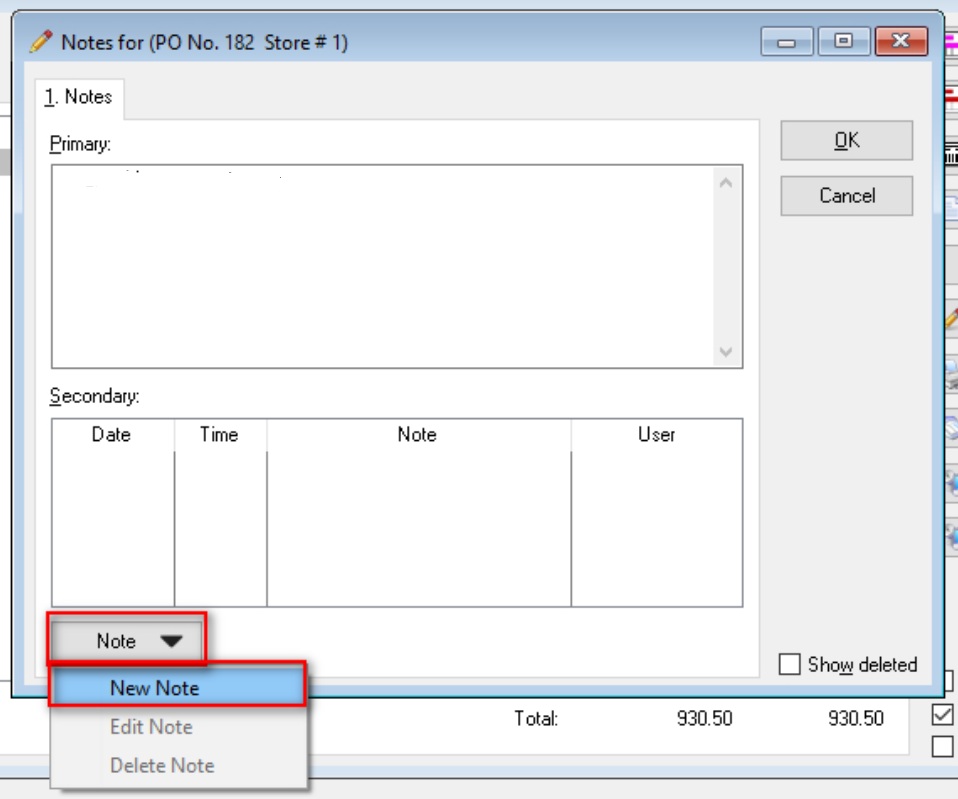
- Now you can go back to “F6-Notes” and choose to add a Secondary Note, this is meant to be used as an Internal note as it will not show on the Purchase Order. Add this note by selecting “Note>New Note” on the bottom left.
- Here you can add a internal note that has a Date and Time stamp for future reference.
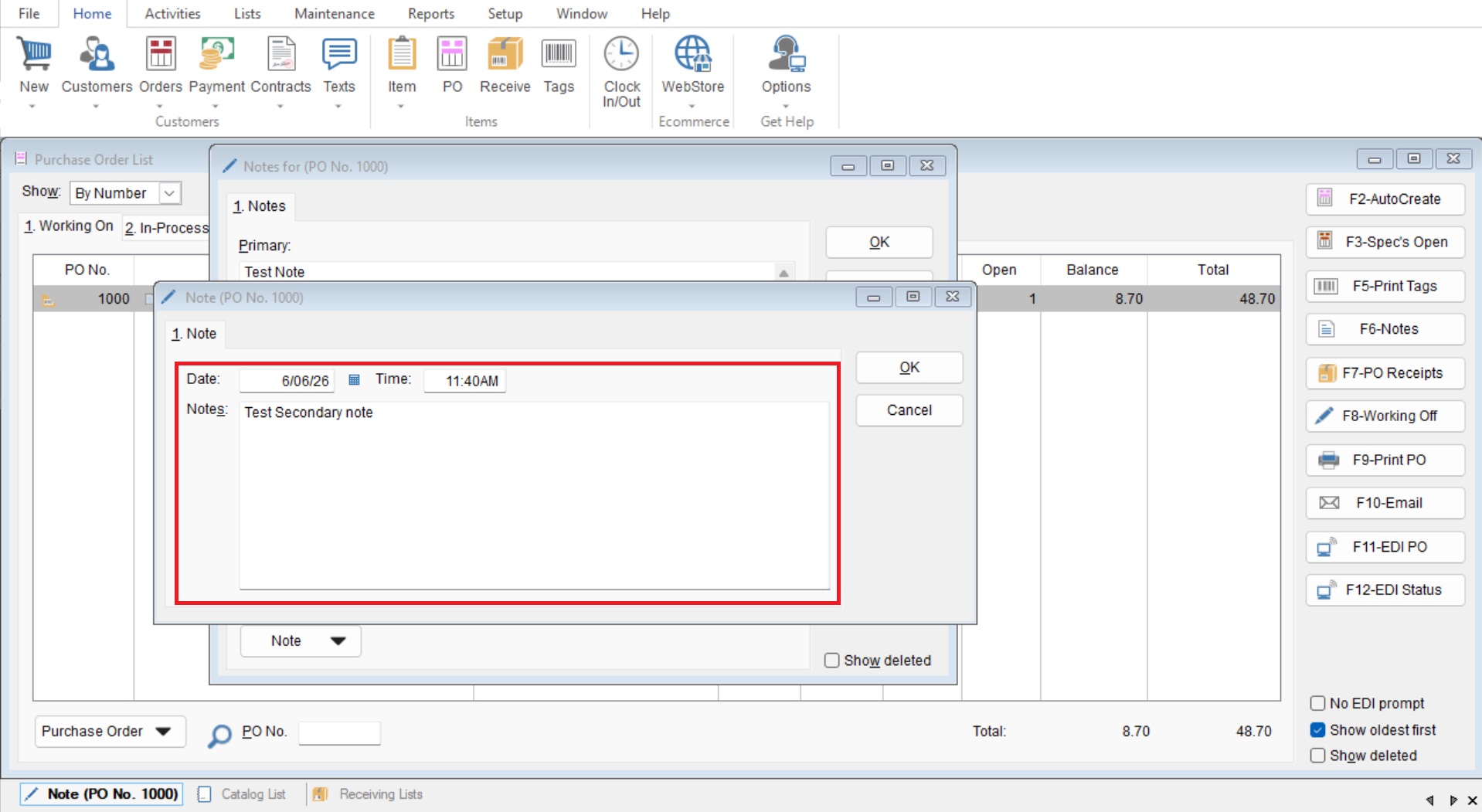
- Select OK again to save your notes