
This document will be covering how to use the bundling option in TUS to accommodate for packaged or items that are purchased from the vendor in a certain quantity.
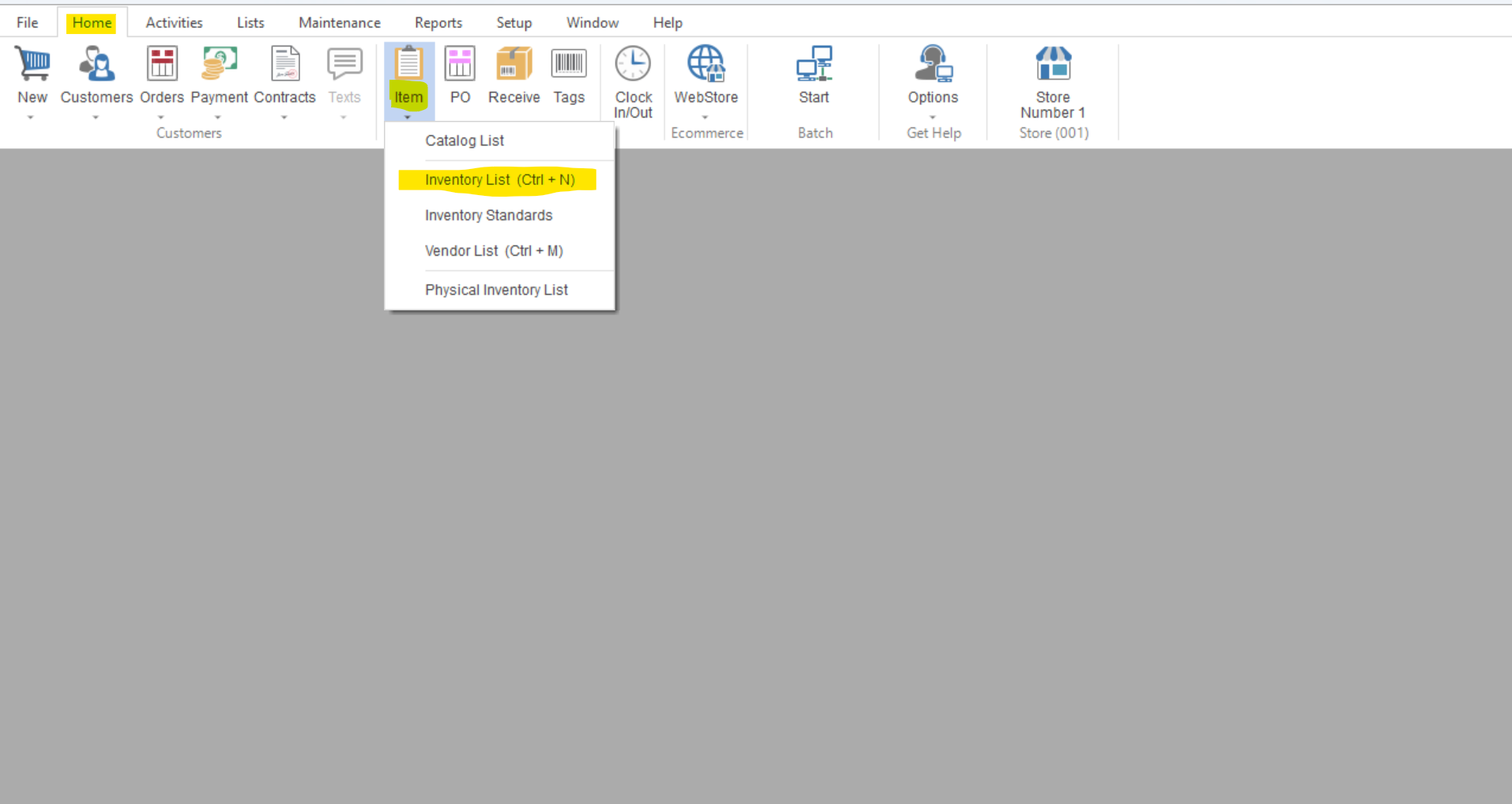
- To start setting up Bundle Qty and Cost for a certain item you will first need to go to Home>Item>Inventory List.
- Once in the Inventory List you will locate the item you want to setup a Bundle Qty for and double click to open the style information.
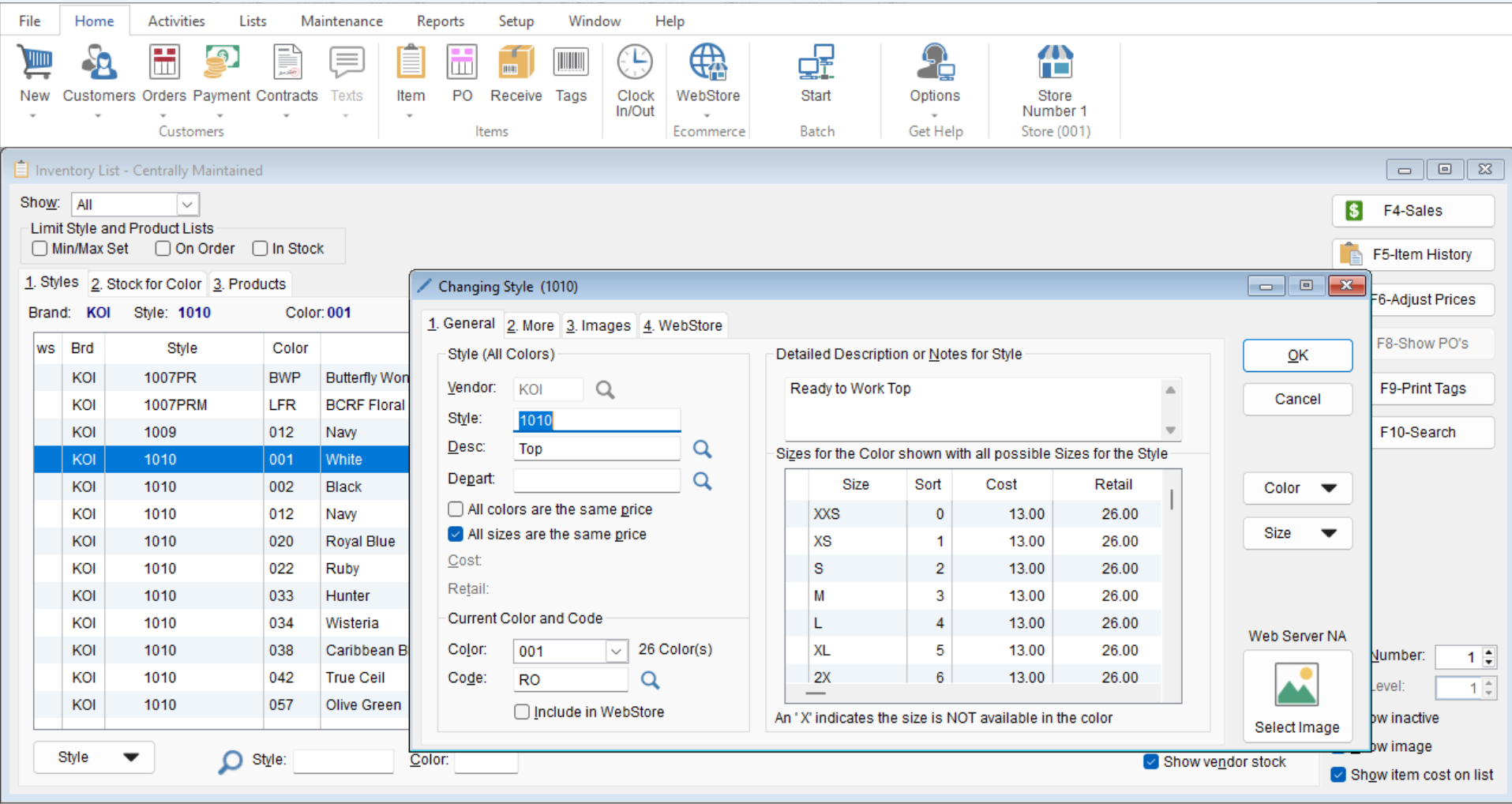
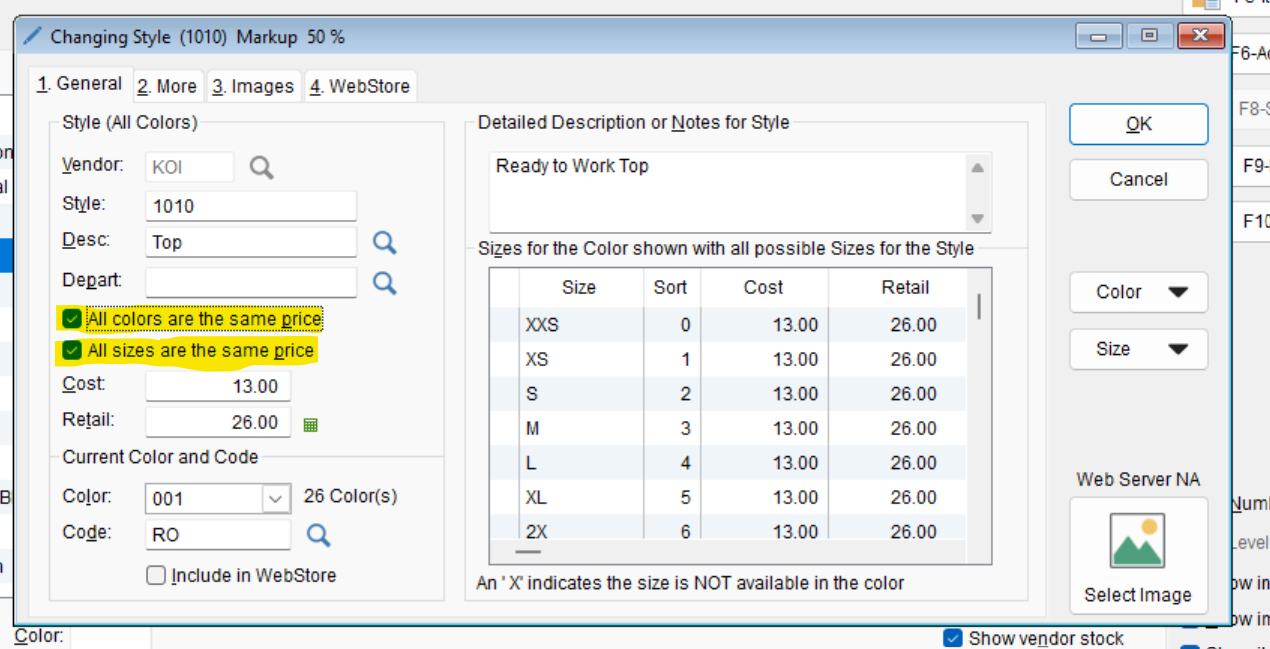
- Once you have the Style information opened, there are 2 places you might find the option to add a Bundle Qty and Cost.
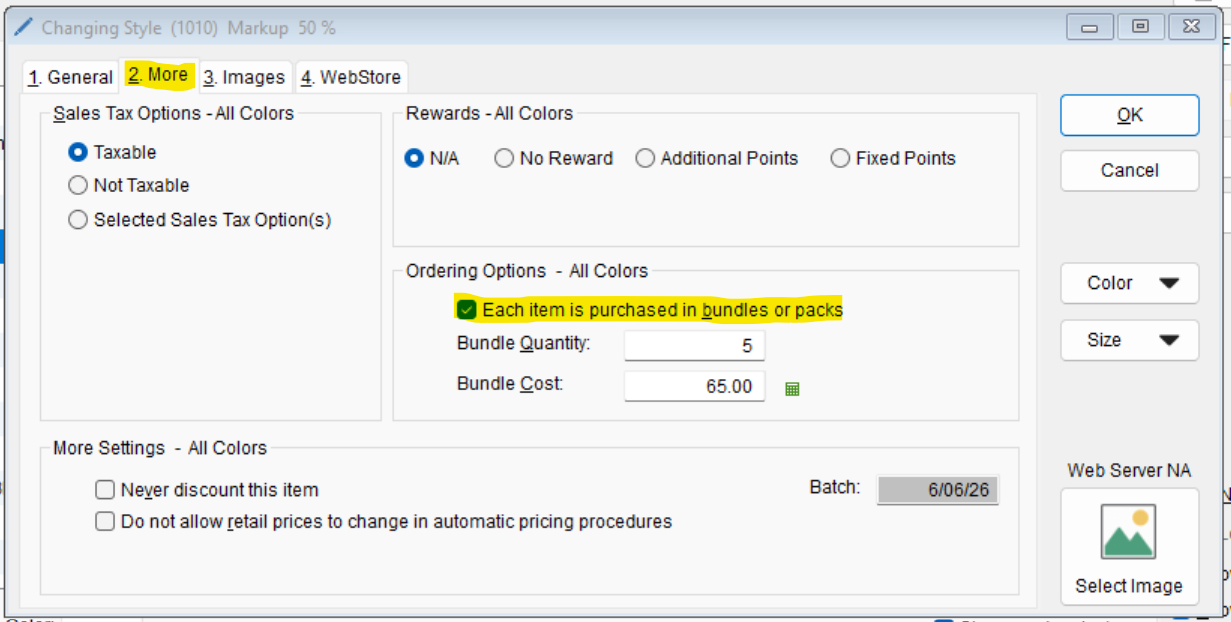
- First if you have the options for “All colors are the same price” and “All sizes are the same price” checked together you will need to go to the “2.More” tab to find the Bundling options.
- If the same price options are not selected you will need to click into the individual size records and go to the “2.More” tab in the size to find the Bundling options.
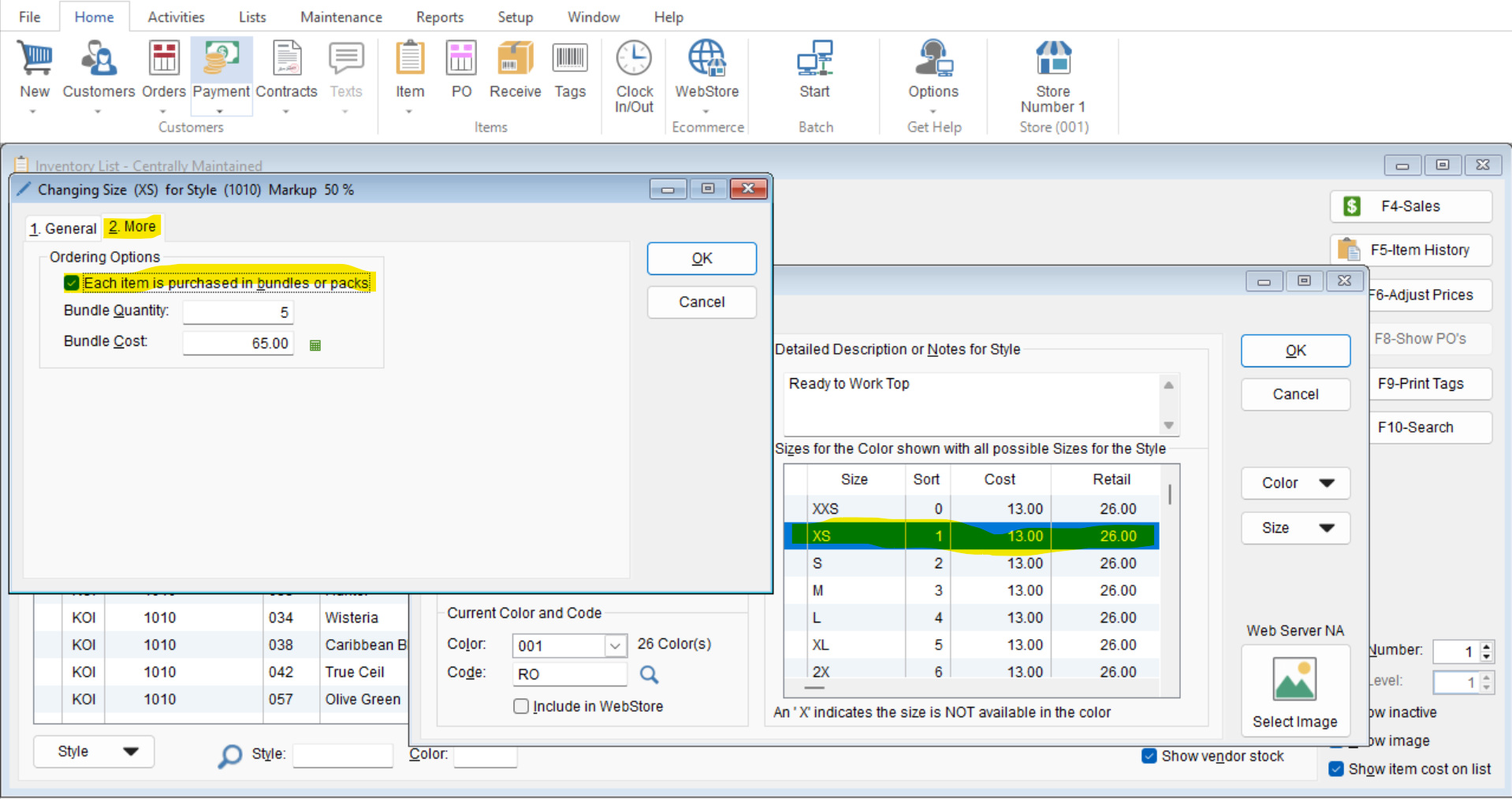
- First if you have the options for “All colors are the same price” and “All sizes are the same price” checked together you will need to go to the “2.More” tab to find the Bundling options.
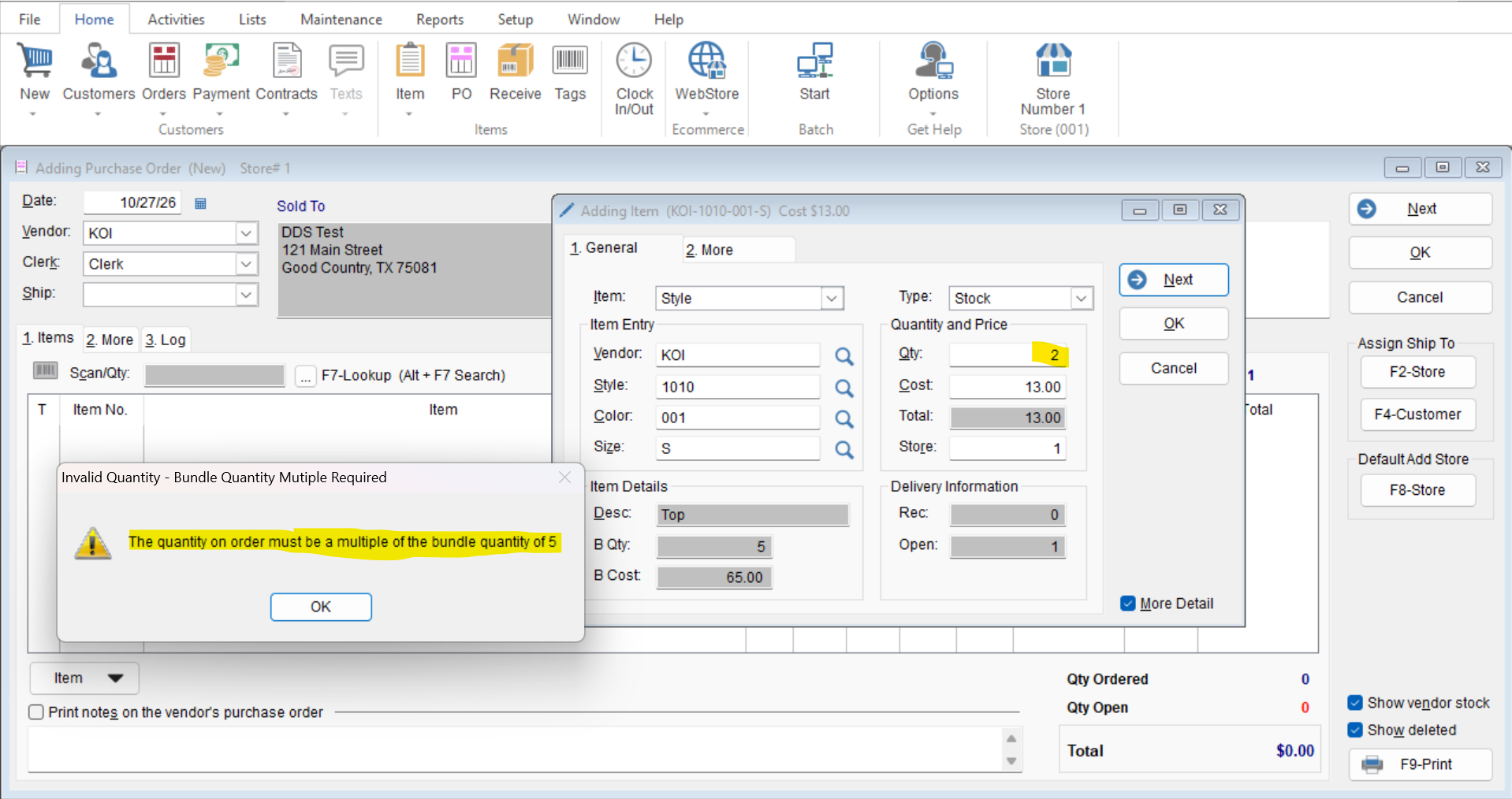
- This will allow you to dictate a certain Bundle Qty along with a Bundle Cost, note that this will not limit you from selling these items individually, this option is meant to control how the items get added to a Purchase Order. In our example we are using a Bundle Qty of 5 meaning we can only add this particular item onto our Purchase order in increments of 5. The following message will display if we try to add a different quantity of items.
*****NOTE FOR VENDORS******
Use Columns “J” and “K” in your import files to apply Bundle Qty and Bundle Cost for you items.