
Prices can be quickly updated using the Price Adjustment form.
Accessing the Price Adjustment Form
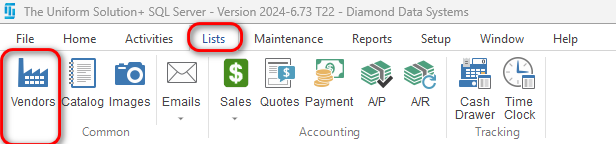
To access this form, go to: Lists > Vendors.
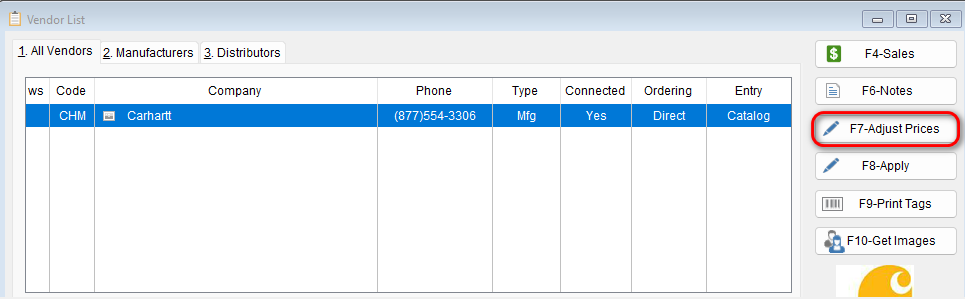
Highlight the desired vendor and select the F7-Adjust Prices button.
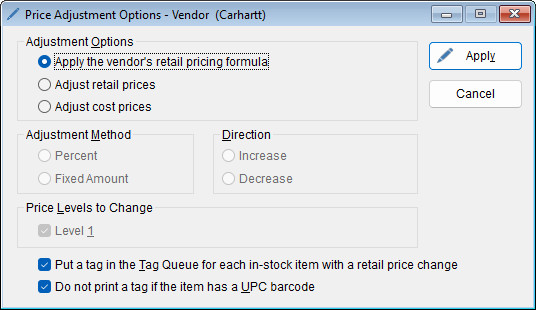
The Price Adjustment Options window will appear.
Configuring Price Adjustments
Under the Adjustment Options section, decide which “Adjustment Option” you’d like to affect.
-
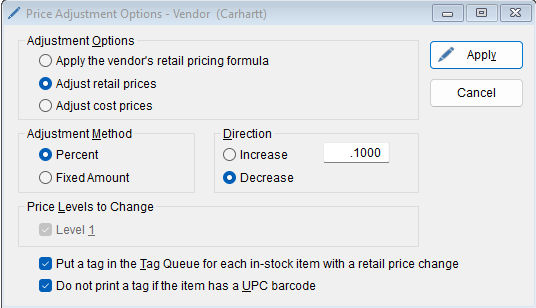
- Under Adjustment Method, select whether the adjustment will be a Percent or a Fixed Amount. Then select the Direction that you’d like to Increase or Decrease the price.
|
Important: Percentage Formatting When using a percentage, enter values in decimal format:
⚠️ Be careful when entering percentage values to ensure the correct adjustment is applied. |
Additional Options
- Price Levels
Select which price levels to update if multiple tiers exist. - Printing Options
At the bottom of the form, choose whether to:- Print price tags for each updated item
- Do not print a tag if the item has a UPC barcode
Applying Changes
-
-
Click Apply to save the changes.
-
-
-
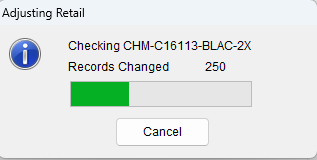
A progress window will appear showing the update status.
-
Verifying Updates
After the process completes, review your Catalog Pricing to confirm that the updates have been applied.