Adjusting Max/Min values is quick way to increase or decrease your max/mins for a vendor, department or style.
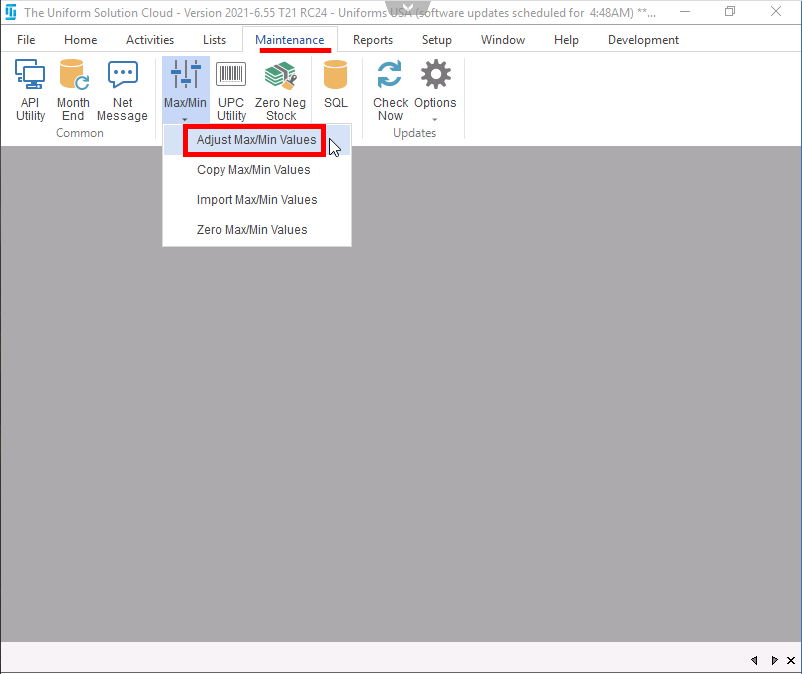
- To begin, go to: Maintenance > Inventory Utilities > Adjust Max/Min Values
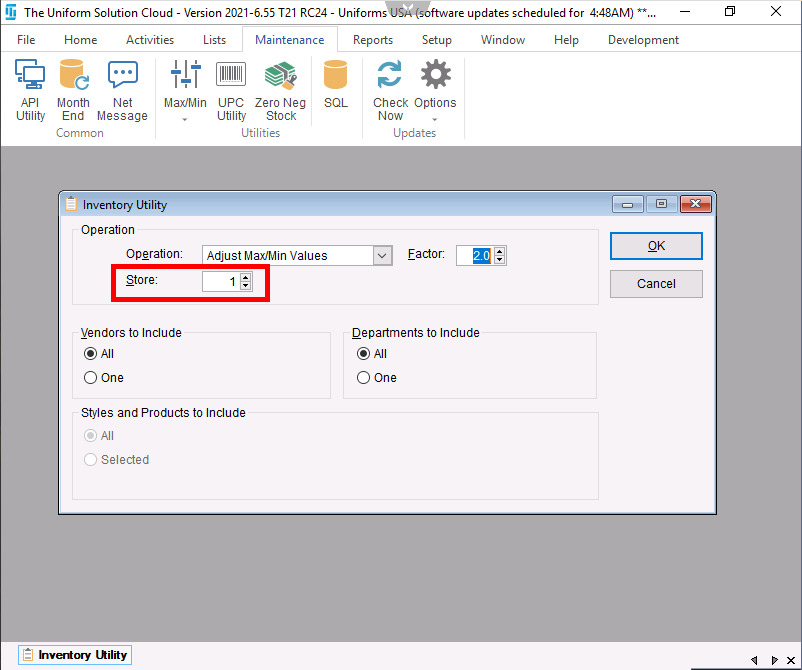
- The Operation should be set to Adjust Max/Min Values
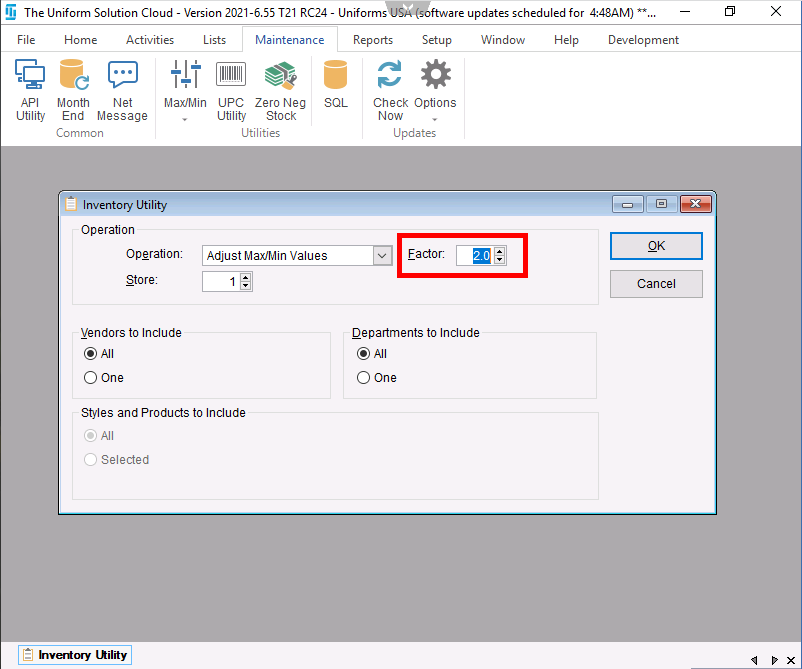
- The Factor field where be where you decide how you want to adjust the max/min values.
- For example: If you’d like to double your max/min values, enter 2.0 in the factor field
- If you have multiple locations, select the Store that you’re making adjustments for.
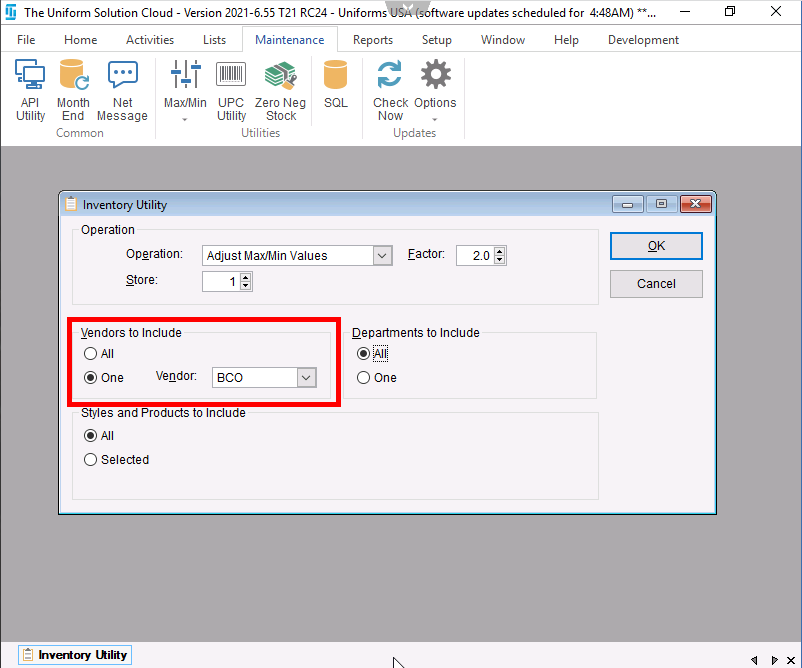
- Under Vendors to Include, select All or select One and use the drop-down menu to select the Vendor
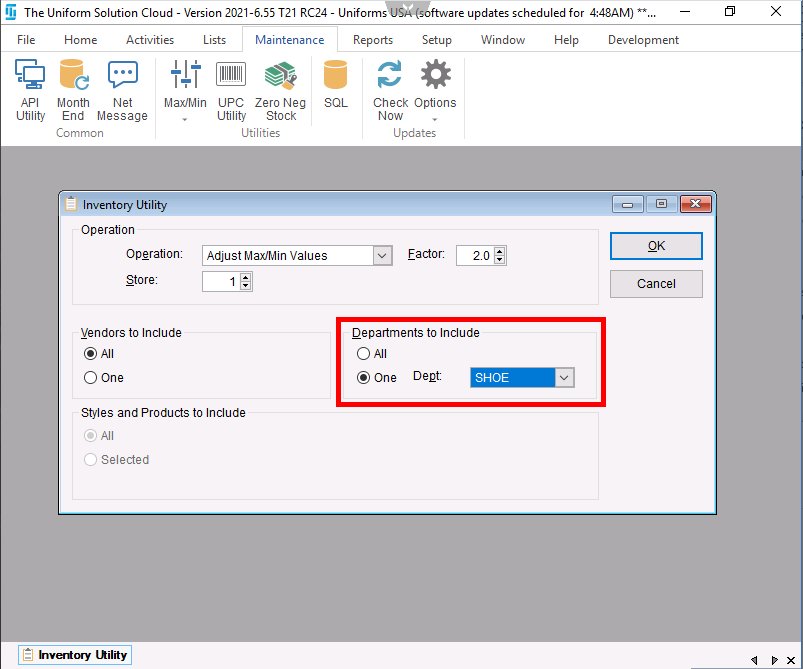
- In the Departments to Include section, select All or select One and use the drop-down menu to select the Dept
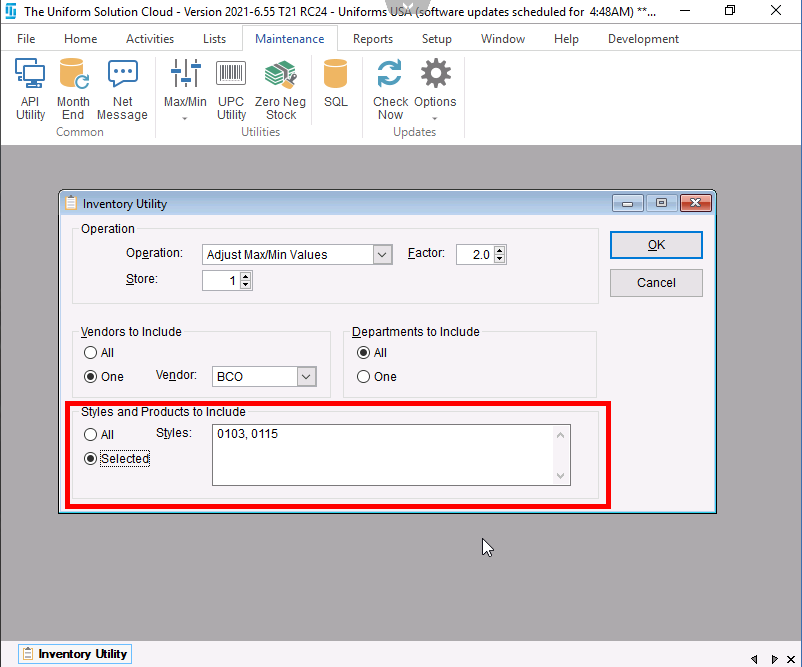
- In the Styles and Products to Include section, select All or Selected and enter the desired styles and products in the Styles field
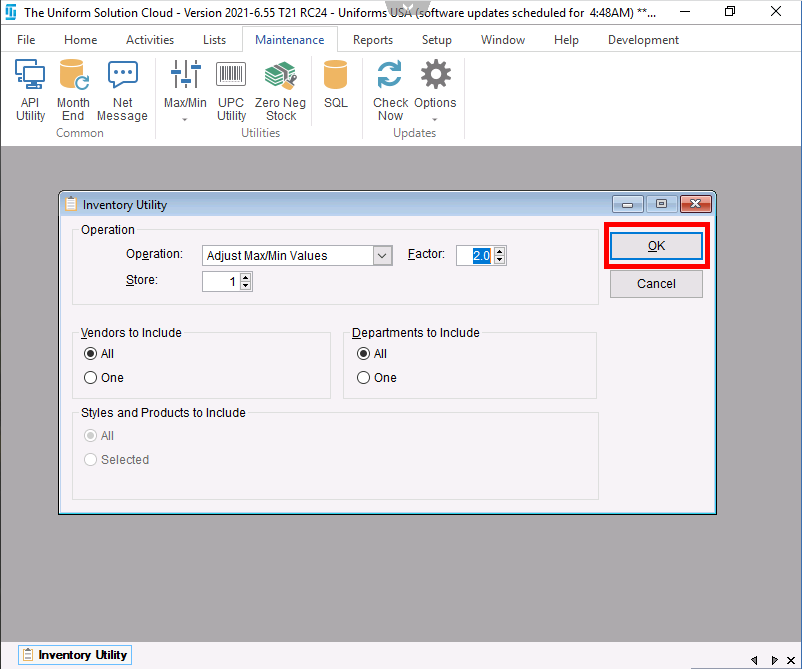
- Select OK
- An active screen will appear alerting you to how the process will effect your inventory. Select Yes

- A screen will appear letting you know what changes were made, select OK to close the process