
This article will cover how to delete a specific Purchase Order in TUS.
- First you will go to Home>PO to open your “Purchase Order List”
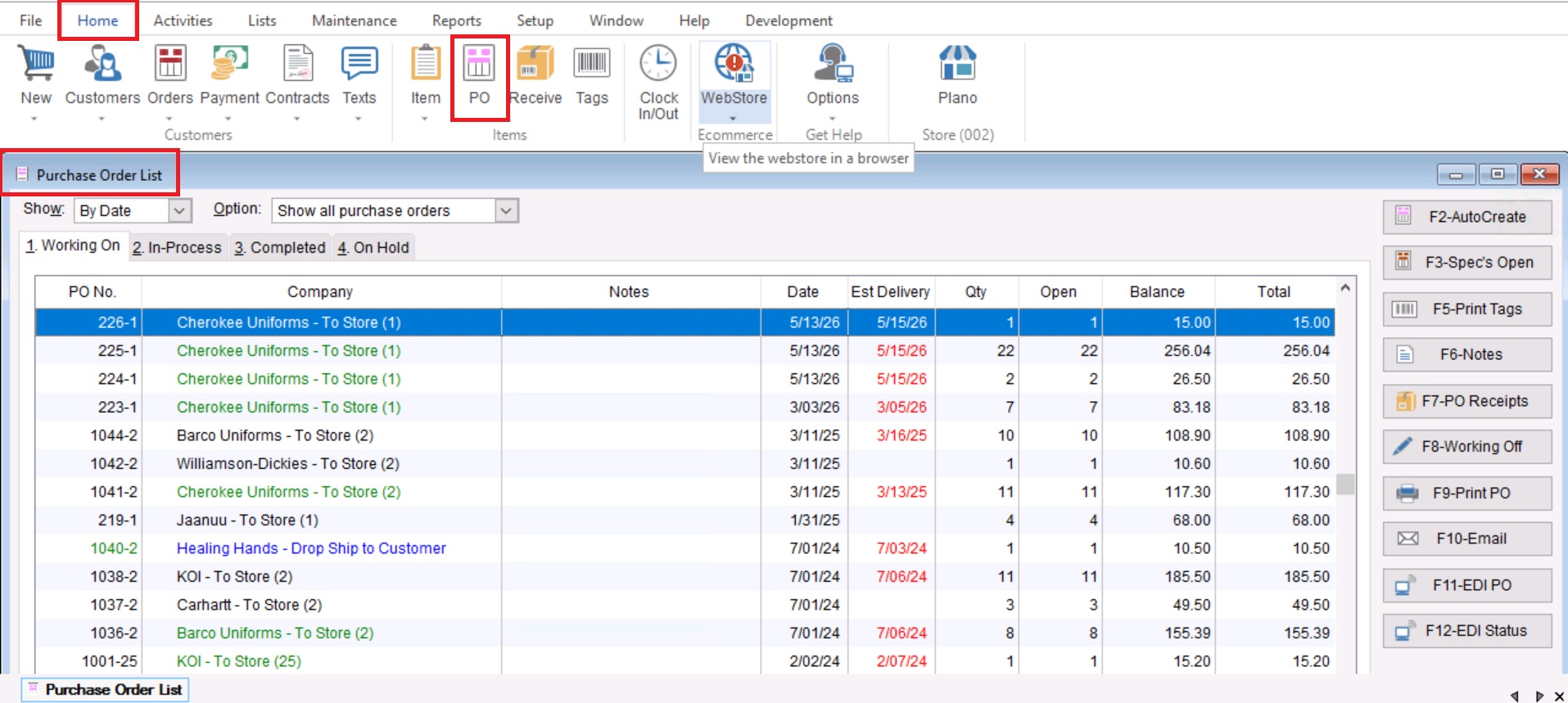
- Once you have opened your Purchase Order List, you will highlight the record we want to delete by single clicking on it.

- From here you will right click on the highlighted record and choose to “Delete Purchase Order”.

- Confirm deletion by selecting “Yes” on the screen that follows.
