
Zeroing Max/Min Values in Inventory
If you need to reset (zero out) maximum and minimum desired stock values—often used when reconfiguring reorder quantities or clearing incorrect Min/Max settings—you can do this through the Max/Min section of the Maintenance tab.
This tool allows you to zero values for specific stores, vendors, departments, or styles/products.
✅ When Should You Zero Max/Min Values?
You may want to use this utility when:
- Your Min/Max values are outdated or inaccurate
- You are implementing new reorder strategies
- You imported incorrect max/min values
- You want to start fresh before setting new automated reorder points
- Negative stock issues or incorrect replenishment settings need to be corrected
Note: Zeroing Max/Min values does not affect current on‑hand quantities—it only resets desired stock level settings.
✅ How to Zero Max/Min Stock Values
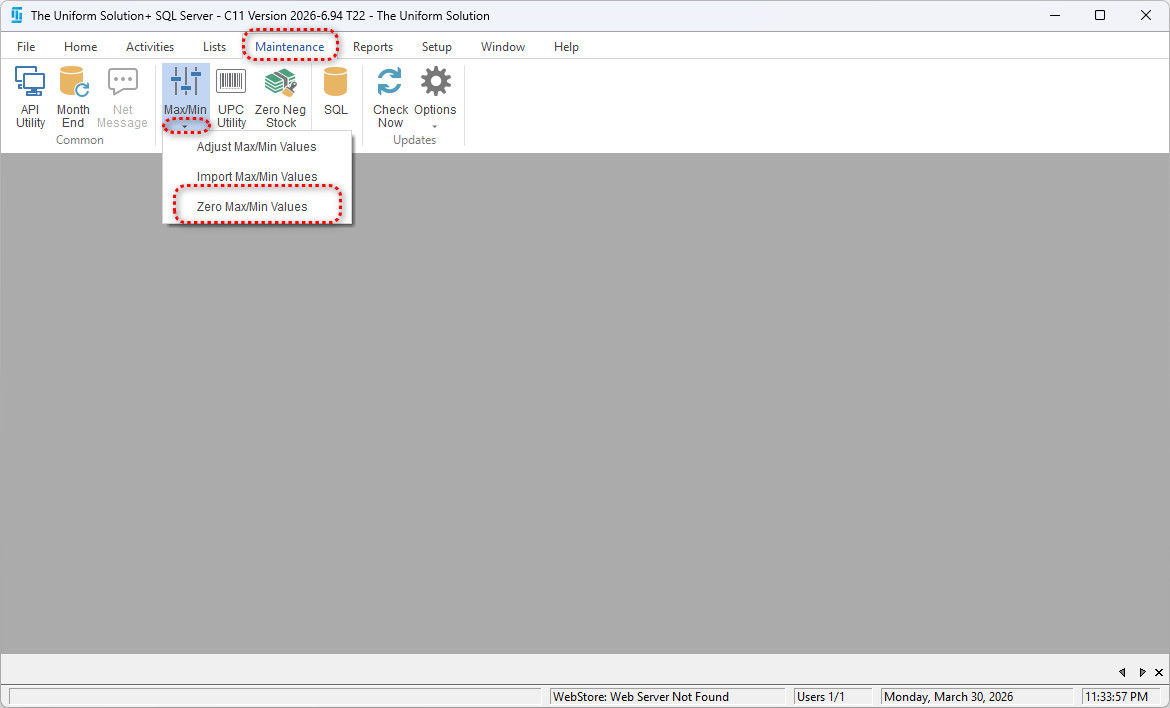
1. Open the Zero Max/Min Values Utility
Go to:
Maintenance > Inventory Utilities > Zero Max/Min Values
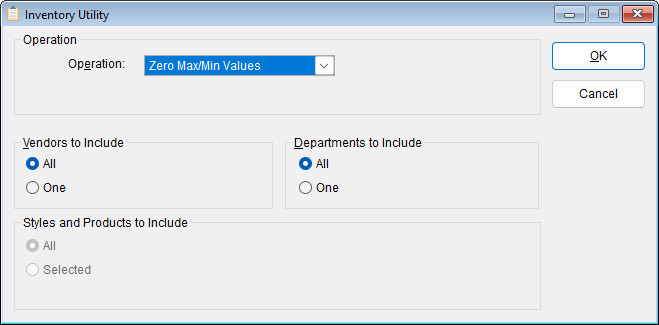
2. The Inventory Utility Window Appears
Here you will configure which records to include when zeroing Max/Min values.
You can choose:
- ✔ Vendors (all vendors or a specific vendor)
- ✔ Departments (all or specific)
- ✔ Styles/Products (all or selected list)
✅ 3. Apply Changes
Once all selections are configured:
- Click OK to reset Max/Min values according to your settings