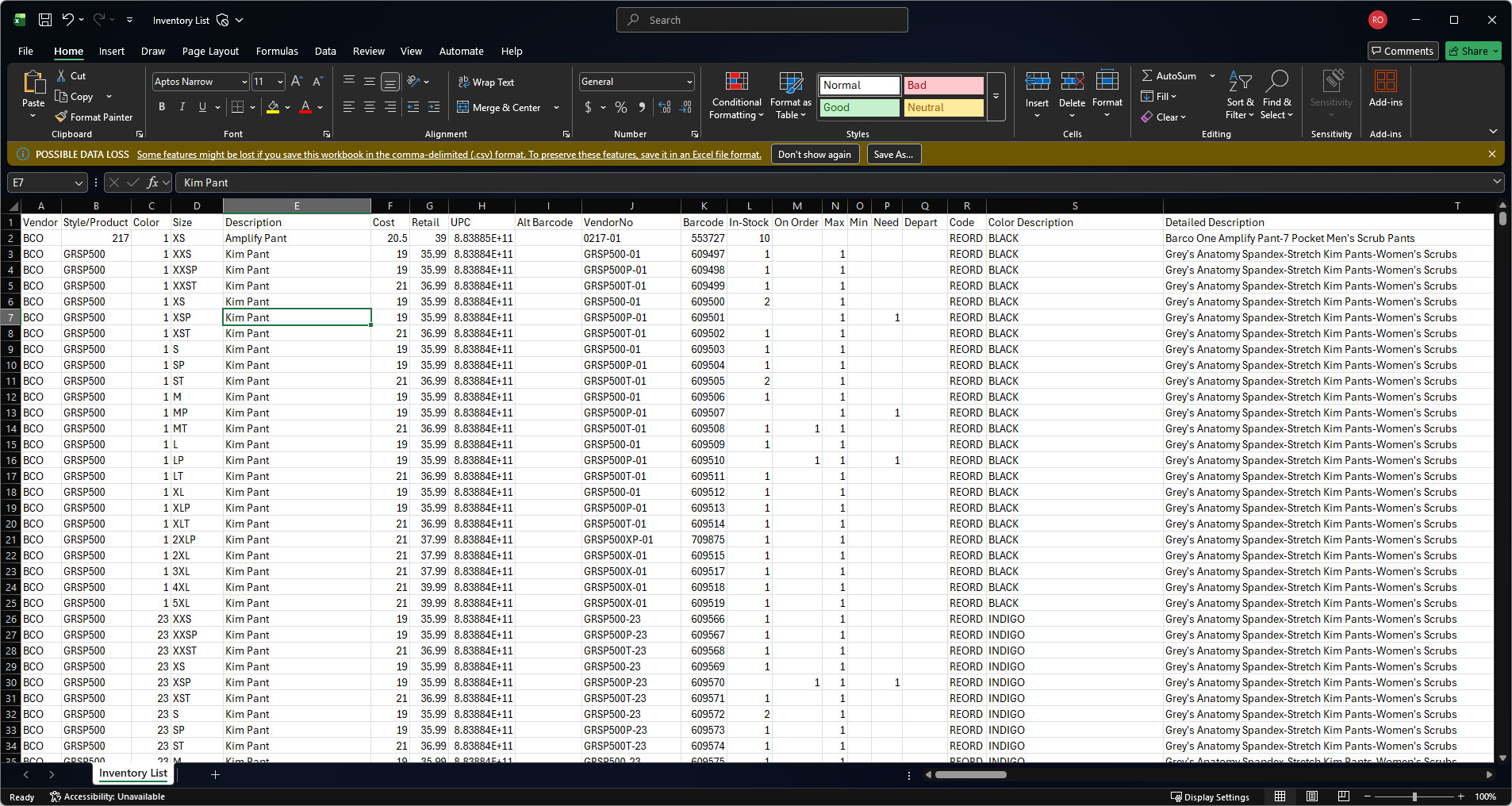
You can quickly export your inventory data from The Uniform Solution program to a .CSV file for reporting, analysis, or external use.|
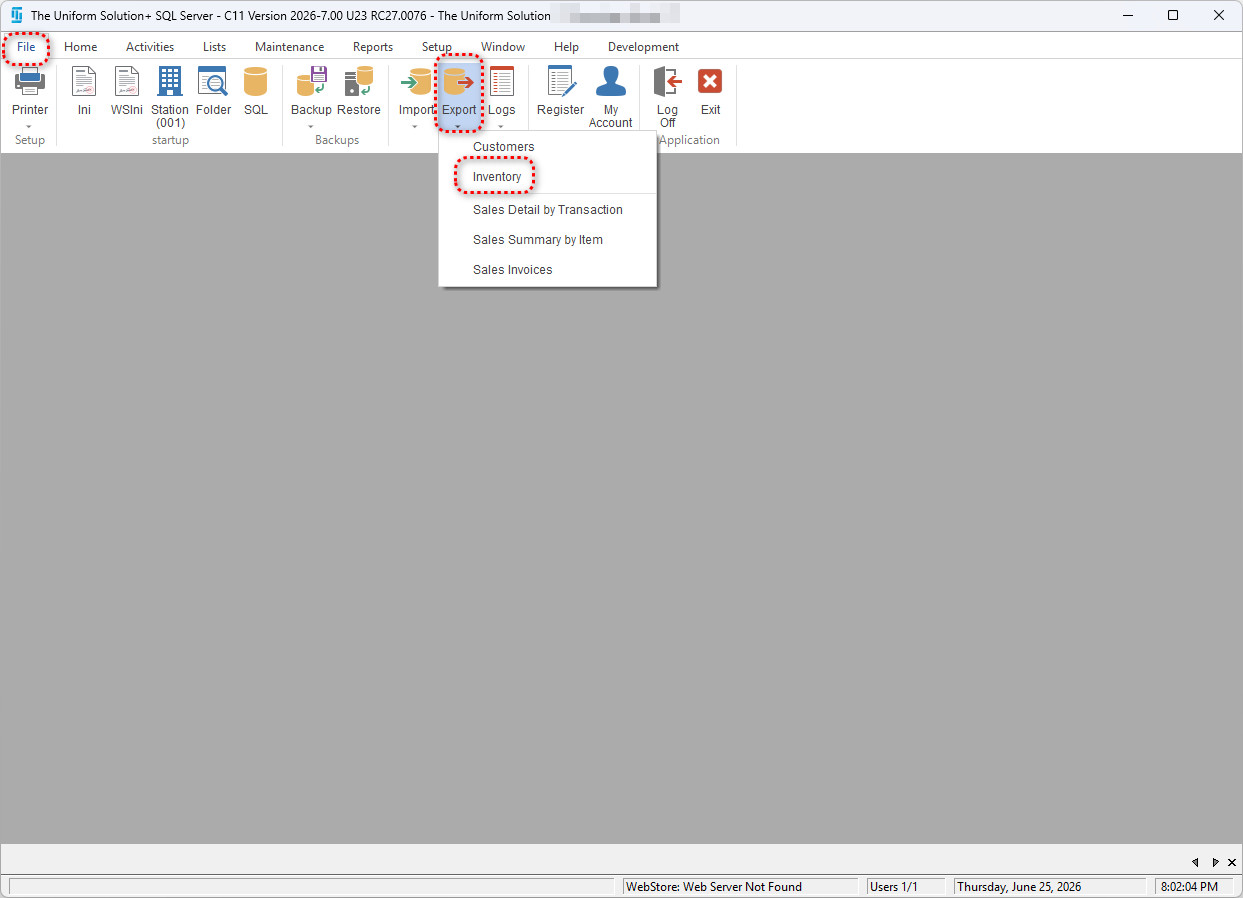
- To get started, go to: File > Export > Inventory
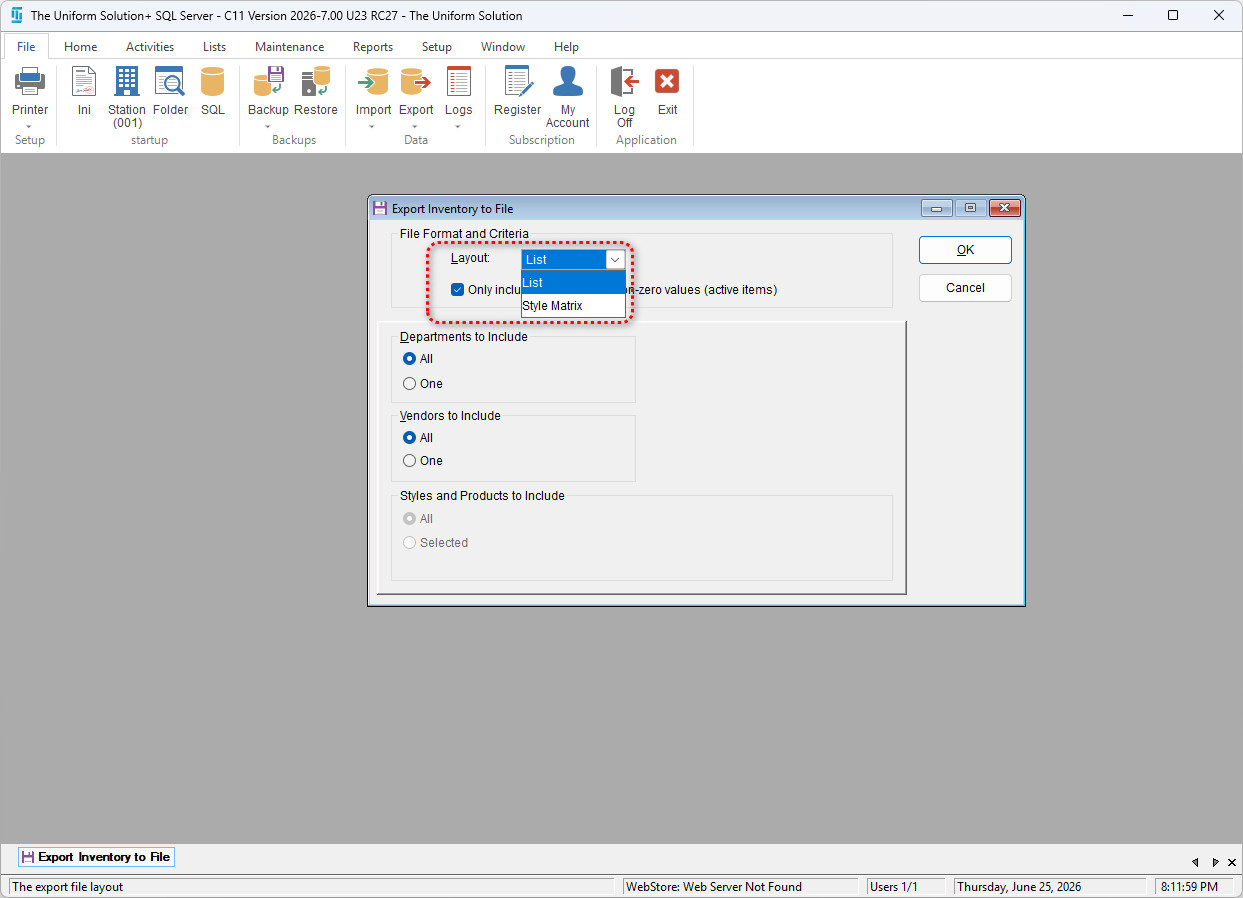
- The Export Inventory to File screen will appear allowing you to customize your options
- Use the drop-down menu next to Layout to select the desired layout
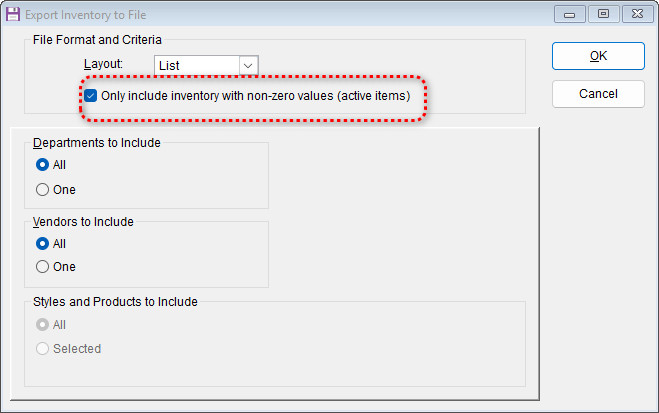
- Decide whether you want to only include inventory with non-zero values by checking/unchecking the following option:
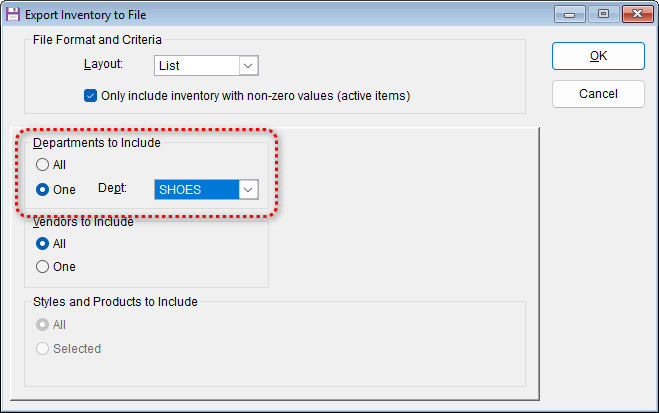
- Under “Departments to Include” either select All, or select One and then select the desired department from the drop-down menu
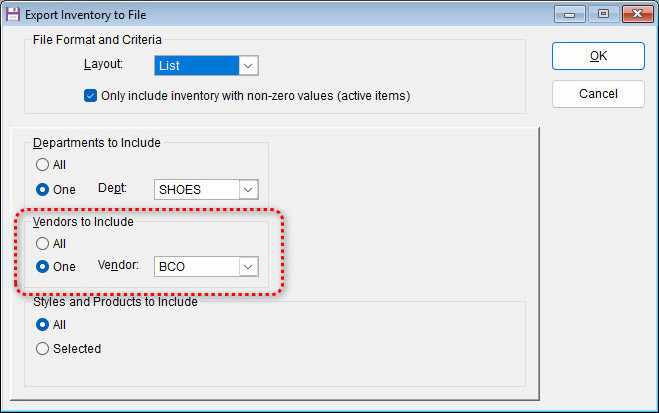
- Under “Vendors to Include” either select All, or select One and then select the desired vendor from the drop-down menu
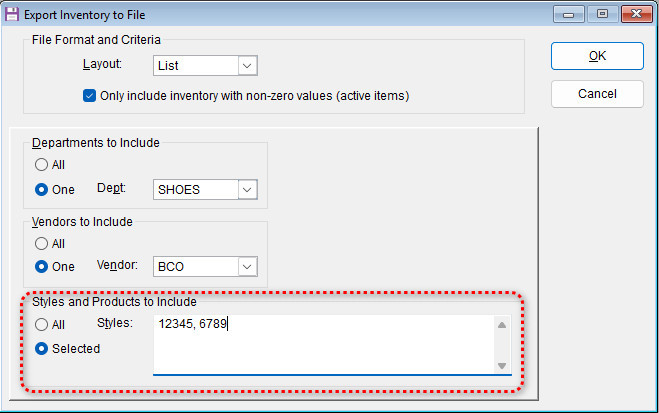
- Under “Styles and Products to Include” either select All or choose Selected and then enter the specific products/styles in the field
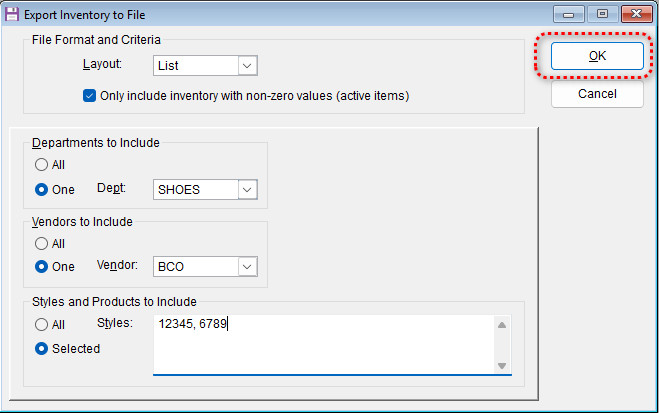
- Select OK to then save the file.
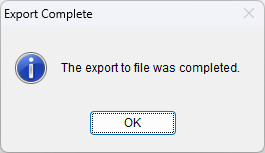
- When the export completes, an active screen will appear. Select OK to exit the utility
- You will then be able to open the file and see all the information on your current inventory including stock values, UPC codes, Descriptions, etc.