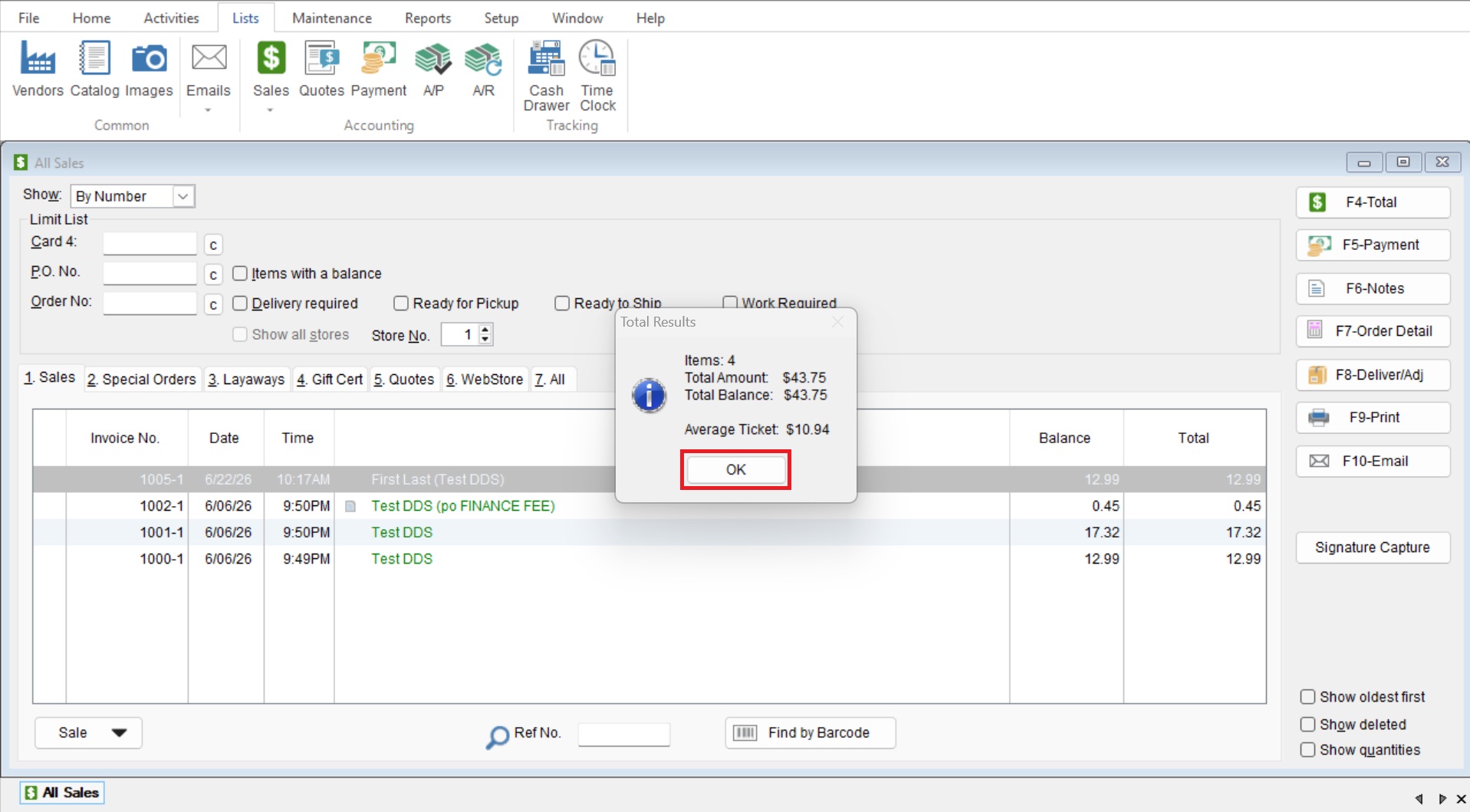
This article will cover how to get a summary of the total sales on your sales list, you can use this feature for your Sales by Date, Customers, and/or Orders screen. This will give you a overview of your combined sales for everything in your list.
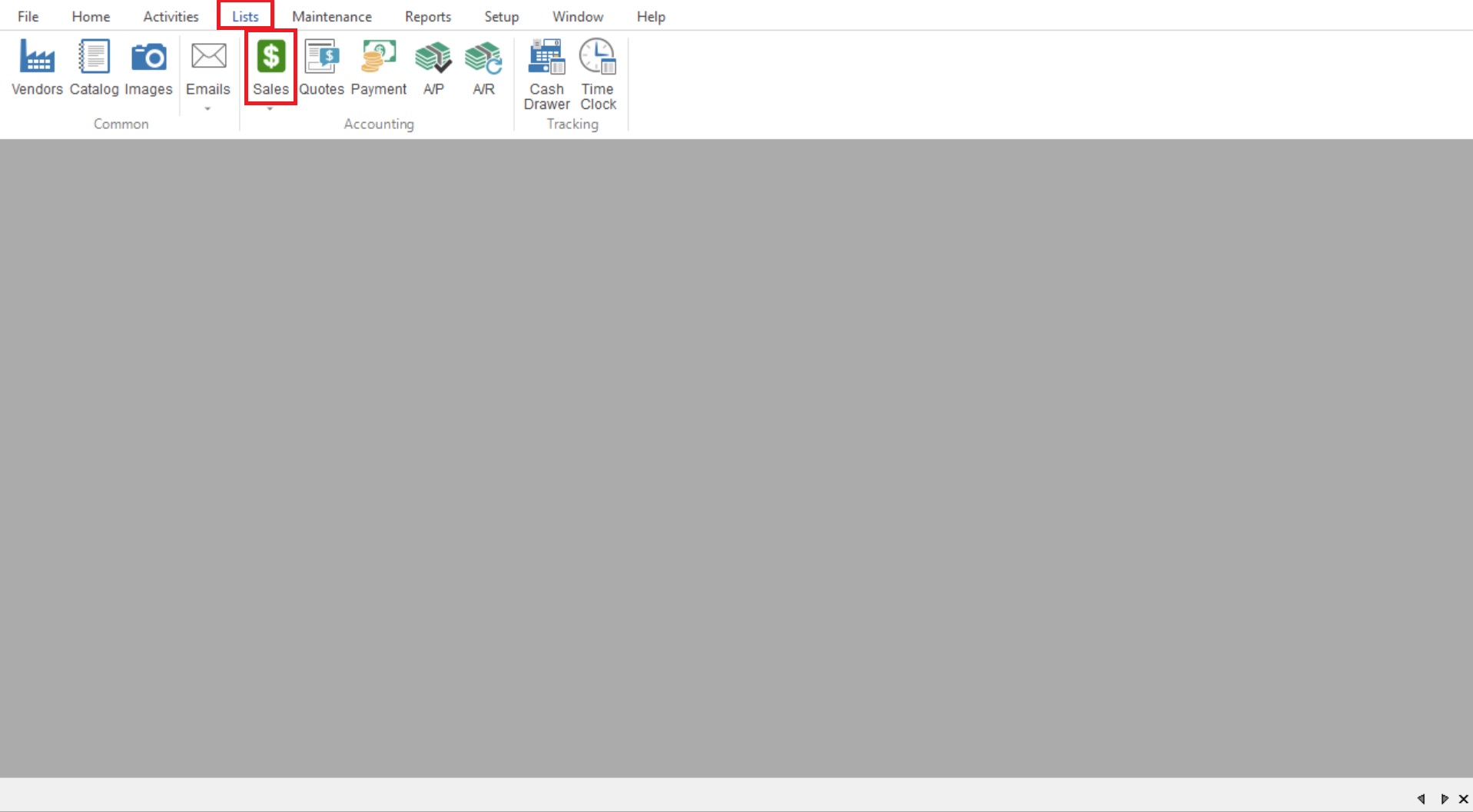
- To start you will go to “List>Sales” to open your Sales List (Note: You can use this feature for any sales list in the program. We are just using the general Sales list as an example.)
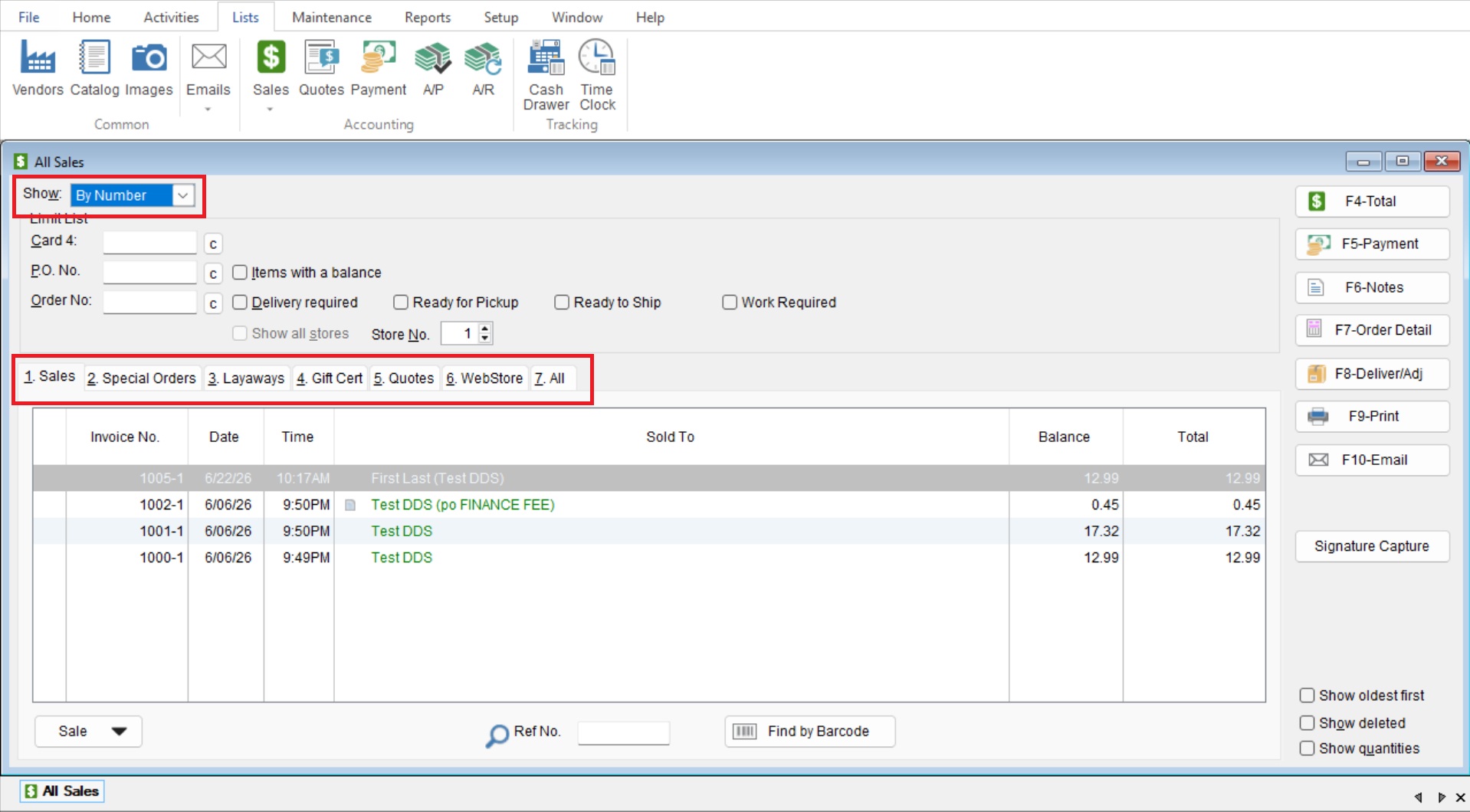
- Adjust the “Show” along with choosing the correct tab to view your desired Sales list.
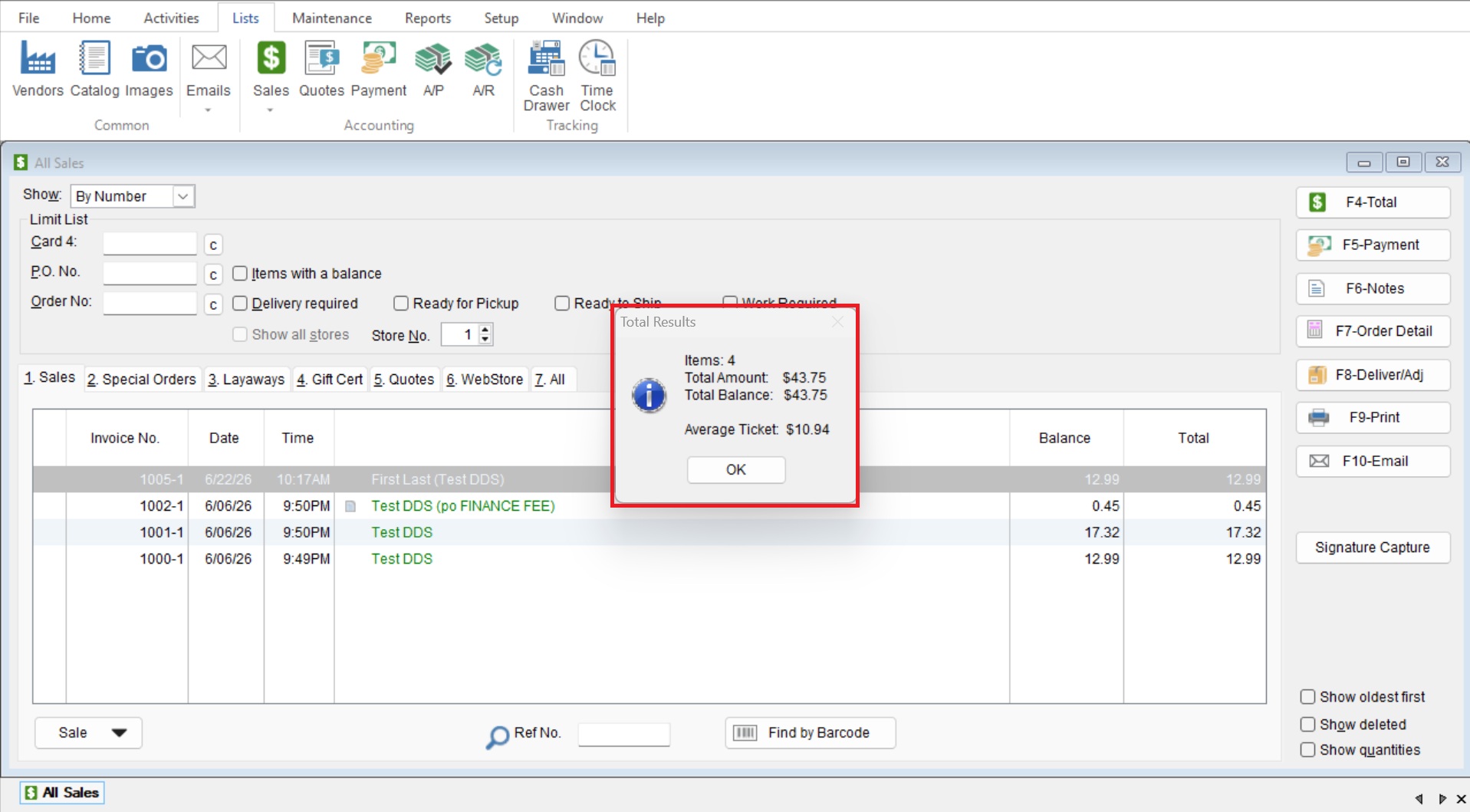
- Once you are viewing the correct list you can select “F4-Total” to see “Total Results” this will show you your “Item (Total Number of Sales)”, “Total Amount (The cumulative Total of all the sales in the list)”, “Total Balance (Total money owed on all sales)”, and “Average Ticket (Showing average totals across all the sales).
- When you’re finished reviewing the stats, select OK to close the active window