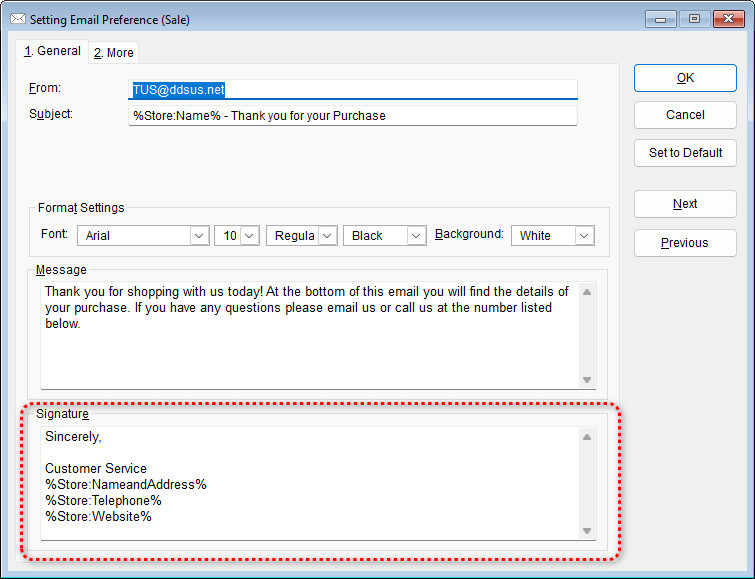
Within The Uniform Solution, you can personalize email templates for the different types of emails the system sends. Customizing these templates helps ensure your communication is professional, consistent, and branded for your business.
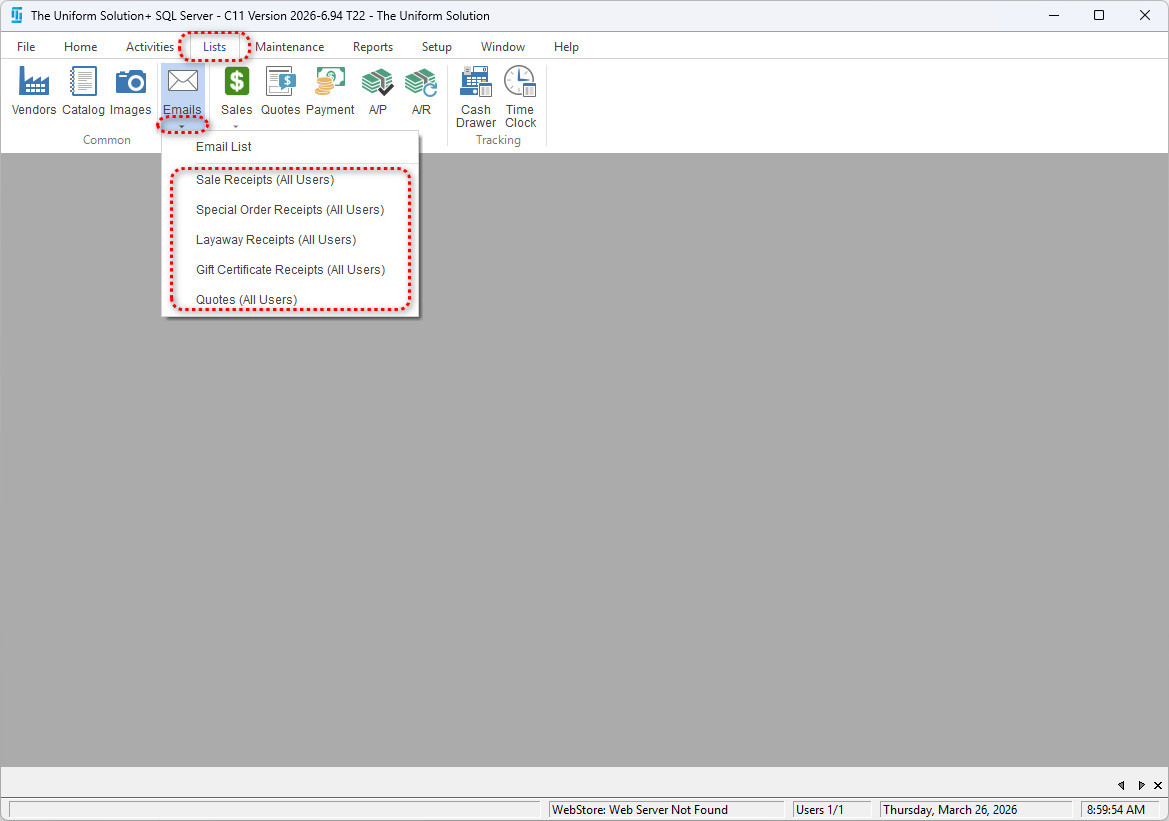
Accessing Email Templates
- Go to Lists > Emails.
- Select the drop‑down menu to view all available email templates.
- Choose the template you want to customize.
Editing Email Template Details
Once you select a template, the Email Template Editor will open. Here you can modify:
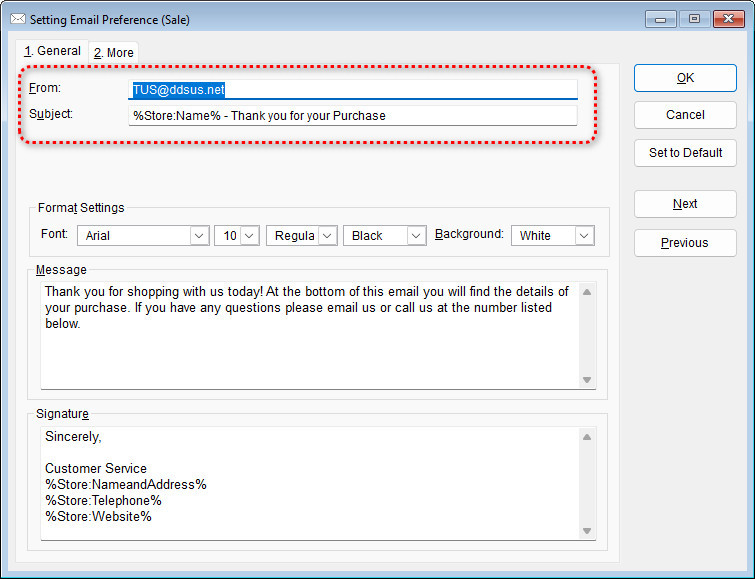
1. From Email Address & Subject
- The From field determines the email address that customers will see when receiving your message.
- The Subject field defines the default subject line for this template.
- Both fields may contain percentage‑sign placeholders (e.g., %StoreName%).
- Do NOT remove these placeholders. They automatically pull store information into the email.
2. Message Body
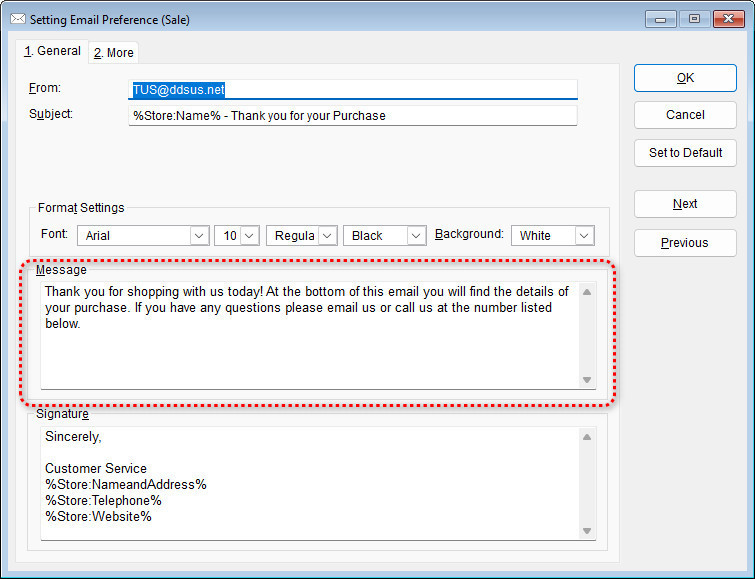
- The main body area is where you customize the text your customers will read.
- This can include:
- Order details
- Thank‑you notes
- Store information
- Instructions or important messages
3. Adding or Editing a Signature
- The Signature section lets you define the closing information for your email.
- Enter your:
- Store name
- Address
- Phone number
- Website
- Ensure any items surrounded by percentage signs (%) remain untouched unless instructed.